Event Tickets for Families: A Ticket for Each Child
Let parents reserve event spots for each child from one login, with a separate attendee record and My Tickets page per child.
The Events Calendar and Event Tickets are a natural fit for kids’ classes, workshops and camp sessions. You publish an event, add a ticket, and families reserve their spots. The trouble starts when one parent needs spots for two or three children.
Event Tickets ties each order to the person who is logged in. On a family account that is the parent, so every ticket lands under the parent’s name and you are left guessing which child is coming. This guide shows how to give every child their own ticket, their own attendee record and their own My Tickets page while the parent keeps one login. Everything here was tested with Event Tickets 5.31 and The Events Calendar 6.18.
The sibling problem with event tickets
A parent who buys two spots for a Saturday art class ends up with one order and two tickets, both recorded under the parent’s name, because the attendee name comes from whoever is logged in. The organizer sees two attendees with the same name. Check-in becomes a guessing game, and if the class has an age range, there is no record of which child each spot was for.
The common fixes all push work onto someone. Event Tickets Plus can add attendee fields so the parent types each child’s name at checkout, which means typing the same names again for every class. A separate WordPress account per child keeps the records clean but asks the parent for a separate email address and password per child, the problem we cover in registering kids without email addresses.
A ticket and attendee record for each child
The short version: the parent logs in once, picks a child, and reserves that child’s spot. Each child gets their own order, their own attendee record and their own My Tickets page.
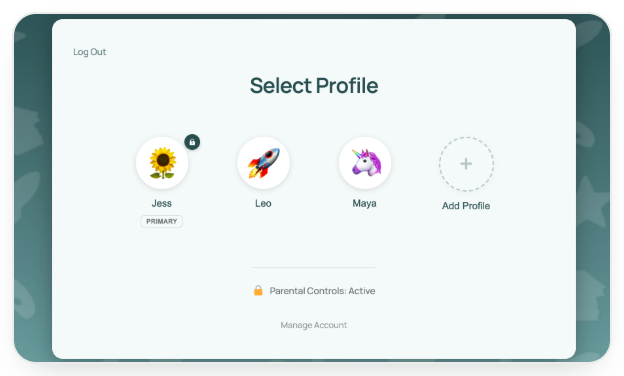
ProfileSwitch adds a profile picker after login, the same pattern families know from streaming services. Each profile is a real WordPress user, so when a child’s profile is active, Event Tickets sees that child as the customer.
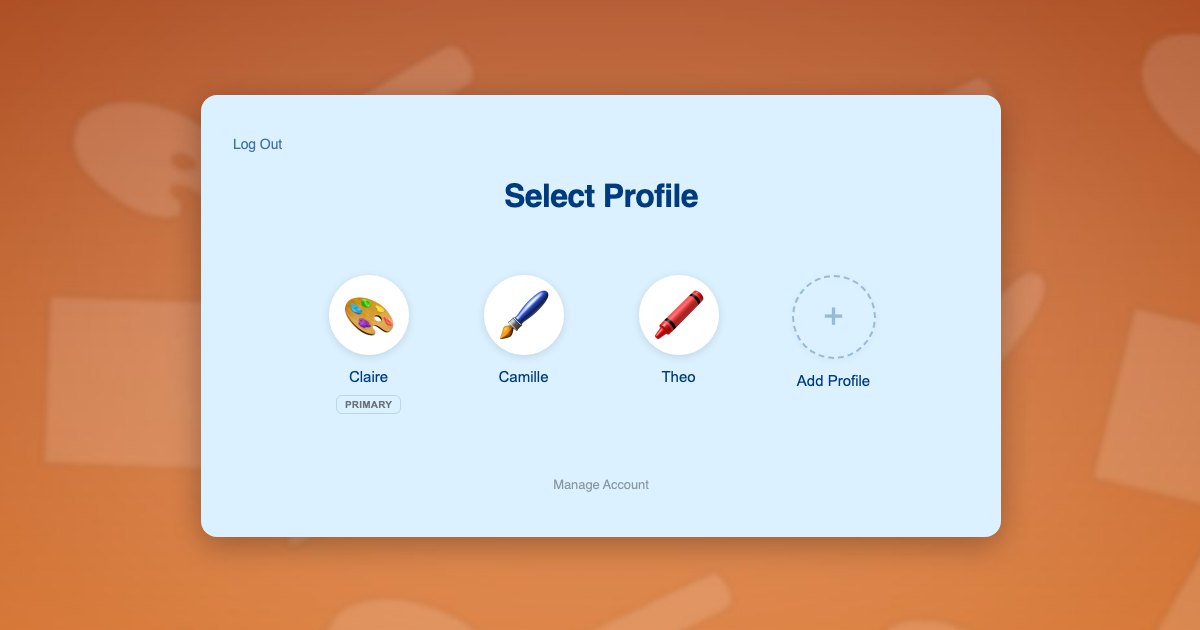
On our test site we published a free “Saturday Art Class (Ages 6-10)” event with one ticket type. A parent with two children then did the following:
- Switched to the first child and reserved one spot. Event Tickets created an order and an attendee record owned by that child.
- Switched to the second child and reserved one spot. The second order and attendee were owned by the second child.
- Opened My Tickets on the event as each child. Each child saw only their own order, labelled with their own name.
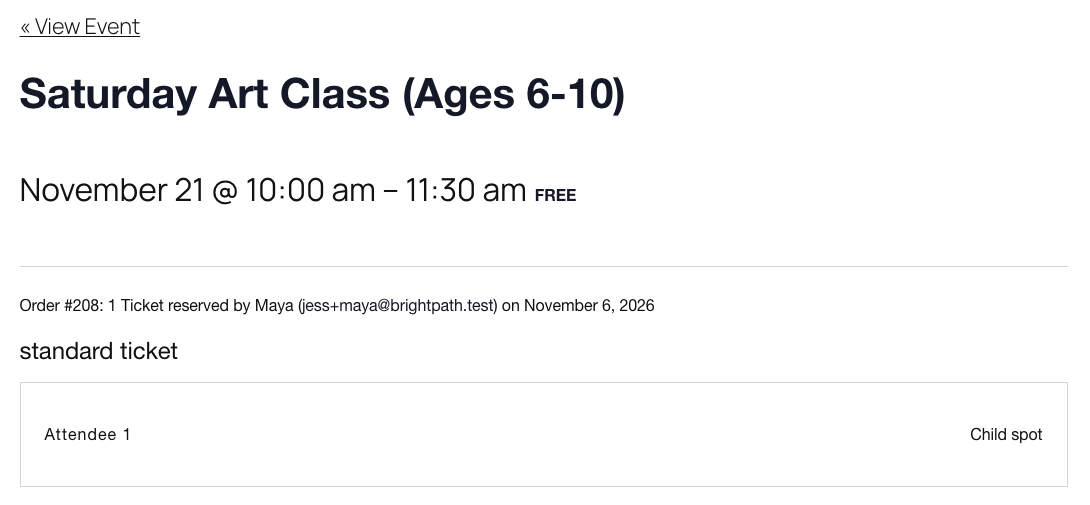
Each order is recorded with the child’s plus-addressed email address, a copy of the parent’s address, so any ticket email Event Tickets sends for a child goes to the parent’s inbox. The parent never creates a new email account.
What the organizer sees
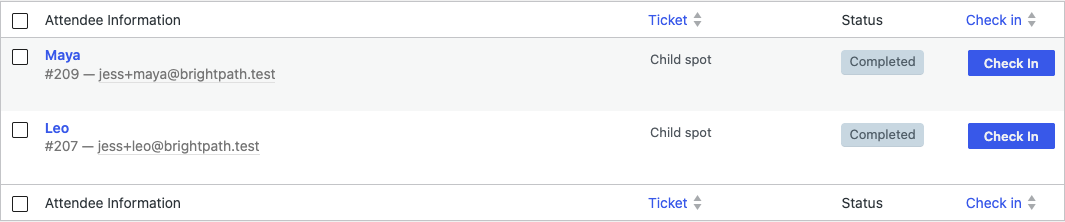
This is where the change pays off. In the event’s attendee list in wp-admin, each child appears as their own attendee, by name, with their own Check In button. Staff can check children in one at a time on the day, and the list matches the children who actually turn up.
If you run camps or multi-week programs, the same idea applies to every session. Our guides on registering multiple children for camp and building a summer camp registration form cover the rest of that workflow.
Setting it up
- Install and activate ProfileSwitch using the getting started guide. Your events and tickets are not changed.
- Create the profile switcher page and link it from your menu, so parents can change profiles before they book.
- Let parents add a profile for each child. A profile only needs a name.
- Optionally set a PIN on the parent profile in PINs and parental controls, so children cannot book or change things from the parent’s profile.
- Tell families to switch to a child before booking. One line next to your Get Tickets button is enough.
This is a good fit for kids’ art classes, workshops, clinics and any event where each ticket is really for one child.
Frequently asked questions
Does ProfileSwitch need an Event Tickets integration?
No. Event Tickets records each order and attendee against the logged-in WordPress user, and switching profiles changes which user is logged in. ProfileSwitch ships dedicated integrations only for Paid Memberships Pro, WooCommerce and BuddyPress or BuddyBoss. Event Tickets works because each profile is a real WordPress user.
Do children need their own email addresses for tickets?
No. Each child profile has a plus-addressed copy of the parent’s email address, so any ticket or order email for a child goes to the parent’s inbox.
Can a parent see all of their children’s tickets on one page?
Not in one combined list. Each child’s My Tickets page shows that child’s own tickets, so the parent switches profiles to check each one. The organizer, on the other hand, sees every child on the event’s attendee list.
Does this work with paid tickets?
Our test used a free ticket through Tickets Commerce. Paid tickets go through the same checkout and are recorded against the same logged-in user, but we did not run a live payment, so test your own payment gateway before you launch.
Do I need Event Tickets Plus?
Not for this. Event Tickets Plus adds custom attendee registration fields, which is the usual way to collect each child’s name. With a profile per child, the attendee is already the child, so the free plugin was enough for our test.
ProfileSwitch
Family profiles for your WordPress site
One login for the family, with separate progress and purchases for every child. Works with the membership, course and store plugins you already use.