
A parent opens your camp site in February with three children to sign up for three different weeks. They have one email address, one browser, and no interest in creating three accounts. What happens in the next four minutes decides whether you get three registrations or an email asking your office to enter them by hand.
This guide is about that specific moment: how to let one login register multiple children for camp so each camper still gets their own record, their own sessions, and their own medical and placement notes. If you are building the form itself, the companion piece on the summer camp registration form in WordPress covers the field structure.
Why families arrive with one login
Camps have an unusually high rate of multi-child registrations compared to most things sold online, and almost every one of those families is operating from a single account. There are four reasons, and none of them are going away.
- Children under thirteen have no email address. Even where they do, a parent is not going to hand registration over to a nine-year-old’s inbox.
- Households share one email in practice. One parent handles signups for everything, and that parent’s address is the one your camp already has on file.
- One device, one logged-in session. The registration happens on a phone in a kitchen. Logging out and back in three times is where registrations get abandoned.
- Parents expect to stay in control. They want to see and change every camper’s information later, which means the parent needs to be the account holder, not three separate children.
Put together, the household wants one login and your site needs three records. That gap is the family accounts in WordPress problem, and camps hit it harder than most because the multi-child case is the normal case rather than the exception.
The three workarounds, and what each one breaks
Ask for one account per child
This is the honest, structurally correct answer, and it fails at the front door because WordPress requires a unique email per user. Parents either invent addresses they immediately forget, or hand-manage plus-addressed aliases and lose track of which is which. Then they still have to log out and back in to see each camper. The full cost of both routes is in register kids without email addresses and the UX problem with email aliases.
Put every camper in a repeater field
One account, one submission, a repeatable block labelled Camper 1 through Camper 3. It is quick to build and it collects everything. What it does not produce is a camper: your rosters, allergy lists, and sibling discounts all become spreadsheet work because the children are field values rather than users. The specific failure modes are listed in the summer camp registration form in WordPress guide.
Register them yourself over the phone
Plenty of small camps do this, and at low volume it genuinely works. It stops working at exactly the wrong time, because the week your registrations peak is the week your staff has the least capacity. It also moves data entry from the person who knows the answers to the person who does not.
All three are attempts to reconcile one login with several children. The fourth option is to stop treating that as a conflict.
What one login with a profile per camper looks like
ProfileSwitch: one parent account, a profile per camper
ProfileSwitch adds a profile picker to your WordPress site, the same pattern streaming services use and the reason people describe it as Netflix-style profiles for WordPress sites. The parent creates one account and adds a profile for each camper. Each profile is a real WordPress user with its own name, avatar, sessions, and data, but no separate email or password: the plugin generates the address from the parent’s own, so all mail still goes to the parent. Switching camper takes one click and no logout.
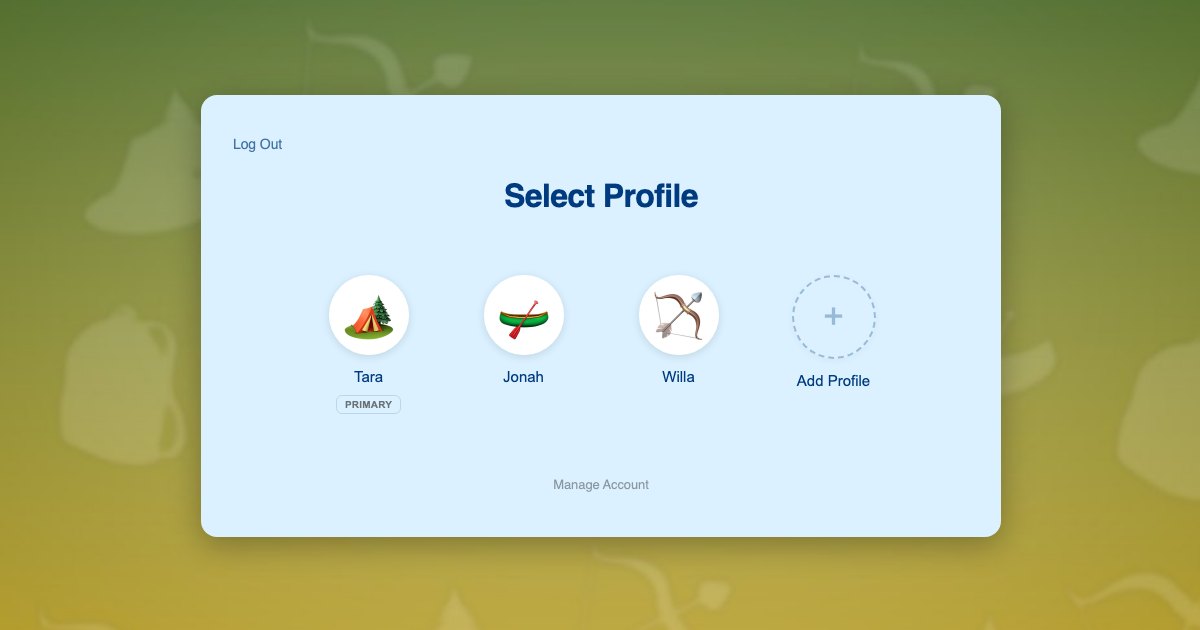
From the parent’s side the registration reads like this:
- They create one account with their own email, as they would on any site.
- They add a profile for each camper: a name and a picture, nothing more. Preset avatars mean a six-year-old picks a canoe instead of uploading a photo, and you can also automatically assign unique avatars so every camper is visually distinct.
- They switch into the first camper and complete that camper’s questions: birth date, sessions, swim level, allergies, cabin request.
- They pay for that camper’s weeks.
- They click the switcher, pick the next camper, and repeat. Their own details and card are already on file.
Each answer lands on the camper it is about, because the parent was operating as that camper when they gave it. That is the whole mechanism. The Managing Profiles documentation covers what the parent can see and change afterwards, which is everything, for every camper.
Paying for each camper in a single sitting
The part camps usually ask about is money: if there is one account, is there one purchase? There does not have to be, and for camp there usually should not be. Each camper is going to different weeks at a different price, so each camper wants their own registration attached to their own record.
On WooCommerce
The parent switches to a camper, adds that camper’s sessions to the cart, and checks out. The order attaches to that camper’s user, so your Week 3 roster and that camper’s payment history are the same query. Sibling discounts still work as coupons, and the WooCommerce integration handles what is shared across profiles and what is not. If you would rather run a single cart for the whole family, shared accounts in a WooCommerce store covers that shape.
On Paid Memberships Pro
Create a level per program and let the parent buy one for each camper from inside that camper’s profile. Nothing is shared, each camper’s enrollment is independently tracked, and the parent still never logs out. If you do want the streaming-service model where one purchase covers everyone, the Paid Memberships Pro integration can extend a single membership to every profile on the account. That fits a year-round family membership better than it fits week-by-week camp sessions, so treat it as the exception.
- Bill per camper when sessions, dates, or prices differ between children, which at camp is nearly always.
- Share one purchase only when the thing being bought is genuinely household-wide, such as an annual family membership that includes open-swim access.
- Keep checkout behind a PIN if younger campers use the site themselves. The PINs and Parental Controls documentation covers locking cart and billing pages, and parental controls to WordPress explains the wider pattern.
Next February, the campers are already there
The return visit is where this stops being a data-modelling preference and starts being retention. A parent who registered three campers last year logs in, sees Tara, Jonah, and Willa on the switcher, picks one, and chooses new weeks. Nothing is retyped. No account recovery email is needed, because there was only ever one account and it belongs to an adult who uses that email daily.
On your side, last season’s data is still attached to each camper: swim level to progress from, the allergy record, the group they were placed in, the friend request that worked. None of that survives in a form entry, and all of it is the basis for the returning-family emails that fill your early sessions. The same argument applies to any program that runs in seasons, which is why it shows up again in youth sports registration site with WordPress.
Frequently asked questions
How many children can one parent account register?
As many as you allow. The maximum profiles per account is a setting, and camps generally want it higher than the default because four and five child households are common. Set it above your largest expected family; there is no benefit to keeping it tight.
Do the children ever need to log in?
No, and for young campers they never should. The parent logs in and switches profiles. Only if you want older campers to have independent access do you enable custom credentials for those profiles, which gives that camper their own email and password while keeping them on the family account.
Can a camper change or cancel their own registration?
Not unless you let them. Cart, checkout, and account pages can be PIN-protected so only the parent gets through, and profiles are not account managers unless the parent promotes them. A camper profile can see their own sessions without being able to spend money.
Does the parent get all the camp emails, or does each camper?
The parent. Because each camper profile’s address is generated from the parent’s real address, anything your site sends to a camper arrives in the parent’s inbox. You do not have to choose between per-camper records and reaching an adult.
What if two campers want to attend the same week?
That is the easy case and it still needs separate records. Both campers get their own registration for the same session, which is what makes your roster count correct, your cabin placement possible, and your per-camper medical notes distinct. Shared registrations are where same-week siblings get counted as one.
We already have a registration form. Do we start over?
No. The profile layer sits in front of whatever you already use. You keep your existing form, form plugin, or WooCommerce products, and change which record the camper-level answers save to. The summer camp registration form in WordPress guide covers that change, and the hooks and filters reference has what you need if a developer is wiring it up.
One family login. A record for every camper.
ProfileSwitch adds Netflix-style family profiles to any WordPress site. Works with Paid Memberships Pro, WooCommerce, BuddyPress, and every major form and commerce plugin.