
A parent lands on your site to sign up their two kids for a course, a team, or a program. The registration form asks for an email address. The eight-year-old does not have one. The eleven-year-old has one her school issued that she has never opened. The parent pauses, and a lot of them close the tab right there.
WordPress was built around one assumption: one user, one email address, one person. That assumption is fine for a blog with commenters. It breaks the moment your users are children and your customers are their parents. This guide covers why WordPress insists on an email, the five ways site owners work around it, what each workaround costs you six months later, and how to give every child their own account without asking anyone for an address they do not have.
Why WordPress wants an email for every user
The email address is doing three jobs in WordPress. It is the unique identifier that stops two people registering the same account. It is the delivery address for password resets and notifications. And it is what almost every plugin reaches for when it needs to contact a user, from order receipts to course completion certificates.
The default registration form makes it required. Membership plugins make it required. Commerce plugins make it required and then send receipts to it. So when a child needs an account, the site owner faces a real constraint rather than a form setting they forgot to untick.
The deeper problem is that a child’s account is not really the child’s. The parent pays, the parent consents, the parent needs the reminders, and the parent is the one who will call you when a password stops working. Any solution that gives the child a standalone identity, email and all, puts the account in the hands of the one person in the household who cannot manage it.
The five ways sites handle it today
Every family-facing WordPress site has landed on one of these. Most have tried more than one.
1. Make the email field optional
A snippet or a form-builder setting removes the requirement. Registration gets easier for about a week. Then the first child forgets their password and there is no address to send the reset to. Your membership plugin fails silently when it tries to email a receipt. A plugin update assumes a deliverable address and throws a notice. You have removed the field but not the three jobs it was doing.
2. Ask parents to invent an email
This is the most common answer, usually by accident. Parents type in something like emma.soccer2026 at a free mail provider, or make up an address that does not exist. If the address is real, it is one more inbox nobody checks. If it is fake, every message your site sends bounces, and some mail hosts penalize your sending reputation for it. Either way the parent forgets the credentials by next season and you spend support hours on accounts that should never have existed.
3. Share one login for the whole family
One account, one email, everybody uses it. This works right up until the site needs to know who is who. Course progress for two children merges into one record. Quiz scores overlap. A team roster shows a family surname instead of a player. If you run a community plugin, siblings post under the same name. The family accounts guide walks through the full list of what breaks, and it is longer than most people expect.
4. Have parents set up plus-addressed aliases themselves
Gmail and most other providers deliver mail sent to parent+emma at the same domain into the parent’s inbox. So a site owner tells parents to register each child with a plus-addressed variant of their own email. WordPress gets its unique address, the parent gets all the mail, and each child is a real user. It works technically, which is why it is so widespread. The trouble is that the workaround is visible. Parents have to remember which alias belongs to which child, log out and back in to switch between them, and untangle password reset emails that all arrive in the same inbox. We wrote about the UX problem with email aliases in detail, and it is the reason this post exists.
5. Buy a dedicated platform
Camp software, studio management systems, and youth sports platforms all solved family registration years ago, at a price. You pay a monthly fee or a per-registration cut, your family data lives on their servers, and your WordPress site turns into a brochure that links out to someone else’s checkout. For organizations that already run their program on WordPress, that is a big step backwards to solve one form field.
What the parent actually wants
Strip away the implementation and the requirement is simple. One login, in the parent’s name, using the parent’s real email. A profile for each child, with the child’s name and a picture they picked. Separate progress, separate registrations, separate data for each child. Every email about any child lands in the parent’s inbox. And the parent stays in control of anything involving money or account settings. The picture is worth its own decision, and the case for a fixed set rather than an upload field is in kid-safe profile pictures.
Streaming services figured this out a decade ago. Nobody creates a separate Netflix account for a six-year-old. The account holder adds a profile, the child taps their face on the screen, and the viewing history stays separate. The same Netflix-style profile pattern is what families expect from every site they use, including yours.
How ProfileSwitch registers kids without an email
ProfileSwitch adds profiles to WordPress accounts. The parent registers once, normally, with their own email and password. After logging in they see a profile picker with their own profile and an Add Profile button. They type the child’s name, pick an avatar from the set you uploaded, and save. That is the entire registration for the child. No email field, no password field.
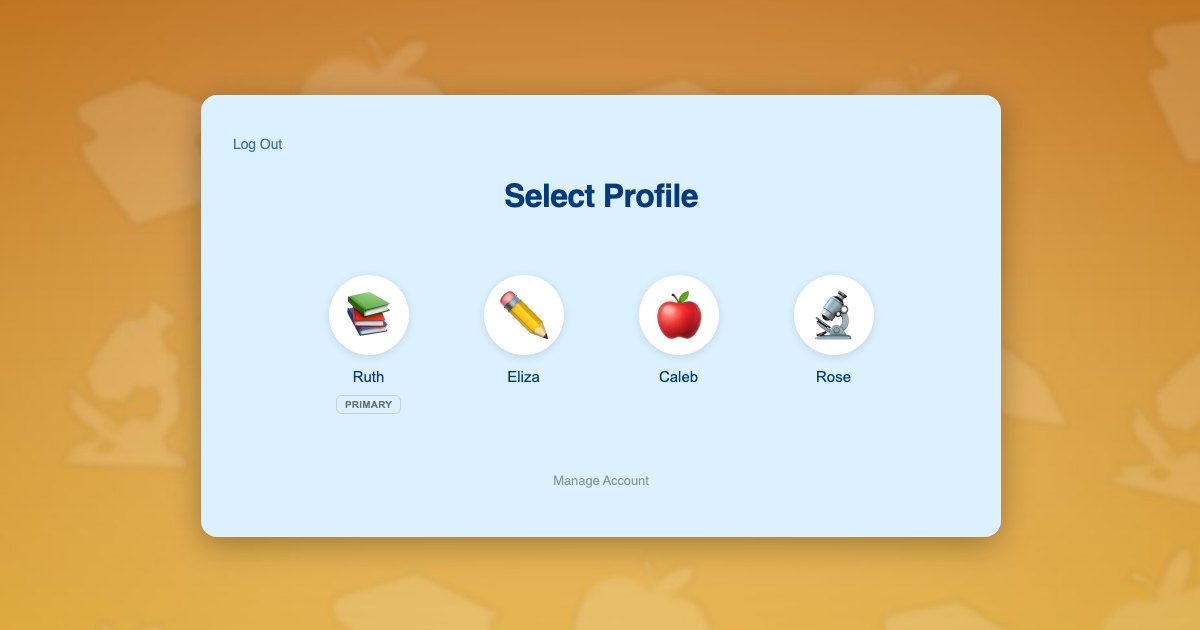
Behind the scenes, ProfileSwitch creates a real WordPress user for the child. It generates a plus-addressed variant of the parent’s email, such as parent+emma at the parent’s domain, and appends a number if two children share a name. WordPress gets the unique address it requires. Every notification addressed to the child arrives in the parent’s inbox. And the parent never has to see, type, or remember any of it, because they switch to the child’s profile from the picker rather than logging in as the child.
Because each profile is a genuine user, everything else on your site keeps working. Your course plugin tracks each child’s progress separately. Your membership plugin sees each child as its own member, so a parent can switch to a child and register that child for a program with Paid Memberships Pro while the payment is tied to that child. Your community plugin gives each child their own profile fields. Nothing needed to be rewritten to understand families.
Keeping the parent in control
Registering a child is only half the job. The other half is making sure a child using the parent’s device cannot wander into checkout, cancel a subscription, or change account details. ProfileSwitch handles this in three layers.
- Profile PINs. A parent can lock their own profile with a PIN so a child cannot switch into it from the picker. PINs are hashed like passwords and rate-limited against guessing.
- Parental controls. You choose which pages on your site are sensitive, typically checkout, cart, account, and subscription pages. Child profiles hit a PIN gate on those pages instead of the page itself.
- Profile managers. A second parent can be given their own real email and password and promoted to manager, so both adults can log in from their own devices and manage every child. The Managing Profiles documentation covers how.
Together these mean the child has an identity on your site without having an account they control. The parent consents, the parent receives every message, and the parent decides what the child can reach.
Setting it up
The whole configuration takes a few minutes and needs no code.
- Install and activate ProfileSwitch, enter your license key, and create the profile switcher page from the General tab. The Getting Started guide covers this step.
- Upload a set of preset avatars that fit your audience so children can pick a picture instead of uploading a photo.
- Turn on Profile PINs and Parental Controls from the PINs & Parental Controls tab, and select the pages that child profiles should not reach.
- If you use Paid Memberships Pro or WooCommerce, enable the relevant integration so registrations and orders from child profiles are visible to the parent.
- Optionally, enable Custom Credentials under Advanced so older children or a second parent can be given a real login of their own.
From then on, the registration page your visitors see is unchanged. The parent registers as themselves. The children get added afterwards, from the profile picker, with a name and a face.
Frequently asked questions
Can WordPress create a user without an email address at all?
Technically yes. The underlying user function accepts an empty email, and a custom registration form or a snippet can skip the field. But the default registration form requires it, password resets stop working for that user, and many membership, LMS, and commerce plugins assume every user has a deliverable address. It is possible, not advisable.
Is it legal to collect a child’s information on my WordPress site?
In the United States, COPPA applies to sites that collect personal information from children under 13 and requires verifiable parental consent. Similar rules exist elsewhere. A registration flow where the parent creates the account and adds child profiles keeps the parent as the person consenting and the person receiving every message. This is not legal advice, so check the rules for your audience.
Do parents see the plus-addressed emails ProfileSwitch creates?
Only if they go looking. The Add Profile form asks for a name and an avatar, and the address is generated behind the scenes. Parents log in with their own email and pick a profile. The email alias problem exists when families manage aliases themselves, not when the plugin does it for them.
What if my email provider does not support plus addressing?
Gmail, Outlook, iCloud, Fastmail, Proton, and most business mail hosts deliver plus-addressed mail to the base inbox. If a parent’s provider does not, the child profile still works because the child never logs in with that address. The only effect is that notifications addressed to the child’s user would not arrive, and the parent still receives everything addressed to their own account.
Can an older child have a real login of their own later?
Yes. With the Custom Credentials option enabled in the Advanced settings, a parent can give a profile its own email address and password when creating it. A teenager can then log in independently on their own device while still appearing under the family account, and the parent can still switch to that profile.
Does this work with my membership or course plugin?
Almost certainly. Each profile is a real WordPress user, so LearnDash, LifterLMS, Tutor LMS, LearnPress, Sensei, MemberPress, Restrict Content Pro, and WishList Member track each child separately without any special integration. ProfileSwitch ships dedicated integrations for Paid Memberships Pro, WooCommerce, and BuddyPress or BuddyBoss, where data needs to be shared across profiles.
Register every child. Ask for one email.
ProfileSwitch gives each child a real WordPress account under the parent’s login, with no email address required. Works with Paid Memberships Pro, WooCommerce, BuddyPress, and every major LMS.