
Gravity Forms Family Registration: Entries for Each Child
Let parents register each child with Gravity Forms from one login, with the child’s name pre-filled and every entry saved under that child.
Gravity Forms is the registration form behind a lot of kids’ programs: swim lessons, music lessons, sports clinics, tutoring. The form collects the child’s name, level, allergies and permissions, and the entry becomes the registration.
When a parent registers more than one child, every entry comes from the same logged-in parent. Your entries list fills with submissions that all belong to one user, the parent types each child’s details from scratch every time, and nothing ties an entry to a particular child beyond whatever was typed into a text box. This guide shows how to give each child their own entries under one parent login. Everything below was tested on a demo site with Gravity Forms.
Why every entry belongs to the parent
Gravity Forms stores the logged-in user on each entry as its “Created By” user, and merge tags such as {user:first_name} read from that same user. On a family account there is only one user, the parent, so every child’s registration is filed under the parent.
The usual fix is a separate WordPress account for each child, which means a separate email address and password for each child. We cover why families resist that in registering kids without email addresses.
A profile per child, entries per child
The short version: the parent logs in once, picks the child they are registering, and the form fills in that child’s name. The entry is saved under that child’s own user.
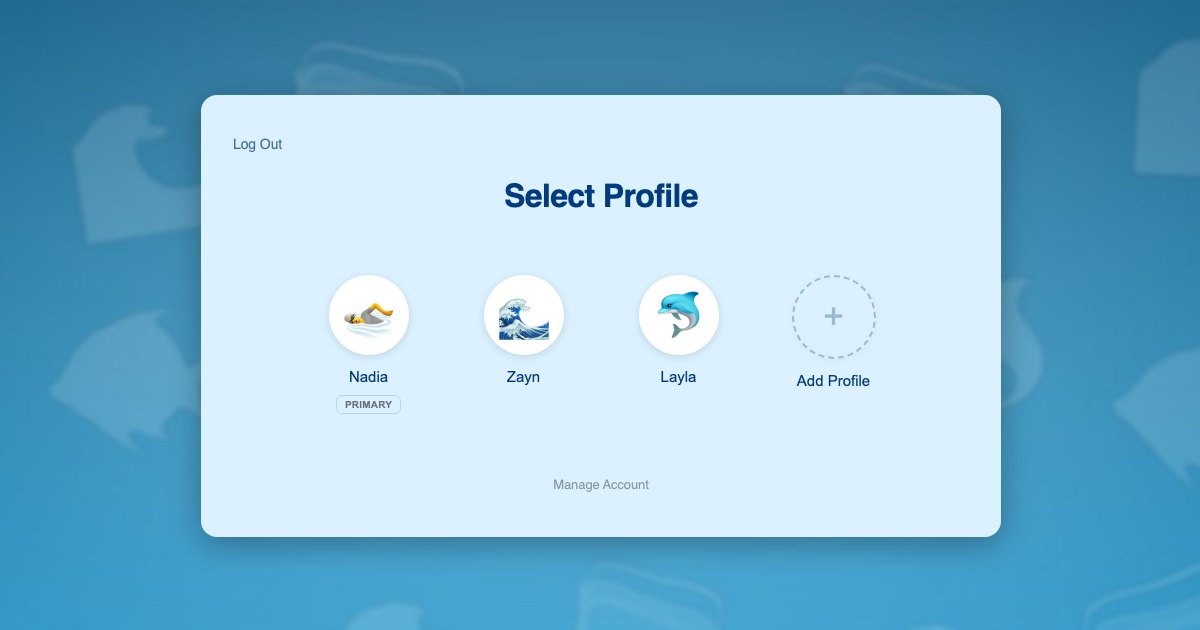
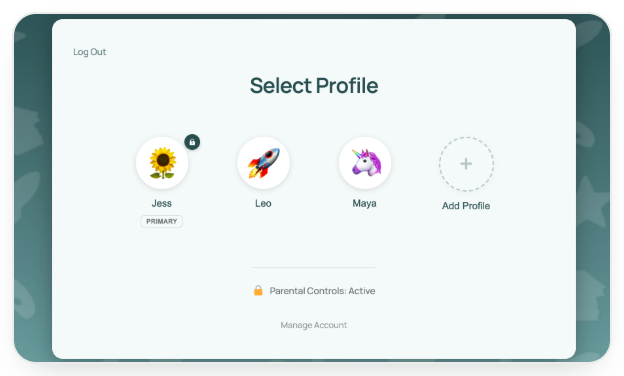
ProfileSwitch adds a profile picker after login, the same pattern families know from streaming services. Each profile is a real WordPress user, so when a child’s profile is active, Gravity Forms treats that child as the logged-in user.
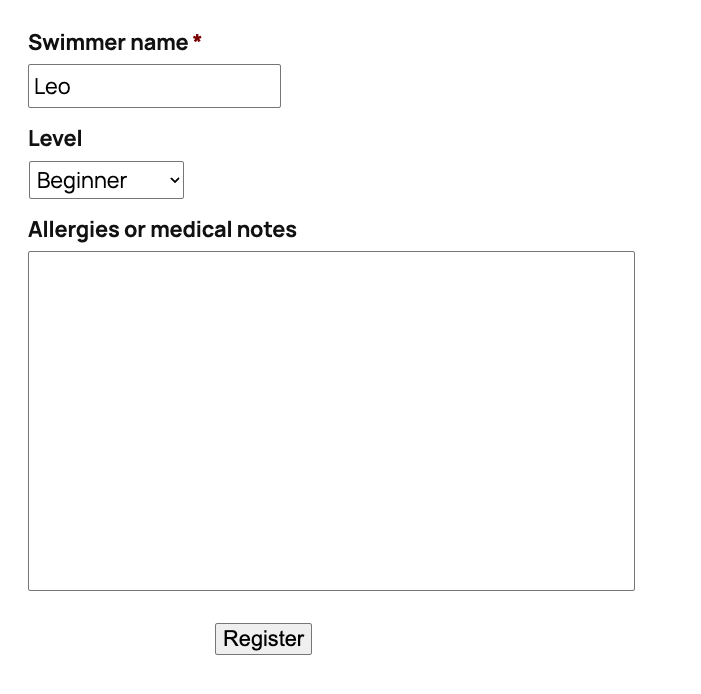
On our test site we built a simple “Spring Swim Lessons Registration” form with three fields: swimmer name, level and allergies or medical notes. The swimmer name field used {user:first_name} as its default value, and the form required a login. A parent with two children then registered each one:
- Switched to the first child and opened the form. The swimmer name was already filled in with his name.
- Picked a level, submitted, then switched to the second child. The form now showed her name instead.
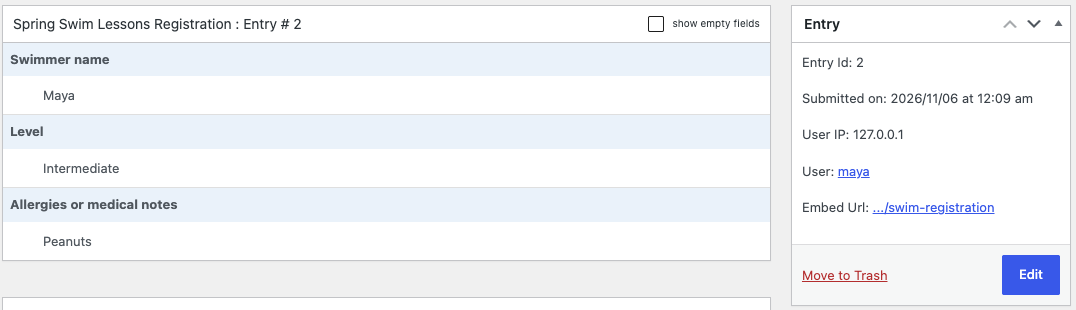
- Submitted again. Gravity Forms saved two entries, each one recorded under that child’s own user.
Why this matters for your registrations
Because each entry is owned by a child’s user, anything you do with Gravity Forms’ logged-in user now works per child. You can see which child an entry belongs to at a glance, and each child’s registrations stay separate from their siblings’. We tested {user:first_name}; Gravity Forms’ other {user:…} merge tags read from the same logged-in user, so they follow the active profile in the same way.
If your registrations are really bookings for dated sessions, the same approach works with The Events Calendar, as we showed in giving each child their own event ticket. For camps, see our guide to building a summer camp registration form, and for lessons, our swim school family accounts guide.
Setting it up
- Install and activate ProfileSwitch using the getting started guide. Your forms and entries are not changed.
- Turn on “require user to be logged in” in the form settings, so every entry has a user attached.
- Set the child name field’s default value to {user:first_name}, so it fills in from the active profile.
- Let parents add a profile for each child from the profile switcher. A profile only needs a name.
- Optionally set a PIN on the parent profile in PINs and parental controls, so children cannot submit forms from the parent’s profile.
The email requirement is handled for you. Each child profile is created with a plus-addressed email address based on the parent’s, so WordPress gets a unique address and the parent never creates a new inbox.
Frequently asked questions
Does ProfileSwitch need a Gravity Forms integration?
No. Gravity Forms records the logged-in WordPress user on every entry and fills user merge tags from that user. Switching profiles changes which user is logged in. ProfileSwitch ships dedicated integrations only for Paid Memberships Pro, WooCommerce and BuddyPress or BuddyBoss. Gravity Forms works because each profile is a real WordPress user.
How does the form know the child’s name?
Set the field’s default value to the {user:first_name} merge tag. Gravity Forms fills it from the logged-in user, which is the child whose profile is active. In our test the field showed each child’s own name without the parent typing it.
Can I require a login on the form?
Yes. Gravity Forms’ “require user to be logged in” setting works as normal, because a child profile is a logged-in WordPress user. The parent logs in once and the form is available to every profile in the family.
Do children need their own email addresses?
No. Each child profile has a plus-addressed copy of the parent’s email address, so WordPress has the unique address it requires and any email sent to a child reaches the parent’s inbox.
Does this work with the Gravity Forms User Registration add-on?
We have not tested the User Registration add-on. In this setup you do not need it to create the child accounts, because ProfileSwitch creates a WordPress user for each profile when the parent adds the child.
ProfileSwitch
Family profiles for your WordPress site
One login for the family, with separate progress and purchases for every child. Works with the membership, course and store plugins you already use.