
You log in to a site you have just built, open the comments or the members directory, and every single person is the same gray silhouette. It is one of those small things that makes an otherwise finished site look like a staging environment, and it is usually a two-minute fix in Settings that nobody has got around to.
This guide covers where the WordPress default avatar setting lives, what each of the built-in options actually produces, and what to do when a generated pattern is not good enough because you want every user to have a picture they recognise as theirs. If your site has children on it, the kid-safe profile pictures question is a different one and worth reading alongside this.
Why every user has the same gray silhouette
WordPress does not store profile pictures. It never has. When your theme asks for a user’s avatar, WordPress takes that user’s email address, hashes it, and builds a URL pointing at Gravatar, a service that maps email hashes to images that people have uploaded there themselves.
That design has one very good property and one very obvious consequence. The good property is that a user who has a Gravatar arrives on your site with a picture already in place, with no upload and no work from you. The consequence is that everyone who does not have a Gravatar, which is the overwhelming majority of people who are not WordPress developers, has nothing to show.
So WordPress falls back to a default. Out of the box that default is Mystery Person, the gray silhouette, and it is identical for every user without a Gravatar. That is why your members directory looks like a police lineup of the same person.
The quick version
Settings, then Discussion, then the Avatars block. Change Default Avatar from Mystery Person to Identicon or one of the other Generated options. Every user without a picture of their own immediately gets a distinct image derived from their email address.
How to change the default avatar in WordPress
The setting is in core, so no plugin is required and nothing needs to be installed.
- In the WordPress admin, go to Settings, then Discussion.
- Scroll to the bottom of the page to the Avatars block.
- Confirm Avatar Display is checked. If it is not, WordPress renders no avatars anywhere and nothing below this will have any visible effect.
- Leave Maximum Rating on G unless you have a specific reason to allow more. This filters Gravatar images by the rating their owner gave them, and it does nothing at all to images that are not from Gravatar.
- Under Default Avatar, choose the option you want. The ones labelled Generated produce a different image per user.
- Click Save Changes, then reload a page that shows avatars. If nothing changed, clear your page cache and any CDN cache before you start debugging anything else.
The change is site-wide and immediate, and it only affects users who have no picture of their own. Anyone with a Gravatar keeps their Gravatar. There is no batch job and nothing gets written to your database per user, because the avatar is resolved from the email address every time it is rendered.
What each default avatar option actually does
Current versions of WordPress ship ten options in that dropdown. They split cleanly into two groups, and the split matters more than any individual choice. Older WordPress installs show a shorter list, since RoboHash, Initials and Color were added after the original set.
The static options: the same image for everybody
- Mystery Person. The default gray silhouette. Neutral, universally understood, and completely uninformative.
- Blank. A transparent image. Useful when your theme already draws its own placeholder and you want WordPress out of the way, and confusing in almost every other case.
- Gravatar Logo. The Gravatar mark. Reasonable as a hint that users could go and set one, unhelpful as a picture of a person.
The generated options: a different image per user
These take the hash of the user’s email address and feed it into an image generator. The same address always produces the same image, which means the picture is stable, unique to that person, and requires nothing from them.
- Identicon. A symmetric geometric pattern in a single colour. The most neutral of the generated set, and the safest choice for a professional or business site where cartoon characters would look wrong.
- Wavatar. A generated cartoon face, assembled from face shapes, hair, eyes and mouths. Reads as a person, which helps in a members directory, at the cost of a slightly dated look.
- MonsterID. A friendly cartoon monster. Genuinely popular on sites with children on them, because the images are distinct at a glance and children like them.
- Retro. An 8-bit pixel-art pattern in the style of a Space Invaders sprite. Strong fit for gaming and tech communities and a clear mismatch anywhere else.
- RoboHash. A generated robot. Similar reasoning to Retro, with more detail and more colour.
- Initials. The user’s initials on a coloured background. The most information per pixel of anything in this list, and the best choice when your users are real named people rather than pseudonymous accounts.
- Color. A plain coloured block derived from the hash. Minimal, calm, and the option that ages best in a design-led theme.
If you are choosing quickly: Initials for professional sites, MonsterID or Wavatar for anything aimed at families, Retro or RoboHash for gaming, Identicon when you want distinctness without personality.
Where a generated avatar stops being enough
Generated avatars solve exactly one problem, which is that everyone looked the same. They do it well and for free, and for a comment section on a blog that is the end of the story.
They stop being enough the moment the picture has to do a job. Three situations where that happens:
- Nobody chose it. A hash is assigned, not picked. A seven-year-old told that the purple monster is theirs did not decide anything, and the difference between assigned and chosen is most of what makes a profile feel like it belongs to someone.
- You cannot control what appears. The generator decides. If you need the pictures on your site to match your brand, sit within a palette, or avoid looking like clip art from 2009, a hash is not going to cooperate.
- It is tied to the email address. Change the address and the image changes. On sites where child profiles use generated addresses derived from a parent’s, which is how you register kids without email addresses, that coupling is not what you want.
That third one is where this stops being cosmetic. On a family site the whole point is that the household has one login and each person has their own identity underneath it, which is the family accounts in WordPress problem. If the visual identity is a hash of an address the child never sees, you have solved the accounts and left the recognition unsolved.
Letting people choose a picture instead
There are three ways to get from an assigned image to a chosen one, and they suit genuinely different sites.
Ask users to set a Gravatar
Free, no plugin, and it works on every WordPress site in the world at once. The cost is that it requires each user to go to a third-party service, create an account there, and upload an image, which most people will not do. Realistically this works for developer and professional audiences and almost nobody else.
Add an upload field
Several plugins add a profile picture upload to the user profile screen and store the file in your own media library. This is the right answer for a business directory or a staff page where people should appear as themselves. It also hands you a moderation job and a set of problems that are worth understanding before you switch it on, which is what the guide on how to let users upload their own avatar in WordPress covers.
Give people a set to choose from
Upload a fixed collection of images yourself and let each user pick one. Nobody uploads anything, so there is nothing to moderate, every picture matches every other picture, and the user still made a choice. This is the model streaming services use, and it is the model that fits family sites.
Setting up a curated avatar set
ProfileSwitch: the admin uploads the options, the profile picks one
ProfileSwitch adds a profile picker to your WordPress site, the pattern people recognise from streaming services and the reason it gets described as Netflix-style profiles for WordPress sites. Alongside the profiles it adds a preset avatar system: you upload a set of images once from the Avatars settings tab, and each profile chooses one from a grid when it is created or edited. There is no upload control in that grid, so a child can choose but cannot upload.
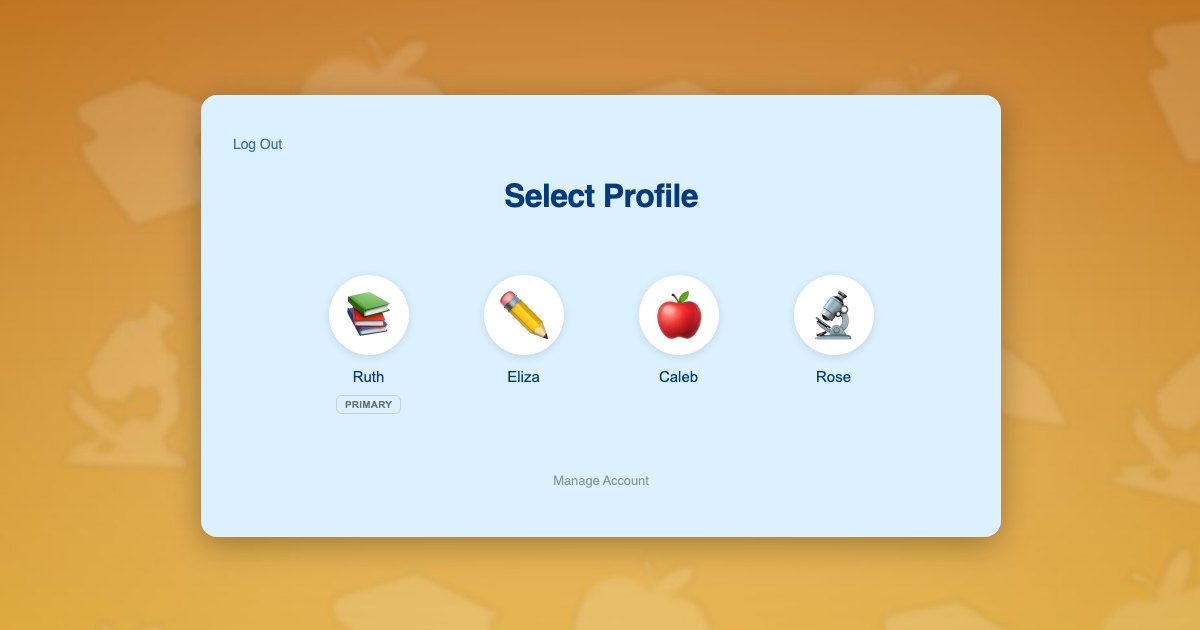
The setup runs like this:
- Install and activate the plugin. The Getting Started guide covers the first-run steps.
- Open the Avatars settings tab and upload your images through the standard media library picker. Square images work best, and around a dozen options is enough to feel like a real choice without turning the grid into a scrolling list.
- Reorder or remove any image from the same screen. The set is a plain list, so changing it later is safe and nothing breaks for profiles that already chose.
- That is the whole configuration. The picker now appears whenever anyone adds or edits a profile.
One detail worth knowing, because it connects the two halves of this article: the first slot in that picker is not one of your images. It is the profile’s normal WordPress avatar, which is to say whatever your Default Avatar setting produces. So the choice you made in Settings, Discussion is still doing work. It is the option someone lands on if they do not want any of your presets, and it is what a profile shows before anyone has chosen at all.
If a profile picks nothing, that fallback is what renders everywhere on the site. On a site running BuddyPress or BuddyBoss the fallback is the BuddyPress avatar instead, which the BuddyPress integration explains. The practical consequence is that the Settings, Discussion choice matters most on the day you launch, before anyone has picked anything, which is exactly when a site full of identical silhouettes makes the worst impression.
Choosing for your kind of site
Family and youth programs
Use a curated set, and set the WordPress default to MonsterID or Wavatar as the fallback. Children need to recognise their own profile instantly and should not be uploading photographs of themselves. This applies to preschool family accounts, homeschool family accounts and kids coding and STEM family accounts sites alike.
Membership sites and courses
Initials is usually right, because your members are named adults and a letter is more useful than a pattern. If members have their own progress and appear on leaderboards or in cohort lists, distinctness matters more than personality. The same logic runs through family accounts in LearnDash and family plans on a Paid Memberships Pro site.
Community and forum sites
Either an upload field with moderation, or a curated set if the community includes minors. Retro and RoboHash fit gaming communities specifically, which is worth knowing if you run a family-friendly gaming community.
Professional and business sites
Identicon or Color as the fallback and a real upload for staff. Cartoon monsters on a consultancy site read as unfinished, which is the exact problem you were trying to fix.
Frequently asked questions
Where is the default avatar setting in WordPress?
Settings, then Discussion, then scroll to the Avatars block near the bottom of the page. There are three controls: Avatar Display, which turns avatars on or off site-wide; Maximum Rating, which filters Gravatar images by their self-reported rating; and Default Avatar, which is the picture used for anyone who has not set one of their own.
Will the same user always get the same generated avatar?
Yes. Generated avatars are derived from a hash of the user’s email address, so a given address always produces the same image. It stays consistent across your site and across any other site using the same generator, which is what makes it usable as a recognition cue rather than decoration.
Why do all my users still show the same picture after I change the setting?
Two usual causes. Caching is the first: your page cache or a CDN is still serving the old HTML, so clear both and reload. The second is that Avatar Display is unchecked, in which case WordPress renders no avatar at all and the circles you are seeing are coming from your theme rather than from WordPress.
Do generated avatars work with every theme and plugin?
Anything that calls the WordPress get_avatar function picks them up automatically, which covers comments, most membership plugins, most LMS plugins and the admin user list. A theme that hardcodes its own placeholder image instead of calling get_avatar will ignore the setting, and that is a theme bug rather than a settings problem.
Does changing the default avatar affect users who already uploaded a picture?
No. The Default Avatar setting only applies to users with no picture of their own. Anyone with a Gravatar, a locally uploaded avatar or a chosen preset keeps what they have, and switching the default changes only the fallback everyone else sees.
Can I let users choose their picture instead of generating one?
Yes, and there are three separate ways to do it: ask them to register a Gravatar, add an upload field with an avatar plugin, or give them a fixed set of images to pick from. The third is the right answer on sites where children have profiles, because it removes photo uploads entirely while still letting each child choose.
Every profile gets a face. You decide which faces exist.
ProfileSwitch adds Netflix-style family profiles to any WordPress site, with a preset avatar set you control. Works with Paid Memberships Pro, WooCommerce, BuddyPress, and every major LMS.