Ultimate Member Family Accounts: A Profile for Every Child
Give every child their own Ultimate Member profile and account details while the parent keeps one login.
Ultimate Member gives every member a profile page, an account page and whatever custom fields you add to the registration form. That works well for a club of adults. It gets awkward fast when the members are children and the person signing up is a parent with two or three of them.
Ultimate Member, like WordPress itself, treats one login as one person. So a family either shares a single member profile, or the parent creates a separate account, with a separate email address and password, for every child. This guide walks through why that happens, what each workaround costs, and how to give every child their own Ultimate Member profile under one parent login. Everything below was tested on a demo site running Ultimate Member 2.14.
Why Ultimate Member has no family accounts
Ultimate Member builds on standard WordPress users. A member’s profile page, account settings, role and custom fields all hang off one user ID. WordPress requires a unique email address for every user, and Ultimate Member asks for one on its registration and account forms. Nothing in that model knows that three users belong to the same household.
That is the right design for most membership sites, and it is the reason the family case is hard. A nine year old does not have an email address. A parent does not want to manage three passwords for one club. And a club owner does not want to explain either problem at the front desk.
The usual workarounds
One shared member account
The family signs up once and everyone uses it. It costs nothing, but the profile page, the custom fields and anything restricted by member data now describe one blended person. If your registration form asks for a date of birth, a belt rank, a team or a medical note, the family has to pick one child or overwrite each other.
A separate account for every child
This keeps the data clean and moves the pain to the parent. They invent an email address for each child, keep track of each password, and log out and back in every time a different child needs the site. It is the complaint site owners mention most often, and we covered it in detail in our guide to registering kids without email addresses.
One parent login, a member profile per child
The short version: the parent keeps one email address and one password, and each child still gets their own Ultimate Member profile page, account details and member fields.
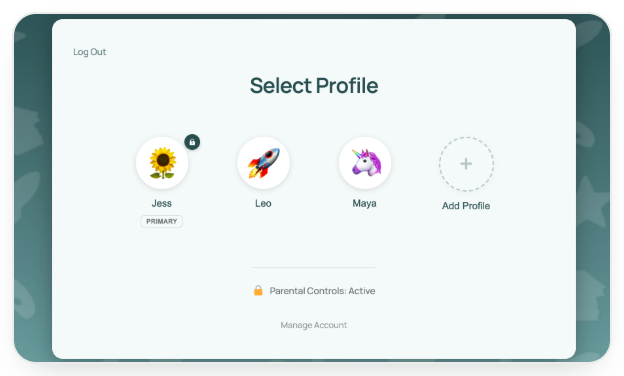
ProfileSwitch adds a profile picker after login, the same pattern people know from streaming services. The parent logs in once, then taps the child who is using the site. From that moment WordPress treats that child as the logged-in user, so Ultimate Member shows that child’s own account and profile.
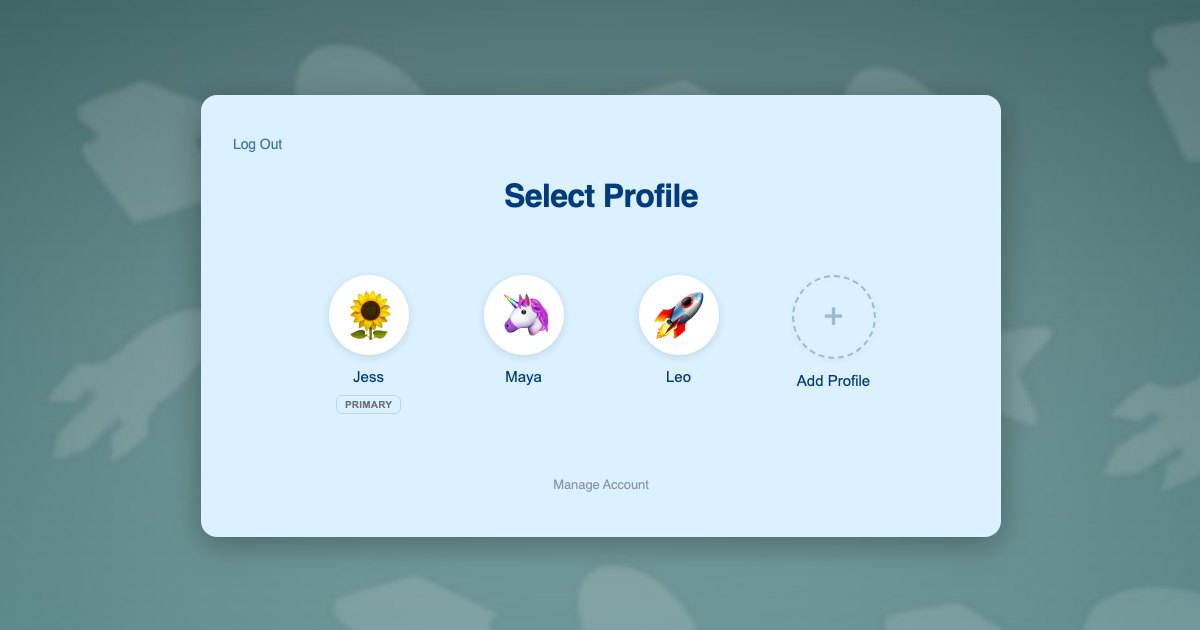
On our test site, a parent account with two children behaved like this:
- Switched to the first child, the Ultimate Member Account page showed that child’s own username, first name and email address, not the parent’s.
- The User page opened that child’s own Ultimate Member profile. Switching to the second child opened the second child’s profile instead.
- A third child added later from the profile switcher was approved in Ultimate Member automatically, with no admin step.
- Each child profile has its own WordPress role, so Ultimate Member sees three ordinary members rather than one shared account.
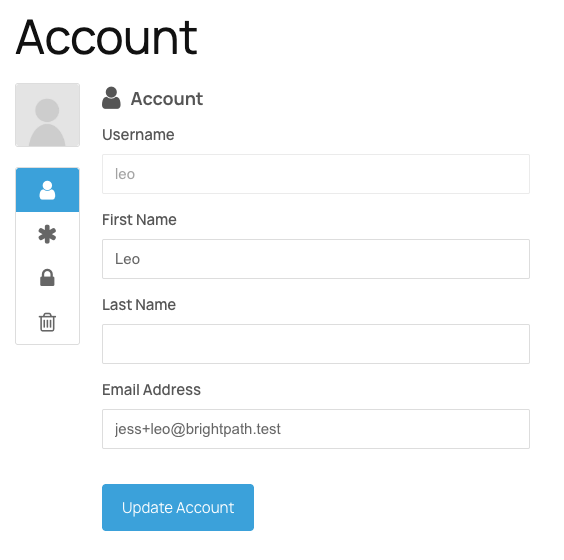
The email requirement is handled for you. Each child profile is created with a plus-addressed email address based on the parent’s, so Ultimate Member always has a unique address on file and every notification still reaches the parent’s inbox.
Setting it up on an Ultimate Member site
- Install and activate ProfileSwitch. Follow the getting started guide. Your Ultimate Member forms, roles and pages are not changed.
- Create the profile switcher page and add it to your menu, so families can change profiles from anywhere on the site.
- Let parents add their children. Each new profile only needs a name. ProfileSwitch creates the WordPress user and the email address behind it.
- Optionally set a PIN on the parent profile from PINs and parental controls, so a child cannot switch into the parent’s account settings.
- Tell existing families about it. Single-profile accounts keep working exactly as before.
This fits the kinds of sites that run Ultimate Member for young members: clubs, academies and teams where every child has their own rank, level or team. If that sounds like your site, our guides for martial arts schools and youth sports training go deeper on those cases.
One thing to know about profile photos
Ultimate Member manages profile photos itself. The avatar a child picks on the ProfileSwitch profile switcher is what you see on the switcher and in other places WordPress uses avatars, but Ultimate Member’s profile and account pages show Ultimate Member’s own photo or its default placeholder. We tried turning on Ultimate Member’s Gravatar option as well. Ultimate Member builds that Gravatar link directly, so the ProfileSwitch avatar does not appear there either. If photos matter on your site, treat the Ultimate Member profile photo as separate from the avatar on the switcher.
Frequently asked questions
Does ProfileSwitch need an Ultimate Member integration?
No. Ultimate Member stores accounts, profile pages and member fields against the WordPress user, and switching profiles changes which user is logged in. ProfileSwitch ships dedicated integrations only for Paid Memberships Pro, WooCommerce and BuddyPress or BuddyBoss. Ultimate Member works because each profile is a real WordPress user.
Do children need their own email addresses?
No. Every child profile gets a plus-addressed version of the parent’s email address, so the email field Ultimate Member requires is filled in automatically and any message sent to a child lands in the parent’s inbox.
Will Ultimate Member approve a new child profile?
In our testing, a profile added from the profile switcher after Ultimate Member was already active was marked as approved in Ultimate Member’s member data, the same as the parent. Nobody had to approve it by hand.
Does the ProfileSwitch avatar show on the Ultimate Member profile page?
Not by default. Ultimate Member manages its own profile photos, so its profile and account pages show the Ultimate Member photo or placeholder rather than the avatar picked on the profile switcher. Even with Ultimate Member’s Gravatar option turned on, it builds the Gravatar link itself, so the ProfileSwitch avatar still does not appear there.
What happens to my existing Ultimate Member members?
Nothing changes for them. An account with a single profile logs in exactly as before. Families add profiles when they need them, one account at a time.
ProfileSwitch
Family profiles for your WordPress site
One login for the family, with separate progress and purchases for every child. Works with the membership, course and store plugins you already use.