How to Build a Family-Friendly Social Network on WordPress (BuddyPress, BuddyBoss and More)
Plan a WordPress community where kids take part under a parent’s account: a separate BuddyPress or BuddyBoss profile for every child, oversight for parents, and less data to look after.
Kids’ clubs, homeschool co-op networks, youth programs and family-friendly gaming or hobby communities often want more than a course or a newsletter. They want a place where members post updates, join groups and get to know each other. On WordPress, that usually means BuddyPress or BuddyBoss.
Both are built around a simple assumption: every member is one person with their own email address and their own login. On a family site, the person who signs up is a parent, and the people who post are often their children. This guide covers what changes when children take part, how to give each child their own community profile while the parent keeps the login, and what we found when we tested ProfileSwitch with BuddyPress and BuddyBoss.
What changes when children are members
A community with children in it has three jobs that an adult community doesn’t.
- Each child needs their own identity. Their own member profile, their own activity, their own groups and their own friends. If siblings share one account, posts show up under the wrong name, friend lists get mixed together, and a warning meant for one child lands on both.
- Parents need oversight. A parent should be able to see what their child posts and who they talk to, and keep them away from pages that involve money or account details.
- You should collect less. Every profile field, photo and message on a child’s profile is information about a child. The less you ask for, the less you have to protect.
On that last point: if your site has members under 13 in the United States, the Children’s Online Privacy Protection Act (COPPA) may apply to what you collect from them. Our COPPA and WordPress guide summarises what the rule requires and ends with a checklist to take to your lawyer. This post is not legal advice, and it won’t try to tell you whether the rule covers your site.
One login, a profile for each child
The account structure that fits a family community is the one families already use at home: the parent owns the account, and each child has a profile inside it.
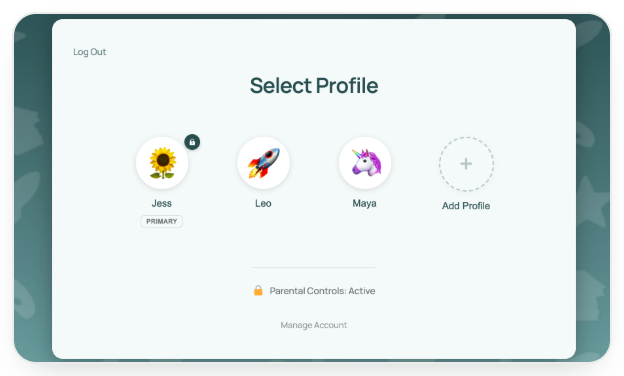
ProfileSwitch works this way. The parent registers once with their own email address and password. From the profile picker, they add a profile for each child with a name and an avatar. Each child then picks their profile and uses the community as themselves.
Each profile is a real WordPress user. That matters for a social plugin, because BuddyPress and BuddyBoss tie everything to the WordPress user: the member page, profile fields, activity, friendships, group memberships and messages. When a child is switched in, the community sees that child, not the parent.
- Children don’t need an email address or a password of their own. See registering kids without email addresses for how that works.
- The parent can switch into a child’s profile and see the community the way that child sees it, including their activity and messages.
- A second parent can have their own login and be made a profile manager, so both adults can look in.
ProfileSwitch Lite is free on WordPress.org and gives every child their own profile, which means their own BuddyPress or BuddyBoss member profile. The full version adds BuddyPress and BuddyBoss profile fields on the Add Profile form, preset avatars that also show on member pages, and PINs with parental controls.
BuddyPress
BuddyPress is the original social network plugin for WordPress. It’s free on WordPress.org and has about 90,000 active installs, according to WordPress.org.
Turn on only what you need
BuddyPress is split into components under Settings → BuddyPress → Components. On our test site, a fresh activation turned on Extended Profiles, Account Settings, Activity Streams and Notifications. Friend Connections, Private Messaging and User Groups stayed off until we enabled them.
Think before you turn on Private Messaging for a children’s community. Activity, groups and friends happen where other members and your moderators can see them. Private messages don’t.
Settings worth changing for kids
- Community Visibility. Under Settings → BuddyPress → Options, set it to Members Only so logged-out visitors can’t browse member pages and activity.
- Profile photo uploads. On the same screen, uncheck Allow registered members to upload avatars (and cover images) if you don’t want children uploading photos of themselves. More on profile pictures below.
- Account deletion. Also on that screen, uncheck Allow registered members to delete their own accounts if you’d rather a child couldn’t delete their own account.
- Profile field visibility. Under Users → Profile Fields, each field has a default visibility (Everyone, All Members, My Friends or Only Me) and a setting for whether members can change it.
How ProfileSwitch works with BuddyPress
ProfileSwitch’s BuddyPress integration lives under ProfileSwitch → Integrations. The Profile Fields setting adds BuddyPress profile fields to the Add Profile and Edit Profile forms on the profile picker. You can show the fields BuddyPress uses on its registration form (Signup Fields) or every field in a group you choose. The BuddyPress integration docs list the supported field types.
We tested this with BuddyPress and two signup fields: a text field and a dropdown. When a parent added a child’s profile, both fields appeared on the form, and the answers were saved to that child’s BuddyPress profile. The child’s name was copied to BuddyPress’s Name field. Editing the profile later showed the saved answers and saved the changes. Each child had their own member page, and an update posted while switched to a child appeared as that child’s activity, not the parent’s.
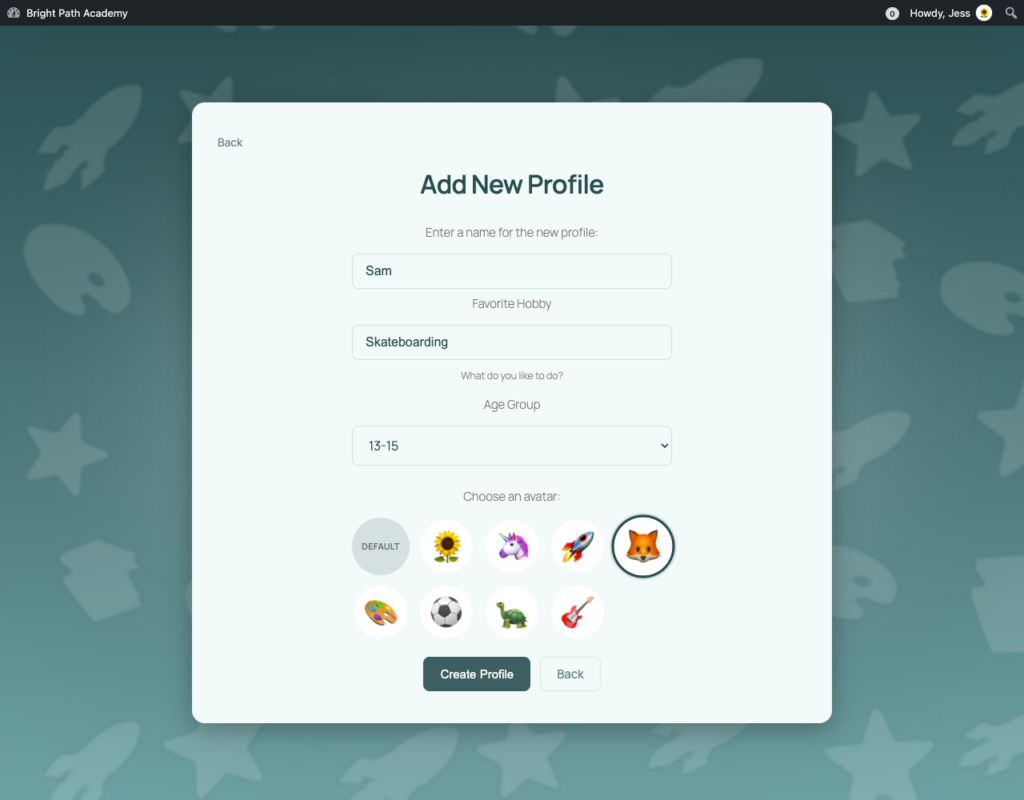
Keep a child’s profile fields short. A display name and a hobby give other kids something to talk about. A birthday, school or home town doesn’t need to be on a child’s community profile.
Profile pictures
The avatar a parent picks for each child on the profile picker also shows on BuddyPress and BuddyBoss screens: the child’s member page, the members directory and their activity posts. If a member uploads their own photo, BuddyPress or BuddyBoss shows that photo instead.
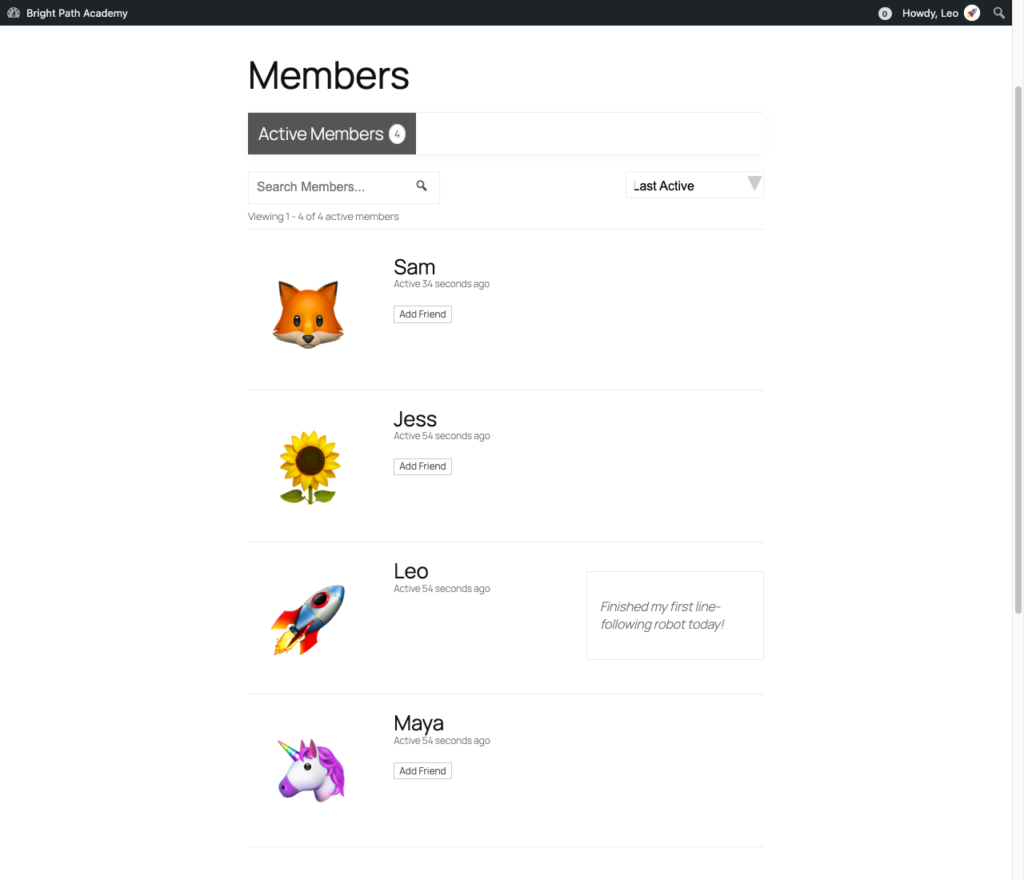
If you want children to use only the preset avatars, turn off member photo uploads. In BuddyPress, uncheck Allow registered members to upload avatars under Settings → BuddyPress → Options. In BuddyBoss, uncheck Allow members to upload a profile avatar under BuddyBoss → Profiles → Profile Image. Our kid-safe profile pictures post explains why photo uploads are worth avoiding on a children’s site.
BuddyBoss
BuddyBoss Platform is a fork of BuddyPress, maintained by BuddyBoss. It replaces BuddyPress rather than running alongside it, so a site uses one or the other. If you’re moving over, deactivate BuddyPress before you activate BuddyBoss.
The Platform plugin is open source (GPL), and BuddyBoss sells paid plans that add its theme and integrations with course plugins, including LearnDash. BuddyBoss is popular with course creators, many of whom pair it with LearnDash to run a community next to their courses.
What’s different from BuddyPress
- Settings live under BuddyBoss → Settings, with a card for each feature, including Private Messaging, Moderation (members can block each other and report content) and Media Uploading.
- Profile fields are under BuddyBoss → Profiles → Profile Fields, grouped into field sets rather than field groups.
- The Members, Groups and News Feed directories are regular WordPress pages. That matters for parental controls, covered below.
- On our test site, the base field set included Last Name and Nickname fields, both marked as required.
How ProfileSwitch works with BuddyBoss
The same ProfileSwitch integration works with BuddyBoss. With BuddyBoss active, ProfileSwitch → Integrations shows a BuddyBoss section where you choose which field set to show. The Signup Fields option is BuddyPress-only. The BuddyBoss integration docs walk through it.
We tested it with BuddyBoss Platform. The fields from the chosen set appeared on the Add Profile form, the answers were saved to the child’s profile, and the child’s BuddyBoss member page showed them along with their preset avatar.
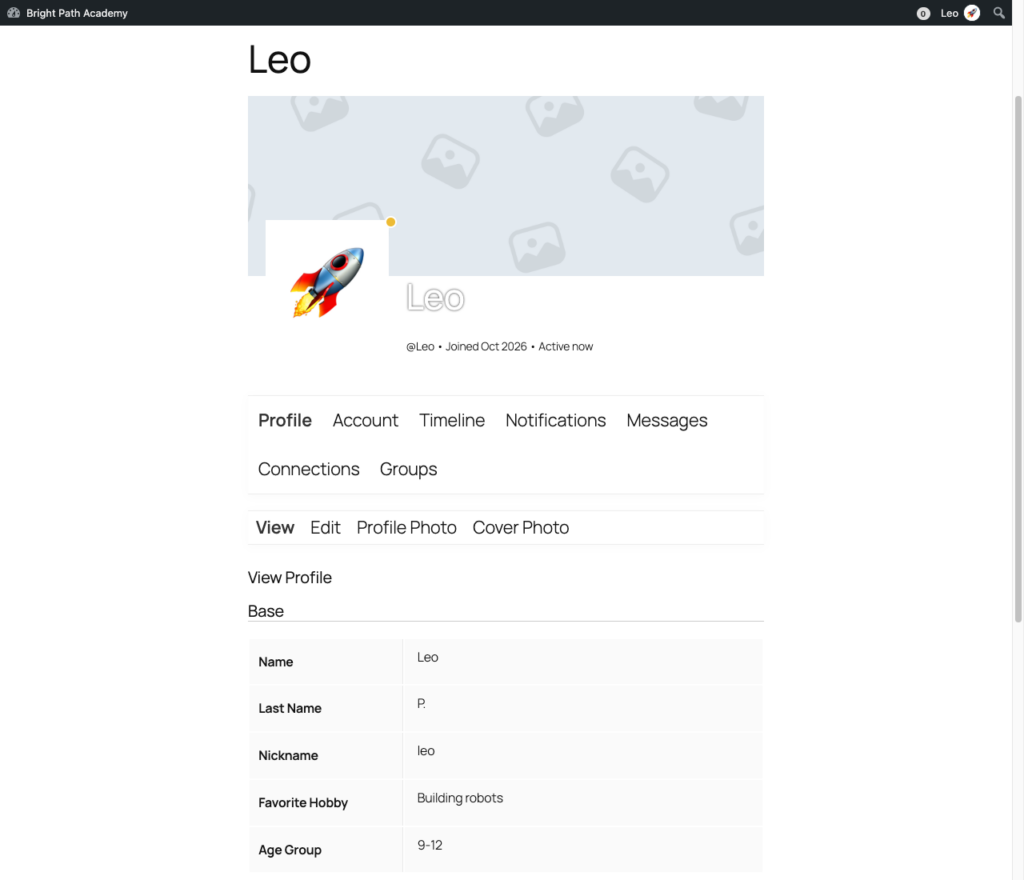
Check the required fields before you launch. ProfileSwitch marks required fields with an asterisk but doesn’t stop a profile from being saved without them, and you may not need a child’s last name at all.
Parental controls on a community site
ProfileSwitch’s parental controls let a parent set a PIN, and let you choose WordPress Pages that a child’s profile can’t open without it. That works well for checkout, membership account and billing pages. A social plugin builds its screens differently, so we tested which community pages it can cover.
- BuddyBoss directories can be protected. Members, Groups and News Feed are regular pages, so they appear in the protected pages list. In our test, a child’s profile got the PIN screen on each one.
- BuddyPress directories can’t. Current versions of BuddyPress don’t store their directory pages as regular WordPress Pages, so Activity, Members and Groups don’t appear in the list.
- A member’s own screens aren’t covered on either. A child’s profile, account settings, messages and friends or connections live under their member address, not on a WordPress Page. In our test, those opened without a PIN on both BuddyPress and BuddyBoss, even with the BuddyBoss directories protected.
Don’t rely on PIN-protected pages to keep a child out of private messages. If children shouldn’t message each other, turn Private Messaging off in BuddyPress or BuddyBoss.
For oversight inside the community, the parent can switch into a child’s profile and read their activity and messages as the child sees them. If a child has their own PIN, the parent’s PIN works for every profile in the account. The parental controls guide covers the rest of the setup.
Other options: PeepSo, FluentCommunity and bbPress
BuddyPress and BuddyBoss aren’t the only ways to add a community to WordPress. We haven’t built or tested ProfileSwitch integrations for the plugins below. ProfileSwitch works at the WordPress user level, though: every profile is a real WordPress user, and each of these plugins ties its members to WordPress users, so a child switched into their own profile should appear as their own member.
PeepSo
A social network plugin with a free core and paid bundles that add features such as chat, photos and file uploads. It’s downloaded from peepso.com rather than WordPress.org.
FluentCommunity
A community plugin from WPManageNinja that combines spaces, activity feeds, member profiles and a built-in course system. It’s on WordPress.org with about 8,000 active installs.
bbPress
Forums only, without activity streams or friends. It’s free on WordPress.org with about 100,000 active installs, and it can run on its own or alongside BuddyPress for group forums. The family-friendly gaming community post walks through a forum-based setup.
Setting it up
Pick your platform
Choose BuddyPress or BuddyBoss. Turn on only the components or features you need, and decide early whether children should be able to send private messages.
Limit what’s visible
Keep the community to logged-in members (Community Visibility in BuddyPress), turn off profile photo uploads if you don’t want photos of children, and set the visibility of each profile field.
Keep profile fields short
Create only the fields a child’s profile needs. Mark them as signup fields in BuddyPress, or keep them in one field set in BuddyBoss.
Connect ProfileSwitch
Under ProfileSwitch → Integrations, set Profile Fields to Signup Fields or the field group you created. The fields now appear when a parent adds or edits a child’s profile.
Turn on PINs and parental controls
Under ProfileSwitch → PINs & Access Control, turn on profile PINs and parental controls, then choose the pages to protect, such as checkout and account pages. On BuddyBoss, you can add the directory pages too.
Test it as a family
Register as a parent, add two children, and post as each one. Check that each update, group and friend request shows up on the right child’s profile.
Frequently asked questions
Does each child get their own BuddyPress profile?
Yes. Each ProfileSwitch profile is its own WordPress user, so BuddyPress keeps a separate member page, profile fields, activity, friends and groups for each child. In our tests with BuddyPress and BuddyBoss, each child had their own member page, and their updates appeared as their own activity.
Do children need their own email address?
No. The parent registers with their email address and adds each child from the profile picker. See registering kids without email addresses.
Can a ProfileSwitch PIN stop a child from sending private messages?
No. Parental controls protect WordPress Pages, and BuddyPress and BuddyBoss messages live under each member’s own address, which isn’t a WordPress Page. Turn Private Messaging off if children shouldn’t use it.
Can a parent see what their child has posted?
Yes. The parent can switch into the child’s profile and see their activity, groups and messages the way the child sees them.
Does ProfileSwitch work with BuddyBoss?
Yes. Profile fields and preset avatars both work with BuddyBoss Platform. Choose a field set in the BuddyBoss section under ProfileSwitch → Integrations. See the BuddyBoss integration docs.
Will each child’s avatar show in BuddyPress or BuddyBoss?
Yes. The preset avatar picked for a child on the profile picker shows on their member page, in the members directory and on their activity posts. If the child uploads their own photo, BuddyPress or BuddyBoss shows that instead, so turn off member photo uploads if you want presets only.
Can I run BuddyPress and BuddyBoss at the same time?
No. BuddyBoss Platform replaces BuddyPress, so deactivate BuddyPress before activating BuddyBoss.
Is this enough to comply with COPPA?
We can’t tell you that. A parent-owned account with child profiles removes many of the places a site would otherwise collect children’s information, but whether your site is covered and what it needs is a question for your lawyer. Our COPPA and WordPress guide has a checklist to bring to that conversation.
ProfileSwitch
Family profiles for your WordPress site
One login for the family, with separate progress and purchases for every child. Works with the membership, course and store plugins you already use.