BuddyBoss
Show BuddyBoss profile fields when families add or edit profiles, and use each profile’s preset avatar on BuddyBoss screens.
Requirements
- BuddyBoss Platform active, with its Member Profiles feature turned on under BuddyBoss → Settings.
- BuddyPress deactivated. BuddyBoss Platform replaces BuddyPress, so only one of them can be active.
- ProfileSwitch (the full version). The free Lite version doesn’t include the BuddyBoss settings.
Setup
Open the Integrations tab
Go to ProfileSwitch → Integrations. With BuddyBoss active, the section is titled BuddyBoss.
Choose a field set
Use the Profile Fields dropdown to pick the field set to show. Every field in that set appears on the profile forms.
Save your settings
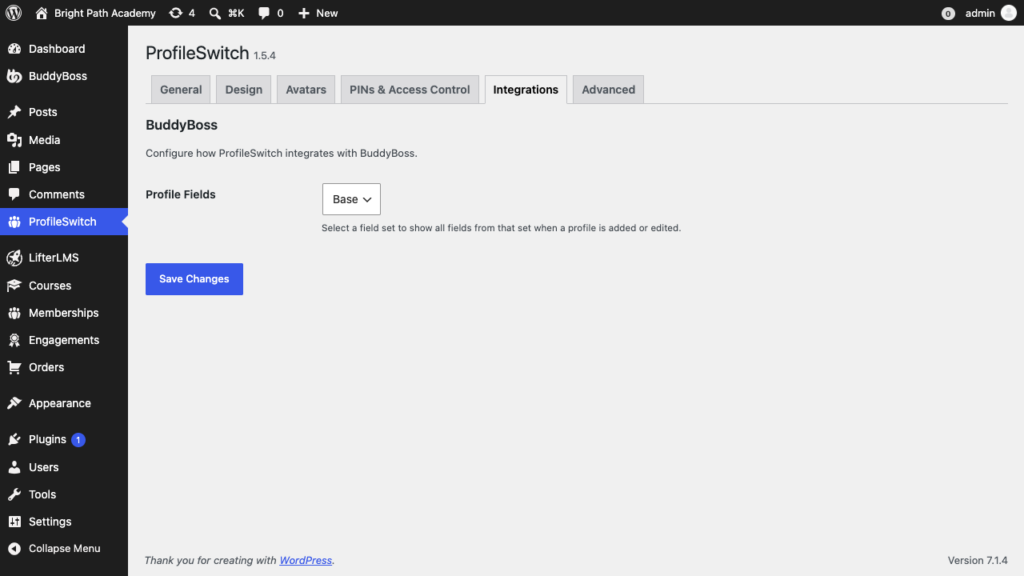
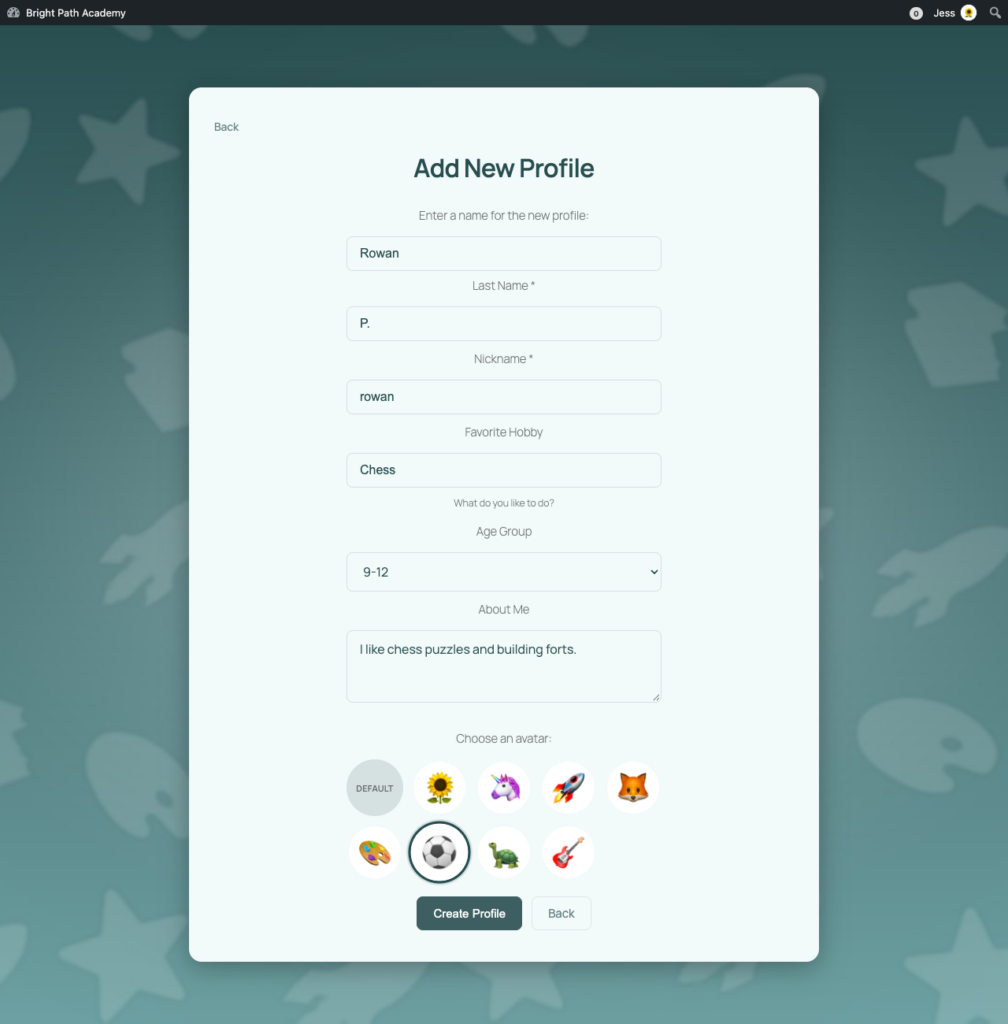
The fields appear on the Add Profile and Edit Profile forms on the profile switcher, and the answers are saved to that profile’s BuddyBoss profile. The Signup Fields option is only available with BuddyPress.
Where field sets live
BuddyBoss calls profile field groups field sets. Manage them under BuddyBoss → Profiles → Profile Fields, using Edit Field Set, Add New Field and Add New Field Set.
Supported field types are the same as for BuddyPress. See Supported field types. The Name field and BuddyBoss-only types like social networks and member types are skipped.
Required fields on kids’ sites
BuddyBoss’s base field set includes Last Name and Nickname, both marked as required. ProfileSwitch shows the asterisk but doesn’t stop a profile from being saved if they’re left blank.
If children use your site, think about whether you need a child’s last name at all. You can ask for an initial, or edit the fields under BuddyBoss → Profiles → Profile Fields.
Avatars
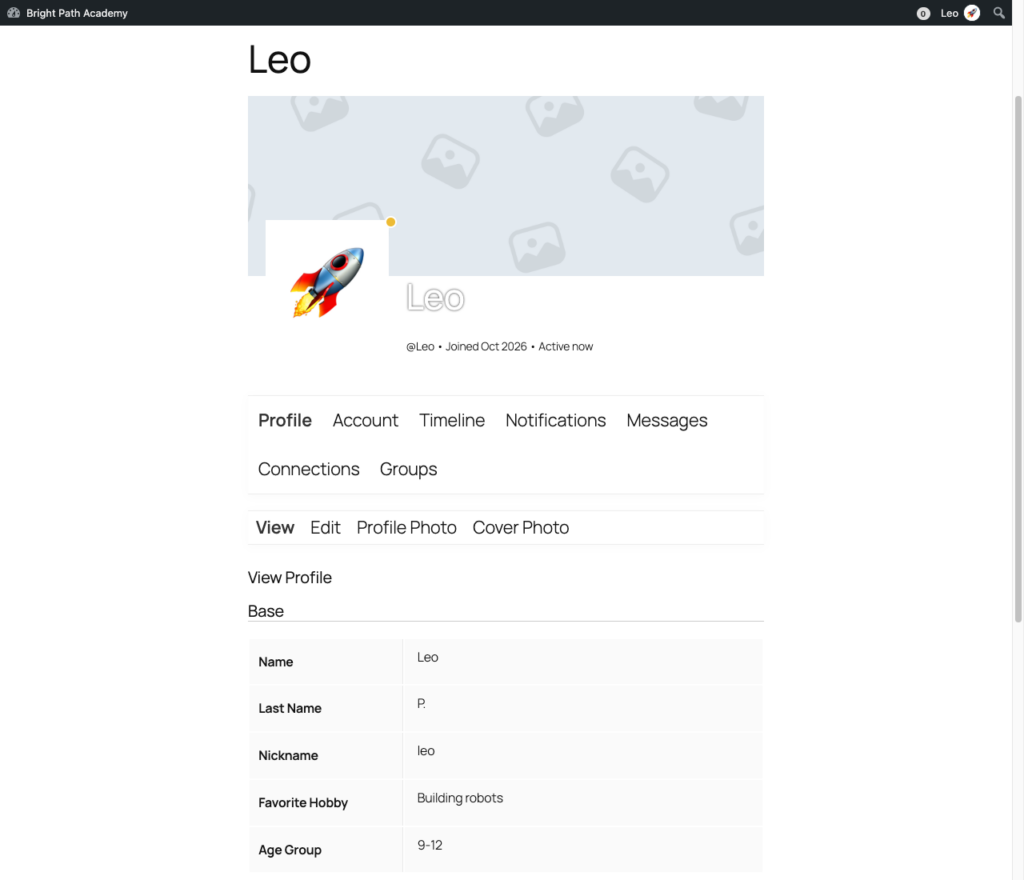
When a profile has a preset avatar, BuddyBoss shows it wherever it shows member photos, including the member’s profile page, the Members directory and activity. If the member uploads their own photo in BuddyBoss, that photo is shown instead.
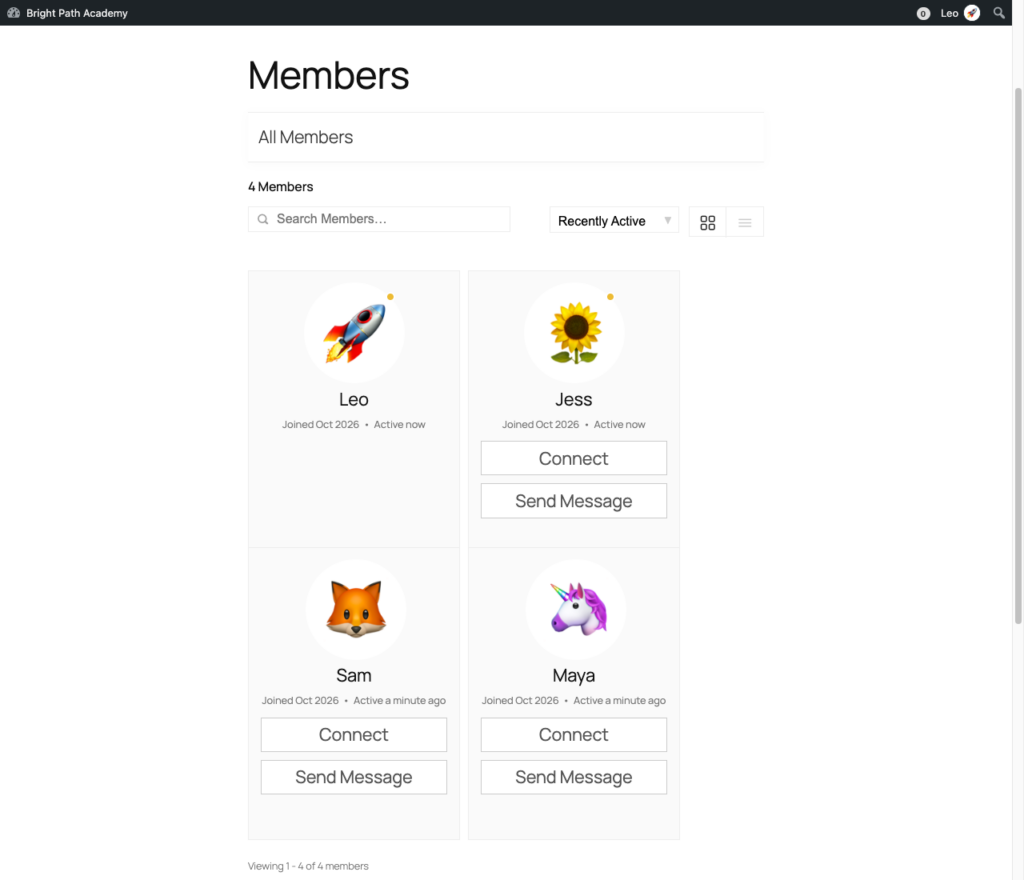
To keep members on preset avatars only, go to BuddyBoss → Profiles → Profile Image and uncheck Allow members to upload a profile avatar.
Parental controls
Parental controls protect WordPress Pages with the primary profile’s PIN.
- BuddyBoss’s Members, Groups and News Feed directories are regular WordPress Pages. Add them under ProfileSwitch → PINs & Access Control and sub-profiles will need the PIN to open them.
- A member’s own screens, such as their profile, Messages, Account and Connections, aren’t WordPress Pages, so they can’t be PIN-protected.
To limit messaging, use BuddyBoss → Settings: turn off Private Messaging, or turn on Moderation so members can block each other and report content. A PIN can’t block messages.
Still stuck? Contact support and we’ll help you get set up.