Author: David Parker

  • WordPress for Summer Camps: Online Registration, Family Profiles, and Payments

    Summer camp registration season is a sprint. You’ve got a few months to fill your sessions, collect payments, and get every camper’s information organized before the first day. If your registration process is clunky, parents will bail and sign up for the camp down the road instead.

    The biggest friction point? Families with multiple kids. A parent wants to register three children for two different camp sessions. That should be simple. But on most WordPress sites, it means creating three separate accounts with three separate email addresses, logging in and out to register each child, and paying three times. Most parents won’t do that — they’ll either give up, call your office to register by phone, or cram all three kids under one account and hope you can sort it out.

    This guide shows you how to build a camp registration site with WordPress where one parent account manages multiple camper profiles — each with their own name, their own information, and their own registrations. It’s the same model Netflix uses (one account, multiple profiles), applied to camp registration.

    Why camp registration is harder than it should be

    Camps have a unique challenge that most WordPress sites don’t deal with: the person paying is not the person participating. Parents are the customers, but campers are the users. And most families have more than one camper.

    WordPress treats every user as an independent person with their own email, password, and login. This model falls apart for camps because:

    • Young campers don’t have email addresses. You can’t ask a 7-year-old to verify their email and set a password.
    • Parents need to manage everything centrally. One parent, one login, full control over all their campers’ registrations and information.
    • Each camper needs individual data. Allergies, medical info, emergency contacts, t-shirt sizes, age groups — this data is per-camper, not per-family.
    • You need clean roster data. When you print a roster for the arts & crafts session, you need to see “Emma Johnson, age 9” — not “Johnson Family Account.”

    Dedicated camp management software like CampMinder or UltraCamp solves this, but it costs thousands per year and locks you into their platform. If you already have a WordPress site for your camp — or want to build one — you can get the same family registration experience with the right plugin setup.

    The WordPress stack for camp registration

    Here’s what you need and what each piece does.

    ProfileSwitch — One parent account, multiple camper profiles

    ProfileSwitch is the plugin that makes family accounts work on WordPress. A parent creates one account and adds profiles for each of their campers. Each profile is a real WordPress user with their own name, avatar, and data — but no separate email or password is needed. The parent switches between profiles to manage each camper’s information and registrations. ProfileSwitch handles the email addresses automatically using plus-addressing tied to the parent’s real email, so all communications go to the parent.

    Paid Memberships Pro — Registration and payments

    Paid Memberships Pro handles the actual registration and payments. You create a membership level for each camp session or program — “Week 2: Arts & Crafts,” “Week 3: Outdoor Adventure,” etc. — with its own price and content. Parents switch to a camper’s profile, check out for the sessions that camper is attending, and each registration is tied to that individual child. PMPro treats each camper profile as an independent member with their own level, payment record, and access. WooCommerce is another option if you prefer selling sessions as products — ProfileSwitch’s WooCommerce integration lets the parent account see and manage orders from all camper profiles in one place.

    BuddyPress or BuddyBoss (optional) — Camper profile fields

    If you need to collect detailed camper information — allergies, medical conditions, emergency contacts, t-shirt sizes, swimming ability — BuddyPress gives you custom profile fields that attach to each individual camper. ProfileSwitch’s BuddyPress integration pulls these fields into the profile creation form, so parents fill in the details when they add each camper. No separate forms, no data scattered across different systems.

    The registration flow: what parents actually experience

    Let’s walk through a real scenario. The Garcia family has two kids — Mia (10) and Lucas (7) — and wants to register both for summer camp.

    Step 1: Parent creates an account

    Mom visits your camp website, clicks “Register,” and creates a standard WordPress account with her name, email, and password. At this point, no registration or payment happens — the parent account is just the hub for managing the family.

    Step 2: Parent adds camper profiles

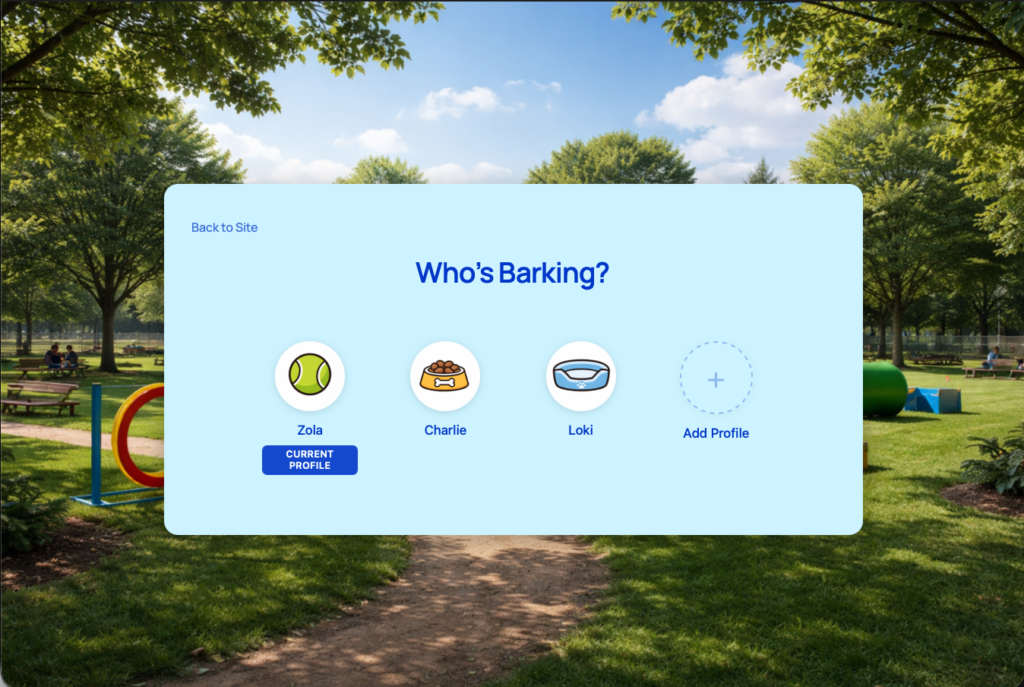
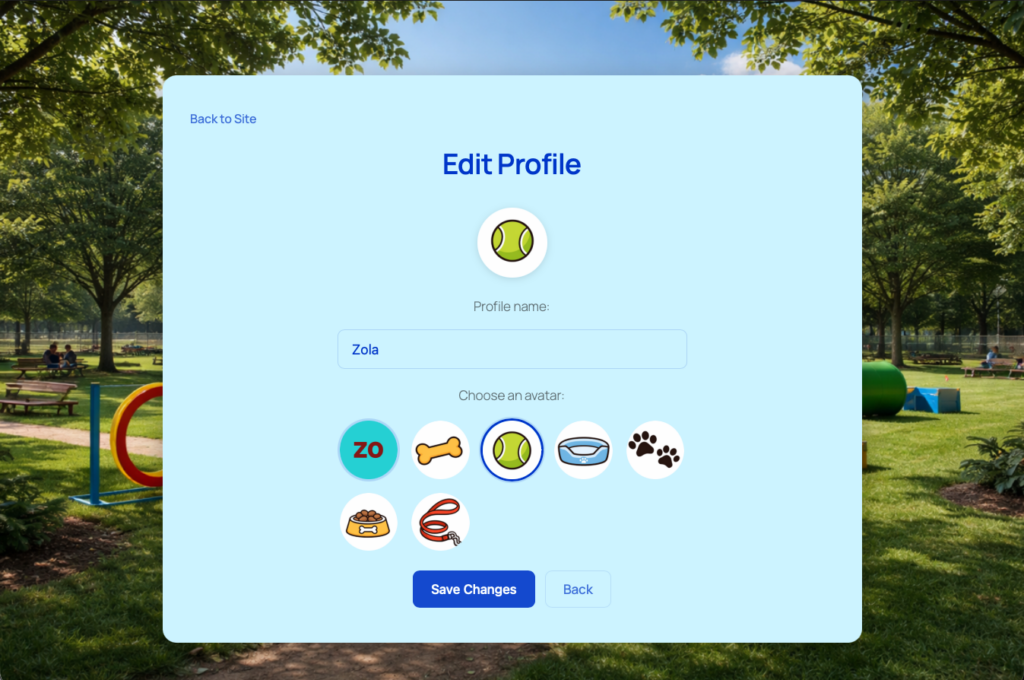
    After logging in, the profile switcher appears — a full-page “Switch Profile” screen. Mom sees her own profile and an “Add Profile” button. She taps it and creates a profile for “Mia.” She picks an avatar from the preset options you’ve uploaded (maybe campfire icons, animal mascots, or nature themes). If you’ve set up BuddyPress profile fields, she fills in Mia’s age, allergies (peanuts), emergency contact (Dad’s cell), and t-shirt size (Youth M).

    She does the same for Lucas. Two minutes, two camper profiles, zero fake email addresses created.
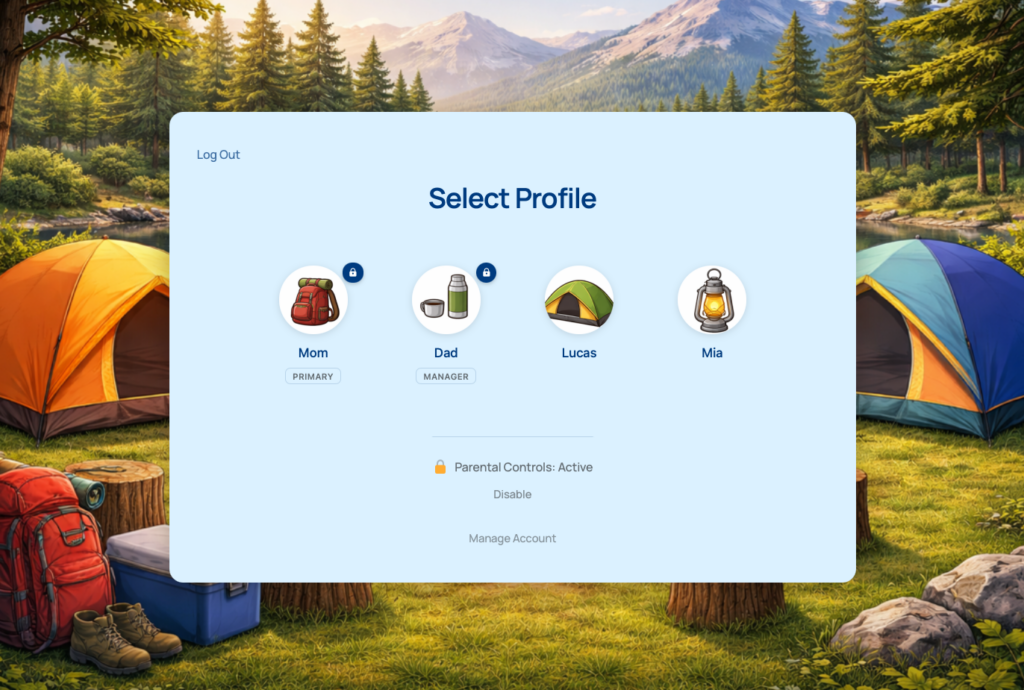
    Step 3: Register each camper for sessions

    Mom switches to Mia’s profile and registers her for “Week 2: Arts & Crafts” and “Week 4: Outdoor Adventure.” Then she switches to Lucas’s profile and registers him for “Week 2: Sports Camp” and “Week 3: Science Explorers.” Each registration is tied to the individual camper — Mia’s registrations are on Mia’s profile, Lucas’s are on his.

    From her own parent profile, Mom can switch between camper profiles anytime to check registration details, update information, or renew for next session — all without logging out.

    Step 4: Both parents can manage everything

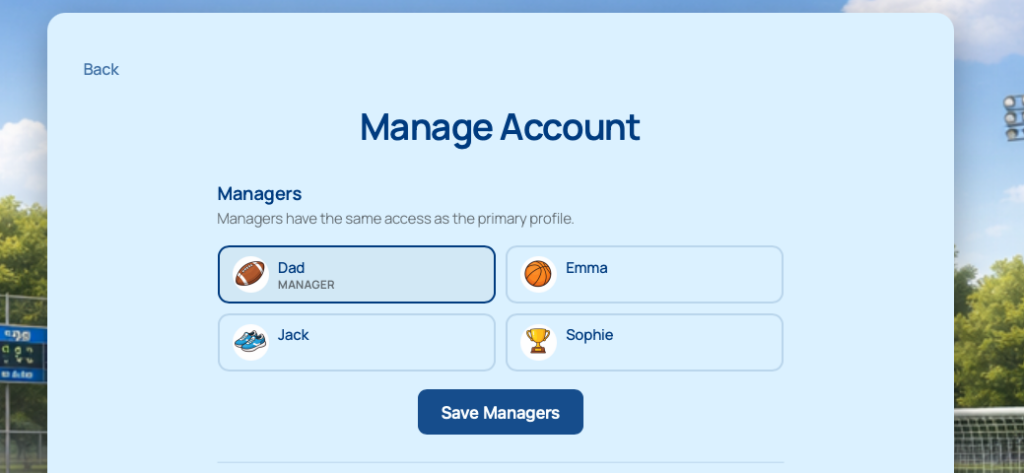
    Mom creates a profile for Dad with his real email address and password (using ProfileSwitch’s custom credentials feature), then promotes him to profile manager. Now Dad can log in independently on his own device, see both kids’ profiles, check registration details, and update camper information. Both parents have full control.

    Collecting camper information the right way

    Camps need more information per participant than most websites — medical details, emergency contacts, dietary restrictions, pickup authorization. The key is attaching this data to the individual camper, not to the parent account.

    Since each camper profile in ProfileSwitch is a real WordPress user, any plugin that stores data per-user will automatically keep each camper’s information separate. Here are two approaches:

    Option A: BuddyPress profile fields

    BuddyPress lets you create custom profile field groups with any fields you need — text fields, dropdowns, date pickers, checkboxes. Create a field group called “Camper Information” with fields like:

    • Date of birth
    • Allergies / medical conditions
    • Emergency contact name and phone
    • T-shirt size
    • Swimming ability (dropdown: non-swimmer, beginner, intermediate, advanced)
    • Authorized pickup persons

    ProfileSwitch’s BuddyPress integration pulls these fields into the “Add Profile” form. When a parent creates a new camper profile, they see the avatar picker plus all of your custom fields. The data is stored on the camper’s individual user profile, visible to admins from the WordPress dashboard.

    Option B: WordPress user meta

    If you don’t want to install BuddyPress, you can use any plugin that adds custom fields to WordPress user profiles — Advanced Custom Fields (ACF), Meta Box, or Pods. Since each camper profile is a standard WordPress user, these fields attach to individual campers naturally. The parent switches to a camper’s profile, fills in the fields on the profile edit page, and the data stays with that camper.

    Keeping kids safe on the site

    Camps deal with kids, and kids end up using parents’ devices. ProfileSwitch has a full parental control system designed for this.

    Profile PINs

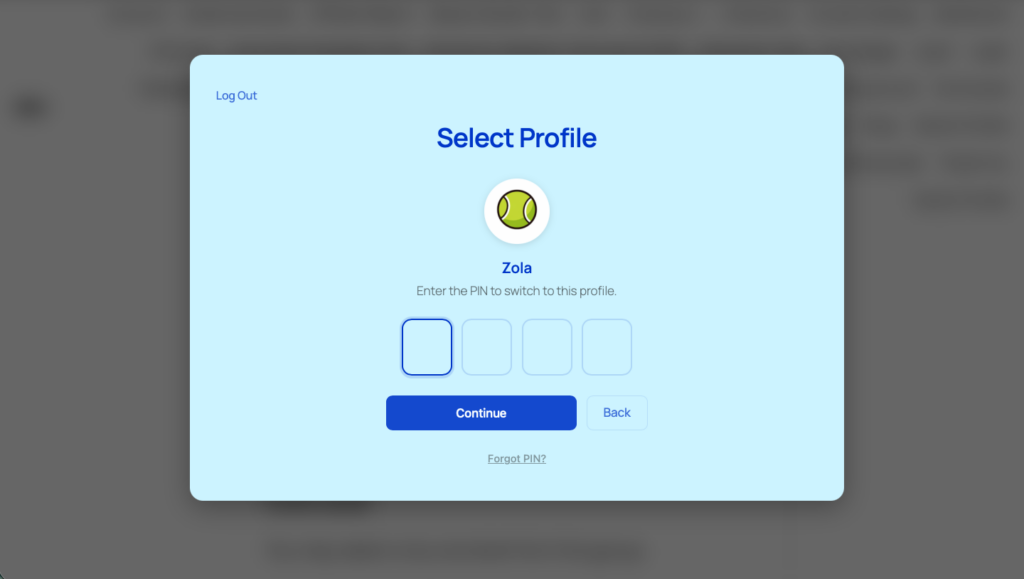
    Parents set a 4-digit PIN or alphanumeric password on their profile. When a PIN is set, a lock icon appears on the profile in the switcher. Anyone trying to switch to the parent’s profile — to access billing, account settings, or payment details — has to enter the PIN first. The parent’s PIN also works as a master override for all camper profiles. PINs are hashed and stored securely, with rate limiting (5 failed attempts = lockout) and a “Forgot PIN” email recovery flow.

    Protected pages

    You can mark any page on your site as “protected” in ProfileSwitch’s settings. Camper profiles need to enter the parent’s PIN to access these pages. For a camp site, you’d typically protect the checkout page (so kids can’t register for additional sessions without a parent), any shop pages, and any pages with parent-only content like health forms or financial information.

    Forced profile selection

    When parental controls are active, ProfileSwitch can force users to select a profile immediately after login instead of landing on the homepage as the parent. This prevents kids from accidentally browsing the site under the parent’s identity — they go straight to the “Who’s using this?” screen and pick their own profile.

    Real-world example: a multi-session day camp

    Let’s put this all together. You run a day camp with eight weekly sessions over the summer. Each session has a theme — sports, art, science, outdoor adventure, etc. Parents can register each child for different sessions. Here’s the full experience.

    Your setup:

    • WordPress + Paid Memberships Pro (each camp session is a membership level)
    • ProfileSwitch (family accounts with parental controls enabled)
    • BuddyPress (camper profile fields: age, medical info, emergency contacts)
    • Camp-themed preset avatars uploaded in ProfileSwitch (tent, campfire, bear, eagle, etc.)

    The Thompson family experience:

    1. Dad creates an account on your camp website with his email and password.
    2. He adds profiles for Lily (11) and Noah (8). Lily picks the eagle avatar; Noah picks the bear. Dad fills in each child’s allergies, emergency contacts, and t-shirt sizes through the BuddyPress fields on the profile creation form.
    3. He creates a profile for Mom with her email and password, then makes her a profile manager.
    4. He sets a PIN and enables parental controls. The checkout page and any parent-only pages are marked as protected.
    5. He switches to Lily’s profile and registers her for Week 2 (Art) and Week 5 (Outdoor Adventure) through PMPro checkout.
    6. He switches to Noah’s profile and registers him for Week 2 (Sports) and Week 6 (Science).
    7. Back on his own profile, he can see all four orders — two for Lily, two for Noah — in one unified order history.
    8. When Lily grabs the iPad to look at the camp schedule, she picks her profile from the switcher. She can see camp information and her registrations, but she can’t access the shop, checkout, or Dad’s profile without the PIN.

    What you see as the camp admin: Four distinct WordPress users — Dad, Mom, Lily, Noah — all linked together. You can pull a roster for “Week 2: Art” and see “Lily Thompson, age 11, allergic to bee stings, emergency contact: Dad (555-0142).” You can pull a roster for “Week 2: Sports” and see “Noah Thompson, age 8, no allergies, emergency contact: Mom (555-0198).” Clean, individual data for every camper.

    Why WordPress instead of dedicated camp software?

    Dedicated camp management platforms exist — CampMinder, UltraCamp, CampBrain, Sawyer. They handle registration, payments, health forms, and communication. But they come with trade-offs:

    • Cost. Most charge per-camper or per-registration fees that add up fast. A camp with 200 registrations might spend $2,000–5,000/year on software alone.
    • Separate systems. Your website is on WordPress, but your registration is on CampMinder. Parents bounce between two different interfaces. Your branding is split.
    • Platform lock-in. Your data lives on their servers, in their format. Moving to a different system means starting over.
    • Limited customization. You get whatever features the platform offers. Need something specific? You’re stuck waiting for them to build it.

    With WordPress, everything lives on your site — your content, your registration, your community. You own the data. You control the experience. And the total cost of WordPress hosting + a few plugins is a fraction of what dedicated camp software charges. For small to mid-size camps that don’t need enterprise-grade features, it’s often the smarter choice.

    Getting started before registration opens

    If you’re getting ready for summer registration, here’s the setup checklist:

    1. Install ProfileSwitch and activate your license.
    2. Create the profile switcher page from the General settings tab.
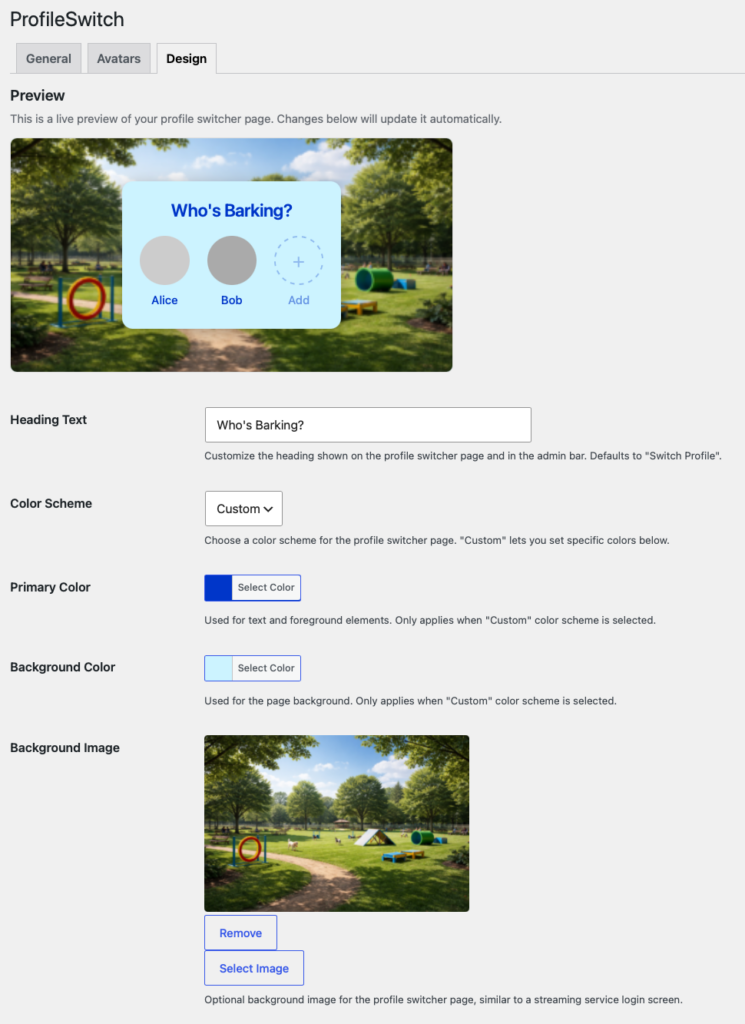
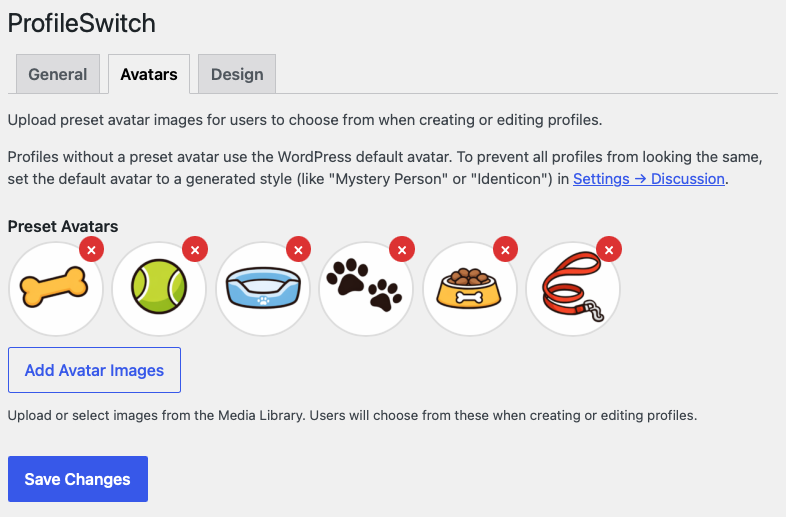
    3. Upload camp-themed preset avatars — campfire, tent, animal mascots, nature icons. This makes the profile selection screen feel fun for kids.
    4. Enable PINs, parental controls, and profile managers on the PINs & Access Control tab.
    5. Mark sensitive pages as protected — your shop, cart, checkout, and any parent-only content pages.
    6. Enable custom credentials on the Advanced tab so co-parents can have their own logins.
    7. Set up your PMPro membership levels — one level per camp session or program. Parents switch to each camper’s profile and register them individually through PMPro checkout.
    8. If using BuddyPress: Create your camper information fields and select the field source in ProfileSwitch’s Integrations tab.
    9. Test the full flow. Create a test parent account, add two camper profiles, register each for a session, and verify you can see both registrations from the parent account.

    Registration season moves fast. The camps that make it easy for parents to sign up multiple kids in one sitting — without juggling multiple accounts — are the ones that fill up first.

    Fill your camp sessions faster

    ProfileSwitch adds Netflix-style family accounts to your camp website. One parent login, multiple camper profiles, each with their own data. No fake emails, no password juggling. Works with Paid Memberships Pro, WooCommerce, BuddyPress, and most WordPress plugins.
  • How to Build a Youth Sports Registration Site with WordPress

    If you run a youth sports organization — a swim club, soccer league, martial arts school, gymnastics program, or anything where kids are the participants and parents are the ones signing up — you’ve probably hit the same wall everyone hits when building a registration site with WordPress.

    Parents have multiple kids. Each kid needs their own profile — their own name, their own age group, their own registration. But parents are the ones managing everything. They’re the ones logging in, paying, and keeping track of who’s signed up for what.

    WordPress doesn’t handle this well out of the box. Every account needs a unique email address. Every user is treated as an independent person. There’s no concept of “this parent manages these three kids.” So you end up with parents creating fake email addresses for their 8-year-olds, or everyone sharing one login and losing track of who’s registered for what.

    This guide walks through how to build a youth sports registration site on WordPress where one parent account can manage multiple child profiles — each with their own identity, their own data, and their own registrations. No fake emails, no shared logins, no confusion.

    The problem with youth sports registration on WordPress

    Think about what actually happens when a family signs up for your program. A parent goes to your website and wants to register three kids for soccer. Each kid plays in a different age group, needs their own roster spot, and might need different session times. In the real world, one parent handles all of this. Simple.

    But on a standard WordPress site, each participant needs their own WordPress account. And every WordPress account needs a unique email address and password. So now that parent has to:

    • Create an account for themselves
    • Create a separate account for 8-year-old Emma (who doesn’t have an email address)
    • Create another account for 6-year-old Jack (who also doesn’t have an email)
    • Create a third account for 10-year-old Sophie (same problem)
    • Remember four different logins
    • Log in to each account separately to register and pay

    Most parents will give up before finishing step two. The ones who push through will make up emails like [email protected], immediately forget the passwords, and call you when they can’t log in next season. You’ll spend hours helping families reset passwords for accounts that never should have existed in the first place.

    The alternative is even worse: everyone shares one login. Dad registers for soccer as “The Johnson Family.” Now all three kids’ registrations are under one name, you can’t tell who’s on which team, and your roster sheets are useless.

    What a youth sports site actually needs

    Before we get into the solution, let’s define what a good youth sports registration site looks like from both sides — the parent’s experience and the organization’s experience.

    For parents

    • One login. The parent creates one account and manages everything from there.
    • Separate profiles for each kid. Emma, Jack, and Sophie each have their own name, avatar, and registration history — but the parent manages all of them.
    • No emails needed for kids. Children don’t have email addresses, and the site shouldn’t require them.
    • Register each kid individually. Switch to Emma’s profile, register her for the U-10 league, pay. Switch to Jack, register him for U-8, pay. Each kid gets their own registration tied to their own profile.
    • Easy profile switching. If the parent needs to check Sophie’s schedule, they switch to Sophie’s profile. If they need to update Jack’s info, they switch to Jack. No logging out and back in.

    For the organization

    • Each participant is a real WordPress user. You can see them in the admin, assign them to groups, and pull reports on individual kids — not on “The Johnson Family.”
    • Clean registration data. Each kid has their own membership level, their own payment history, and their own profile fields. No data mixing.
    • Individual registrations. Each kid registers for their own age group or session. You can see exactly who’s on each roster.
    • Works with your existing plugins. Your membership plugin, event registration plugin, or LMS should all see each child as an individual user and track their data separately.

    This is exactly what streaming services figured out years ago. Netflix doesn’t make you create a separate account for every person in your house. One account, multiple profiles, each with their own viewing history. The same model works perfectly for youth sports — except here, each profile also gets their own registration.

    The tools you need

    Here’s a practical WordPress stack for a youth sports registration site with family accounts.

    ProfileSwitch — Family accounts and profile switching

    ProfileSwitch is the core piece that makes family accounts work. It lets one parent account create multiple child profiles — each as a real WordPress user with their own name, avatar, and data — without needing separate email addresses or passwords. Parents switch between profiles from a Netflix-style profile selection screen. The parent controls the account; the kids just use the site.

    Paid Memberships Pro — Registration and payments

    Paid Memberships Pro handles the actual registration — membership levels, payments, and content restriction. You create a membership level for each program or age group (U-8 Soccer, U-10 Soccer, Swim Team, etc.), and each child registers individually for their level. Since every ProfileSwitch child profile is a real WordPress user, PMPro treats each one as an independent registrant with their own membership, payment record, and access.

    Optional: BuddyPress or BuddyBoss — Community and profile fields

    If you want team rosters, member directories, or need to collect detailed per-participant info (age, emergency contacts, jersey number), BuddyPress or BuddyBoss gives each profile custom fields and a community identity. ProfileSwitch integrates with both — it can pull in BuddyPress profile fields when creating a new child profile, so parents fill in the important details at profile creation time.

    How it works: the family registration flow

    Let’s walk through what the experience looks like for a family with three kids signing up for your soccer league.

    1. Parent creates an account

    The parent signs up on your site like any normal WordPress user — their name, their email, their password. At this point, no registration or payment happens. The parent account is just the hub for managing the family.

    2. Parent creates profiles for each child

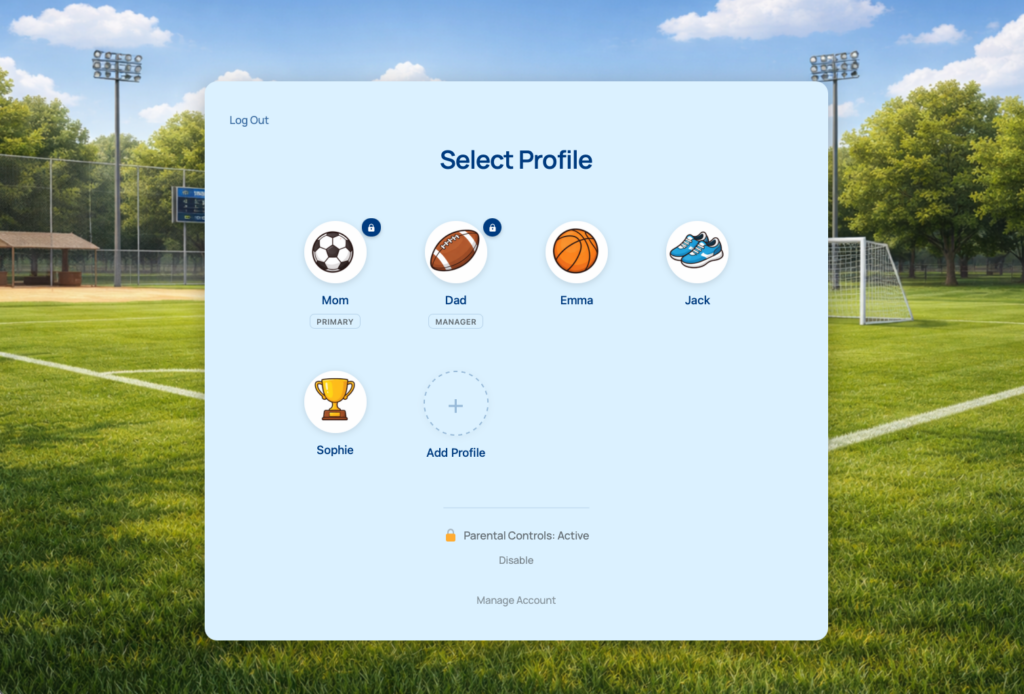
    After logging in, the parent sees the profile switcher — a clean, full-page interface showing their profile and an “Add Profile” button. They create a profile for each child: “Emma,” “Jack,” and “Sophie.” Each kid picks an avatar from preset options you’ve uploaded (team mascots, sports icons, or whatever fits your brand). No email addresses or passwords required — ProfileSwitch handles that automatically behind the scenes using plus-addressed emails tied to the parent’s account.

    If you’re using BuddyPress, the parent can also fill in custom profile fields at this step — things like the child’s date of birth, jersey number, emergency contact, or medical notes. These fields are attached to the child’s individual profile, not the parent’s.

    3. Parent switches to each child and registers them

    This is where ProfileSwitch and PMPro work together. The parent switches to Emma’s profile and goes to the PMPro checkout page. They register Emma for the U-10 Fall League — $75 for the season. The membership is assigned to Emma’s profile, the payment is recorded under Emma’s user account, and Emma now has access to everything the U-10 Fall League level includes (schedules, team info, etc.).

    Then the parent switches to Jack’s profile and registers him for the U-8 Spring League. Then Sophie for the U-12 Swim Team. Three registrations, three separate membership records, one parent doing all of it from a single login. No logging out, no juggling passwords, no fake emails.

    Since each child profile is a real WordPress user, PMPro doesn’t know or care that the profile was created through ProfileSwitch. It just sees a user checking out for a membership level — exactly like any other registrant.

    4. Parent manages everything from one account

    Throughout the season, the parent switches between profiles to check each kid’s schedule, update their info, or renew their registration. Need to see Emma’s practice schedule? Switch to Emma. Need to update Jack’s emergency contact? Switch to Jack. It’s one click from the profile switcher or from the “Switch Profile” link in the WordPress admin bar.

    All confirmation emails go to the parent’s real email address, since ProfileSwitch’s auto-generated child emails use plus-addressing tied to the parent’s inbox. So when Emma’s registration is confirmed, Mom gets the email. When Jack’s membership is about to expire, Mom gets that notice too.

    Why individual registrations matter for sports

    You might be wondering: why not just sell a “family membership” and give everyone access? For some types of sites that makes sense. But for youth sports, individual registrations are usually the right model. Here’s why:

    • Different kids, different programs. Emma plays soccer. Jack swims. Sophie does gymnastics. They each need to register for their specific program, and each program has its own fee. A family membership doesn’t map to this.
    • Age group matters. The U-8 division and U-12 division might have different schedules, different fields, and different content on the site. Each kid’s registration needs to reflect their actual age group.
    • Roster accuracy. When you pull the roster for U-10 Fall Soccer, you need to see the individual kids registered for that level — not a family account that “includes” them. Each child as a separate PMPro member means clean, accurate rosters.
    • Per-participant pricing. Most sports organizations charge per kid, not per family. If the U-10 league is $75 and the U-8 league is $60, the parent pays $75 for Emma and $60 for Jack — two separate transactions on two separate profiles.
    • Some kids might not renew. Sophie decides she’s done with swim team, but Emma and Jack continue. With individual registrations, you just don’t renew Sophie’s membership. The other two continue independently.

    ProfileSwitch gives you the family account structure — one parent manages everything — while PMPro gives each child their own independent registration. The parent gets convenience; you get clean data.

    Keeping parents in control with PINs and parental controls

    On a youth sports site, the parent’s device often ends up in the kid’s hands. Maybe it’s a shared family tablet, or maybe the kid borrows a phone to check the practice schedule. ProfileSwitch has a full parental control system designed for exactly this situation.

    Profile PINs

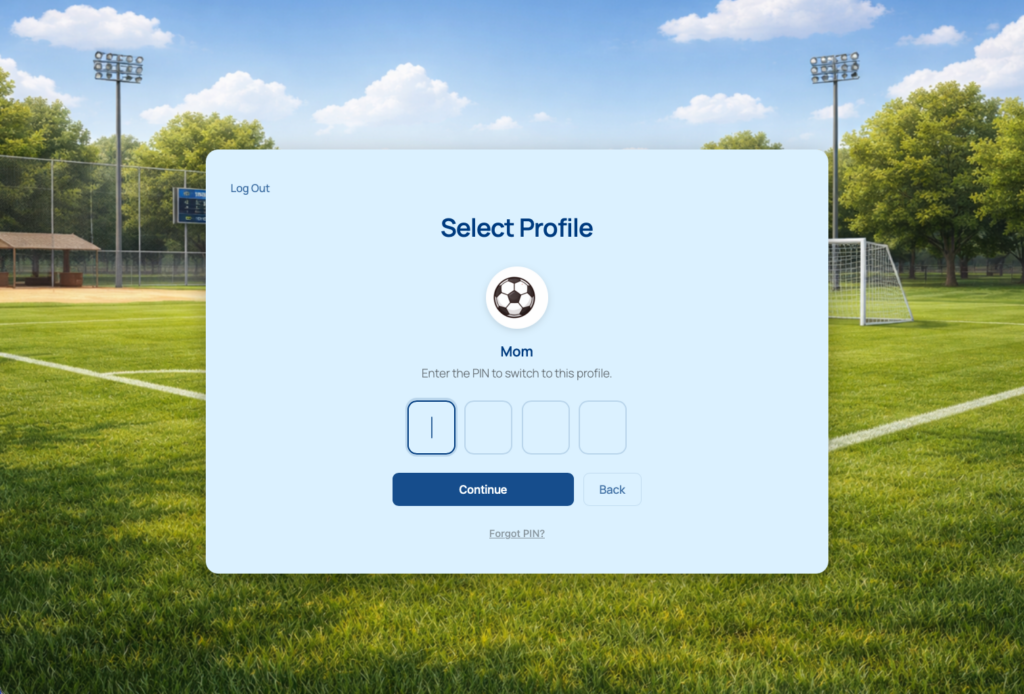
    Parents can set a PIN on their own profile — either a 4-digit numeric PIN or an alphanumeric password. When a PIN is set, anyone trying to switch to that profile has to enter the PIN first. A lock icon appears on PIN-protected profiles so everyone knows it’s locked. The parent’s PIN also works as a master override for all child profiles in the account.

    PINs are hashed and stored securely — the same way WordPress stores passwords. There’s rate limiting built in too: five failed attempts triggers a one-minute lockout. And if someone forgets their PIN, there’s a “Forgot PIN” flow that sends a one-time reset link to the primary account’s email.

    Protected pages

    You can mark specific pages on your site as “protected” in ProfileSwitch’s settings. When parental controls are enabled, child profiles need to enter the parent’s PIN to access those pages. For a sports site, this is useful for protecting the checkout page — so a kid browsing the practice schedule can’t accidentally (or intentionally) register for a new program or buy merchandise without a parent present.

    Forced profile selection

    ProfileSwitch requires users to select a profile immediately after login. Instead of landing on the homepage as the parent account, the site sends them straight to the “Select Profile” screen. This prevents kids from accidentally browsing the site under the parent’s identity — they pick their own profile and see their own schedule, roster, and content.

    Both parents need access? Use profile managers

    In most families, both parents need to manage the kids’ registrations. Maybe mom signs up and pays, but dad needs to check the practice schedule and update emergency contacts too. ProfileSwitch handles this with profile managers.

    The primary account holder can designate any other profile in the account as a “manager.” Managers get the same privileges as the primary — they can access protected pages, bypass PINs, and manage the family’s profiles. To set up a second parent as a manager, the primary creates a profile for them (optionally with custom login credentials so the other parent can sign in independently) and then promotes them to manager from the account management screen.

    The custom credentials feature is especially useful here. When enabled in your site’s settings, it lets the primary set a real email address and password on the second parent’s profile. That way, both parents can log in independently on their own devices — one from the primary account, one from the manager profile — while still sharing the same family of child profiles. Either parent can switch to any child’s profile to register them, check their schedule, or update their information.

    Real-world example: a youth swim club

    Let’s put it all together with a concrete example. You run a youth swim club website with WordPress, PMPro for registration, and BuddyPress for team directories. You have membership levels for each team: Bronze Squad ($200/season), Silver Squad ($250/season), and Gold Squad ($300/season), based on skill level.

    The Martinez family has three kids in the club. Here’s their experience:

    1. Mom creates an account on your site with her email and password.
    2. She creates profiles for Carlos (12), Sofia (9), and Mateo (7). Each kid picks a swimmer avatar. She fills in their ages and swim levels via BuddyPress profile fields.
    3. She creates a profile for Dad with his real email and password using the custom credentials feature, then promotes him to profile manager.
    4. She switches to Carlos’s profile and registers him for Gold Squad ($300/season). Carlos has been swimming competitively for three years.
    5. She switches to Sofia’s profile and registers her for Silver Squad ($250/season).
    6. She switches to Mateo’s profile and registers him for Bronze Squad ($200/season). He’s just starting out.
    7. Three registrations, three payments, three separate memberships — each tied to the individual child. Mom did it all in five minutes without creating a single fake email address.
    8. She sets a PIN on her profile and enables parental controls so the kids can’t register for anything else without her.
    9. Dad logs in on his phone with his own credentials. He can see all three kids’ profiles, switch between them to check practice schedules, and update info — because he’s a manager.
    10. When Carlos borrows the family tablet to check his practice times, he picks his profile from the switcher. He can see the Gold Squad schedule and content, but he can’t switch to Mom’s profile without her PIN, and the checkout page is protected.

    From the club’s perspective, the admin dashboard shows five distinct WordPress users — Mom, Dad, Carlos, Sofia, and Mateo — all linked together. When you pull the Gold Squad roster, you see “Carlos Martinez, age 12.” When you pull the Bronze Squad roster, you see “Mateo Martinez, age 7.” Each child has their own PMPro membership record, their own payment history, and their own profile data. Clean, individual records for every swimmer.

    What this looks like for your organization

    As the admin of the site, here’s what you get:

    • Individual user records for every participant. Each child is a real WordPress user. You can view their profile, see which family they belong to, and manage their data from the standard WordPress admin.
    • Individual PMPro membership records. Each child has their own membership level, their own start and end dates, and their own payment history. You can filter members by level to pull rosters — all the Gold Squad members, all the U-10 players, etc.
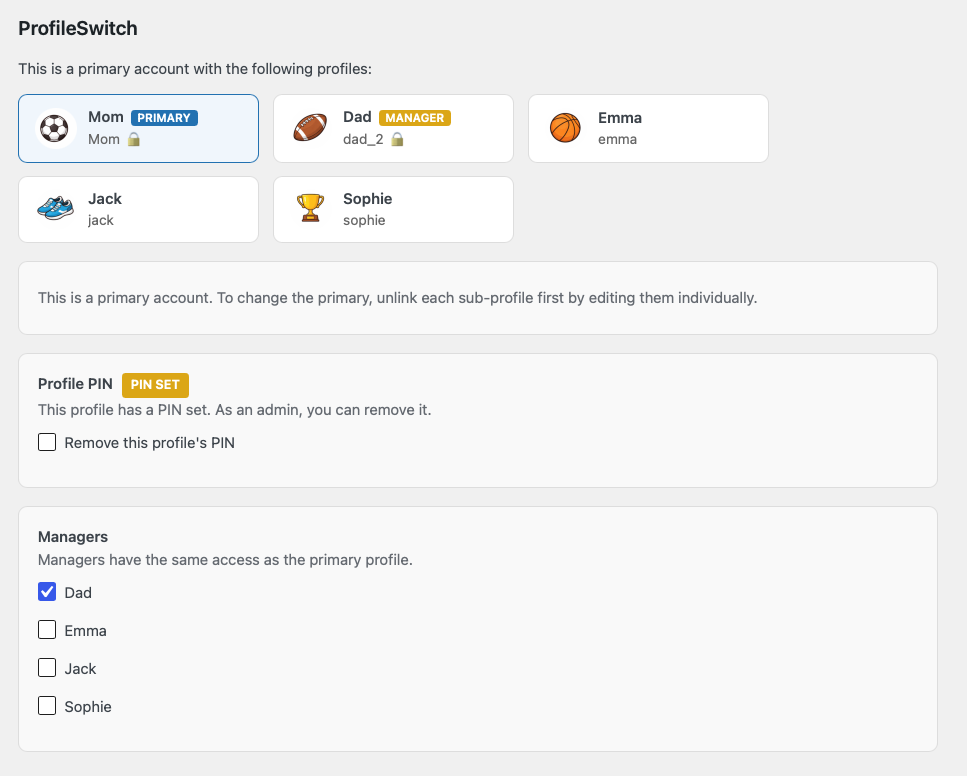
    • Family linkage visible in the admin. When you edit a user’s profile in the WordPress admin, you’ll see all the other profiles in their family — with badges showing who’s the primary, who’s a manager, and who has a PIN set.
    • No fake email addresses cluttering your database. Child profiles use auto-generated plus-addressed emails (like [email protected]) that all route to the parent’s inbox. No [email protected] addresses that bounce.
    • All communication goes to the parent. Registration confirmations, membership renewal reminders, expiration notices — everything goes to the parent’s real email address. You’re always communicating with the person who can actually act on the information.
    • Clean data when families leave. If a family moves away, you can unlink profiles (making them standalone accounts that keep their data) or delete auto-generated profiles entirely. ProfileSwitch cleans up all its metadata automatically.

    Screenshot of the ProfileSwitch section of the Edit User page for a sports camp

    Getting started

    The full setup takes about ten minutes:

    1. Install ProfileSwitch and activate your license.
    2. Create the profile switcher page — one click from the General settings tab.
    3. Upload some preset avatars on the Avatars tab. Sports icons, team mascots, or fun character illustrations all work well for a youth sports audience.
    4. Enable profile PINs and parental controls on the PINs & Access Control tab. Mark your checkout page and any other sensitive pages as protected.
    5. Enable profile managers so both parents can manage the family account.
    6. Enable custom credentials on the Advanced tab so co-parents can have their own login.
    7. Set up your PMPro membership levels — one level per program, age group, or season. Each child will register for their own level individually.
    8. If using BuddyPress: Create your profile fields (age, emergency contact, jersey number, etc.) and select the field source in ProfileSwitch’s Integrations tab so parents fill in these details when creating child profiles.

    That’s it. Your parents can now create one account, add profiles for all their kids, and register each child individually for the right program — all from a single login. Each child shows up as an individual participant in your system with their own registration, payment history, and profile data. No more fake emails, no more shared logins, no more confused rosters.

    Stop juggling logins. Start registering families.

    ProfileSwitch adds Netflix-style family accounts to any WordPress site. One parent login, multiple child profiles, each with their own identity and data. Works with Paid Memberships Pro, WooCommerce, LearnDash, BuddyPress, and more — because each profile is a real WordPress user.

  • How to Add Family Plans to Your PMPro Membership Site

    If you run a membership site with Paid Memberships Pro, you may have asked yourself: “Can my whole family use my membership?” Maybe it’s a parent enrolling their kids in online courses. Maybe it’s a couple sharing a fitness program. Maybe it’s a homeschool co-op where one parent pays and three kids need access.

    PMPro has great tools for giving multiple people access to one membership — but families are a unique challenge. Kids don’t have their own email addresses. They share a device with their parents. And no parent wants to hand their child a tablet with full access to checkout, billing, and subscription management.

    What families really need is the Netflix model — one login, multiple profiles, each with their own identity and data. The parent controls the account, and everyone else just picks their profile and uses the site.

    ProfileSwitch adds exactly this to any PMPro membership site. One account holder pays for the membership, creates profiles for their family members, and everyone gets access — with separate course progress, separate identities, and separate data. Here’s how to set it up and how it works under the hood.

    Why membership sites need family plans

    Think about how your members actually use your site. A parent signs up for your online learning platform and wants all three of their kids to take courses. A couple joins your fitness membership and both want to track their own workouts. A team lead purchases access for their department and needs each person to have their own account.

    Without a family plan, these customers have three bad options:

    • Share one login. Everyone uses the same account. Course progress gets mixed together, quiz results overlap, and you have no idea who’s actually using the site. If you use BuddyPress or any community feature, everyone posts as the same person.
    • Buy multiple memberships. Each family member gets their own account. This costs the customer two, three, or four times as much — and most will just leave instead of paying that. You lose the sale entirely.
    • Don’t use your site. The customer decides it’s not worth the hassle and goes somewhere else. This is what usually happens.

    A family plan solves all three problems. One membership, one payment, multiple profiles — each with their own identity and data. The account holder manages the billing, and everyone else just uses the site. It’s the same model that made Netflix, Spotify, and Disney+ the standard for shared subscriptions.

    PMPro Group Accounts vs. ProfileSwitch: different tools for different needs

    Before we dive in, it’s worth mentioning that PMPro already has a fantastic solution for shared memberships: the Group Accounts Add On. If you need to give multiple people access under one membership, Group Accounts is the official PMPro solution and it works great — especially for teams, businesses, and organizations where each member is an independent adult with their own email address and login.

    With Group Accounts, a group leader purchases a membership and then invites members by email. Each member creates their own WordPress account, logs in with their own credentials, and manages their own profile. It’s ideal when everyone in the group is self-sufficient — they can sign in on their own, reset their own passwords, and don’t need anyone else to manage their access.

    ProfileSwitch solves a different problem. It’s designed for families sharing a single device or account — where one person logs in and everyone else picks their profile from a selection screen, like Netflix. Children don’t need their own email addresses or passwords. Parents stay in control of everything. The experience is built around switching between profiles within one session, not managing separate logins.

    Here’s a quick way to think about it:

    Use PMPro Group Accounts when…

    Each member has their own email, logs in independently, and manages their own account. Think corporate teams, professional associations, school staff, or any group of adults who each need their own separate login.

    Use ProfileSwitch when…

    A family shares one login on a shared device, children don’t have email addresses, and a parent needs to stay in control of everything — including who can access checkout, billing, and membership management. Think families with kids, homeschool households, or any situation where one person manages access for everyone else.

    Both are great tools, but this post focuses on the family use case and how ProfileSwitch handles it.

    How ProfileSwitch adds family plans to PMPro

    ProfileSwitch lets one WordPress account have multiple profiles — like a streaming service. One person logs in, and everyone in the family picks their own profile. Each profile is a real WordPress user, so plugins like PMPro, LearnDash, WooCommerce, and BuddyPress treat each one as a distinct person with their own data.

    The PMPro integration takes this a step further. When enabled, the primary profile’s membership level is automatically shared with every sub-profile in the account. The parent pays for one membership, and the whole family gets access to your restricted content — each with their own course progress, community profile, and activity history.

    At the same time, sub-profiles are automatically blocked from managing the membership itself. They can’t check out for a new level, cancel the existing one, or change billing details. Only the primary account holder (and any designated profile managers) can do that. So families get shared access without the risk of someone accidentally canceling or changing the plan.

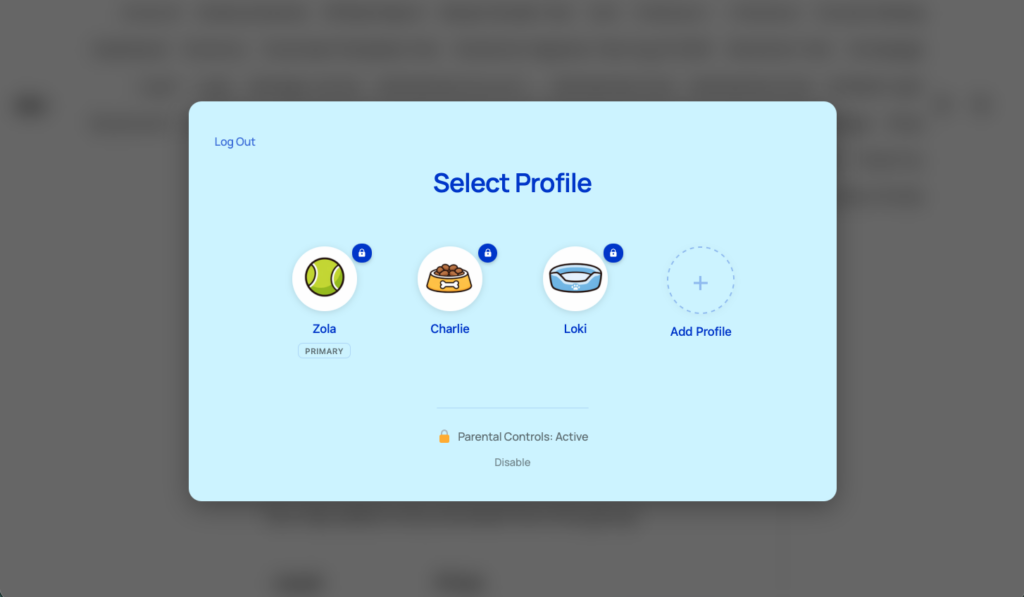
    Screenshot of the Select Profile page

    Setting it up: step by step

    Getting family plans working with PMPro takes about five minutes. Here’s the full setup.

    1. Install ProfileSwitch and set up the basics

    1. Install and activate ProfileSwitch from your WordPress dashboard (setup guide)
    2. Enter your license key on the ProfileSwitch settings page
    3. Create the profile switcher page (one click from the General tab)

    This gives you the core profile switching functionality. Your members can now create multiple profiles under their account. But the profiles don’t share membership access yet — that’s the next step.

    2. Enable PMPro membership sharing

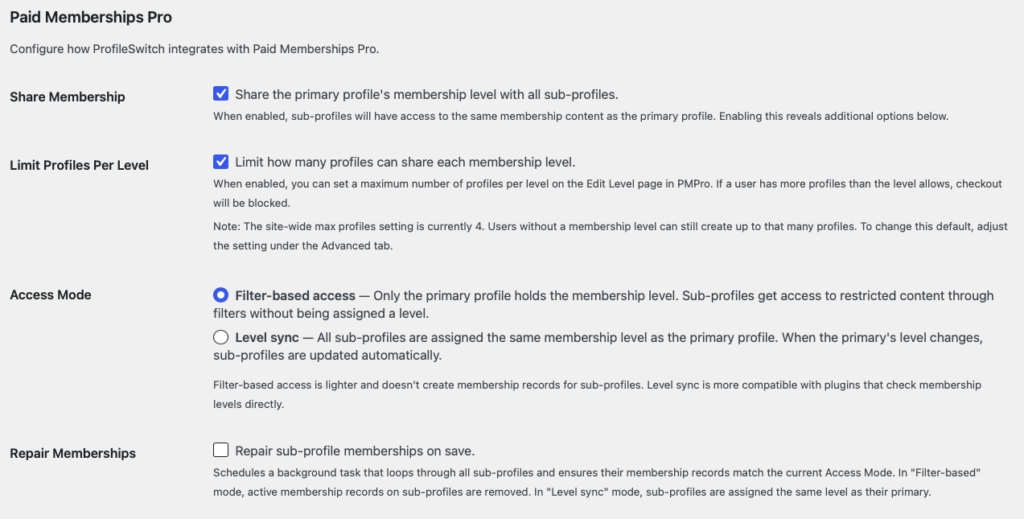
    Go to the Integrations tab in ProfileSwitch settings. Under the Paid Memberships Pro section, check “Share the primary profile’s membership level with all sub-profiles.”

    This is the master switch. Once enabled, three additional options appear:

    • Per-level profile limits — Set different profile limits for different membership tiers
    • Access mode — Choose how membership sharing works behind the scenes
    • Repair memberships — A one-time tool to fix existing membership data

    Screenshot of the Paid Memberships Pro integration settings

    3. Choose your access mode

    ProfileSwitch gives you two ways to share the membership. Both give sub-profiles access to the same restricted content — they differ in how that access is stored.

    Filter-based (default)

    Only the primary profile holds the membership level in the database. When PMPro checks whether a sub-profile has access, ProfileSwitch intercepts the check and returns the primary’s membership instead. This is the lighter option — no duplicate membership records are created, and the database stays clean. It works well for most setups where your site relies on PMPro’s built-in content restriction.

    Level sync

    Every sub-profile is assigned the same membership level as the primary in the database. When the primary’s level changes — upgrade, downgrade, cancellation — all sub-profiles are automatically updated to match. This is the more compatible option. Use it if you have third-party plugins that check membership levels directly in the database instead of going through PMPro’s functions.

    If you’re not sure which to pick, start with filter-based. It’s the default, it’s lighter on your database, and it works with PMPro’s native content restriction out of the box. You can switch to level sync later if you run into compatibility issues with another plugin — ProfileSwitch includes a repair tool to migrate your data when switching modes.

    Creating tiered family plans with per-level profile limits

    This is where it gets interesting. ProfileSwitch doesn’t just give you a flat “family plan” — it lets you create tiered plans where different membership levels allow different numbers of profiles. This is the same pricing model that Spotify, YouTube Premium, and other subscription services use: pay more, get more seats.

    Here’s an example of how you might structure your membership levels:

    Individual — $10/month — 1 profile

    Single user, no profile switching. The account holder is the only person on the account.

    Family — $20/month — 5 profiles

    One account holder plus up to four family members. Each person gets their own profile with separate progress and data.

    Team — $50/month — 20 profiles

    For organizations, co-ops, or larger groups. One account holder manages the membership, and up to nineteen others get their own profiles.

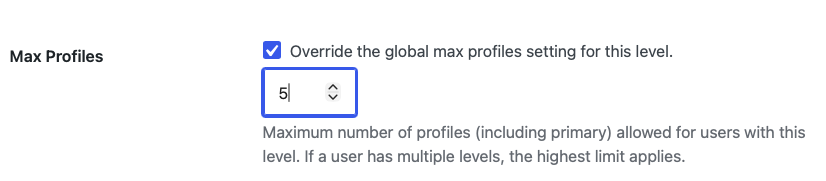
    To set this up, enable “Limit how many profiles can share each membership level” in the ProfileSwitch settings. Then go to each membership level in PMPro (under Memberships > Settings > Levels) and set the max number of profiles for that level.

    Screenshot of the Max Profiles level settings in PMPro

    The limits are enforced automatically. If someone on the Individual plan tries to add a second profile, they’ll see a message explaining they need to upgrade. If someone on the Family plan tries to check out for the Individual level, they’ll be blocked if they already have more profiles than that level allows. The messaging is clear — it tells them exactly how many profiles they have and what the level permits.

    If a member holds multiple levels, ProfileSwitch uses the highest limit across all of them. So a member with both a Family level (5 profiles) and a Team add-on (20 profiles) would get the 20-profile limit. Any levels without an override fall back to your site-wide maximum.

    What sub-profiles can and can’t do

    When membership sharing is enabled, sub-profiles get full access to all of the primary’s membership content. They can read restricted posts, take courses, participate in the community — everything the membership grants. But they can’t touch the membership itself.

    Here’s specifically what sub-profiles are blocked from:

    • Checkout page — Can’t purchase a new membership level or change the existing one
    • Billing page — Can’t view or update payment methods
    • Cancel page — Can’t cancel the membership
    • Levels page — Can’t browse or compare membership tiers
    • Member action links — The renew, cancel, update billing, and change level links are hidden from the account page

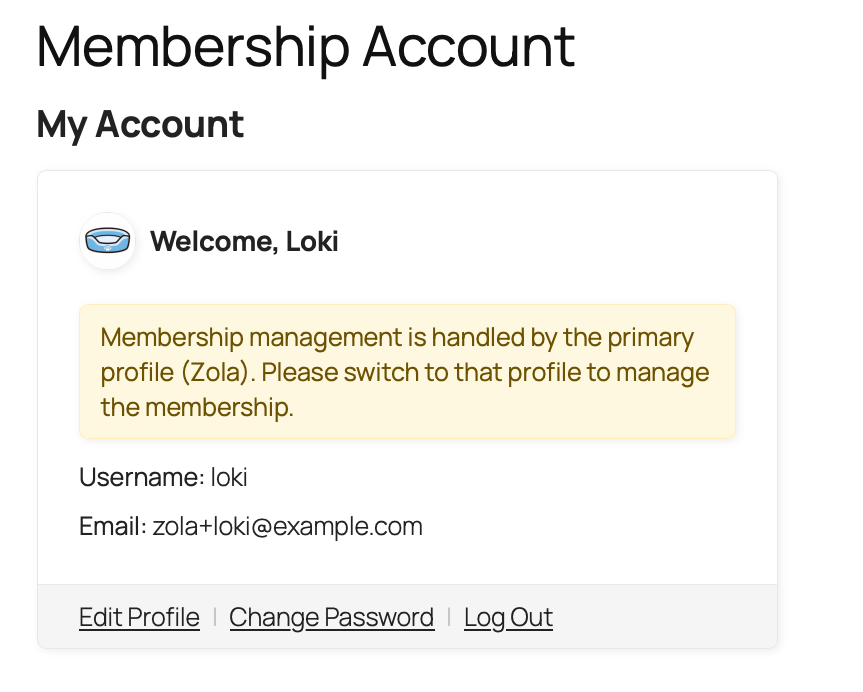
    If a sub-profile tries to visit any of these pages directly (by typing the URL, for example), they’re redirected to the PMPro account page with a message explaining that membership management is handled by the primary profile.

    Screenshot of the message that is shown to sub-profiles when they try to manage their memberships

    This all happens automatically when you enable membership sharing. There’s no separate toggle or per-page configuration required — ProfileSwitch knows which PMPro pages handle billing and membership management and blocks them for sub-profiles out of the box.

    What happens when the membership changes

    One of the most important questions with shared memberships is: what happens when the primary upgrades, downgrades, or cancels? ProfileSwitch handles each scenario automatically, depending on your access mode.

    In filter-based mode

    Changes are instant and automatic. Since sub-profiles don’t hold their own membership levels, they always inherit whatever the primary has right now. If the primary upgrades from Silver to Gold, every sub-profile immediately has Gold access. If the primary cancels, every sub-profile immediately loses access. There’s nothing to sync — the filter always looks up the primary’s current level in real time.

    In level-sync mode

    ProfileSwitch watches for membership level changes on the primary profile. When a change is detected — upgrade, downgrade, cancellation, or new purchase — it automatically updates every sub-profile’s membership to match. Sub-profiles gain any new levels the primary has and lose any levels the primary no longer holds. The same automatic sync runs when a new profile is added to the account or when a profile is removed.

    Real-world example: a course site with family access

    Let’s walk through a concrete example. Say you run an online learning platform for kids with PMPro and LearnDash. You have two membership levels:

    • Individual — $15/month, 1 profile
    • Family — $25/month, 5 profiles

    A parent visits your site and purchases the Family membership. Here’s what happens next:

    1. After login, the profile switcher appears. The parent sees their own profile and an “Add Profile” button.
    2. The parent creates profiles for each child — “Emma,” “Jack,” and “Sophie.” Each one picks an avatar from the preset options you’ve uploaded. No email addresses or passwords needed.
    3. Each child’s profile automatically has the Family membership level. They can access all the courses and content that the membership includes.
    4. Each child tracks their own course progress. Emma might be on Lesson 5 of the math course while Jack is on Lesson 12. Their quiz scores, completion status, and certificates are all separate.
    5. No child can touch the membership. If Emma clicks a link to the checkout page or the membership management page, she’s redirected with a message that the parent manages the membership.
    6. The parent sets up the other parent as a profile manager. Now both parents can manage the membership, view all the kids’ order history, and bypass any PINs or parental controls.

    From the parent’s perspective, they’re paying $25 instead of $60 (four individual memberships), and every child has their own identity on the site. From your perspective, you’re making a higher-value sale ($25 vs. $15) and retaining a customer who would have left if they had to pay for four separate accounts.

    Which types of membership sites benefit most?

    Family plans work on any PMPro membership site, but some types of sites see the biggest impact:

    Online learning and course platforms

    Parents buy one membership and enroll all their kids. Each child has their own course progress, quiz scores, and completion certificates. Works with LearnDash, LifterLMS, Tutor LMS, or any LMS that uses WordPress user data. Homeschool families are a particularly strong audience — one parent often teaches multiple children across different grade levels.

    Youth sports and recreation organizations

    A parent registers the family and creates profiles for each child on the team. Coaches or program directors can see each participant individually. The parent manages the membership and payments, while each child has their own schedule, roster spot, and activity history.

    Membership communities and content libraries

    Sites that offer premium content, forums, or community features behind a membership wall. Each family member gets their own community identity and can post, comment, and interact independently. If you use BuddyPress or BuddyBoss, each profile has its own avatar and profile fields.

    More than just membership sharing

    The PMPro integration is one piece of ProfileSwitch’s shared account system. When you install ProfileSwitch, your family customers also get:

    • One login for the whole family. No juggling passwords or email addresses. The account holder logs in once and switches between profiles with a single click.
    • Preset avatars for a streaming-service feel. Upload avatar images and let each profile pick their own — the same Netflix-style experience your customers already know.
    • PIN protection and parental controls. Lock sensitive pages behind a PIN so children can’t access checkout, payment settings, or anything else you want to restrict.
    • Consolidated order management. If you use WooCommerce, the parent sees every order across all profiles from their account page.
    • BuddyPress and BuddyBoss integration. Each profile gets its own community identity with separate profile fields and avatars.
    • Custom credentials for managers. Give a co-parent or team lead their own email and password so they can log in independently without sharing the primary’s credentials.

    Family plans for your PMPro membership site

    Let members share one membership across their whole family — each with their own profile, their own progress, and their own identity. Works with Paid Memberships Pro out of the box with a 14-day money-back guarantee.

  • How to Add Parental Controls to WordPress

    If your WordPress site sells products, subscriptions, or memberships, there’s a good chance some of your customers are families. And where there are families, there are kids who might be browsing on a shared device.

    Most parents aren’t worried about their kids browsing your catalog or reading course materials. What they are worried about is their child stumbling onto the checkout page and placing an order. Or opening the subscription management page and canceling a plan. Or accessing payment settings and seeing saved credit card details.

    WordPress doesn’t have a built-in way to handle this. There’s no concept of a “child account” that can browse freely but gets blocked from sensitive pages. You either give someone full access or no access at all.

    ProfileSwitch solves this with parental controls built into its shared account system. Parents create profiles for their kids under one login, then PIN-protect sensitive pages so children can’t access them without the parent’s permission. Here’s how to set it up and what your customers will actually experience.

    Why WordPress needs parental controls

    Think about how families actually use your site. A parent signs up, buys a subscription or enrolls their kids in a program, and then hands the laptop or tablet over so the kids can access their content. Maybe it’s an online course. Maybe it’s a membership community. Maybe it’s a homeschool curriculum store where kids browse what’s available.

    The problem is that the parent’s account has access to everything: checkout, saved payment methods, subscription management, account settings. A curious kid is one click away from placing an order, changing a subscription, or worse.

    Some site owners try to work around this by telling parents to log out when handing the device over. But that’s a terrible user experience — nobody wants to log in and out every time their kid needs to use the site. Others create separate accounts for kids, but that means managing multiple logins and kids often don’t even have their own email addresses.

    What parents actually need is simple: let kids browse freely, but block them from the pages where money changes hands or account settings can be modified. That’s exactly what ProfileSwitch’s parental controls do.

    How ProfileSwitch parental controls work

    ProfileSwitch lets one WordPress account have multiple profiles. A parent logs in and creates profiles for each of their children — no separate email addresses or passwords required. Each profile is a real WordPress user under the hood, so plugins like WooCommerce, LearnDash, or Paid Memberships Pro treat each one as a distinct person.

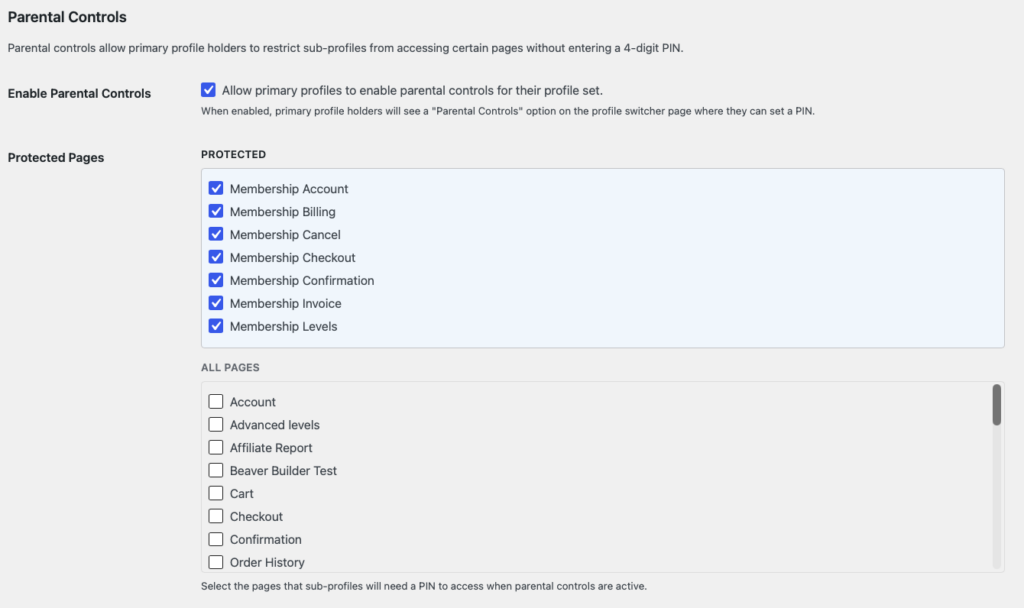
    Parental controls add a layer on top of this. When enabled, the parent selects which pages on your site should be restricted. Any page can be protected — checkout, My Account, subscription management, the shop page, a payment form — whatever makes sense for your site.

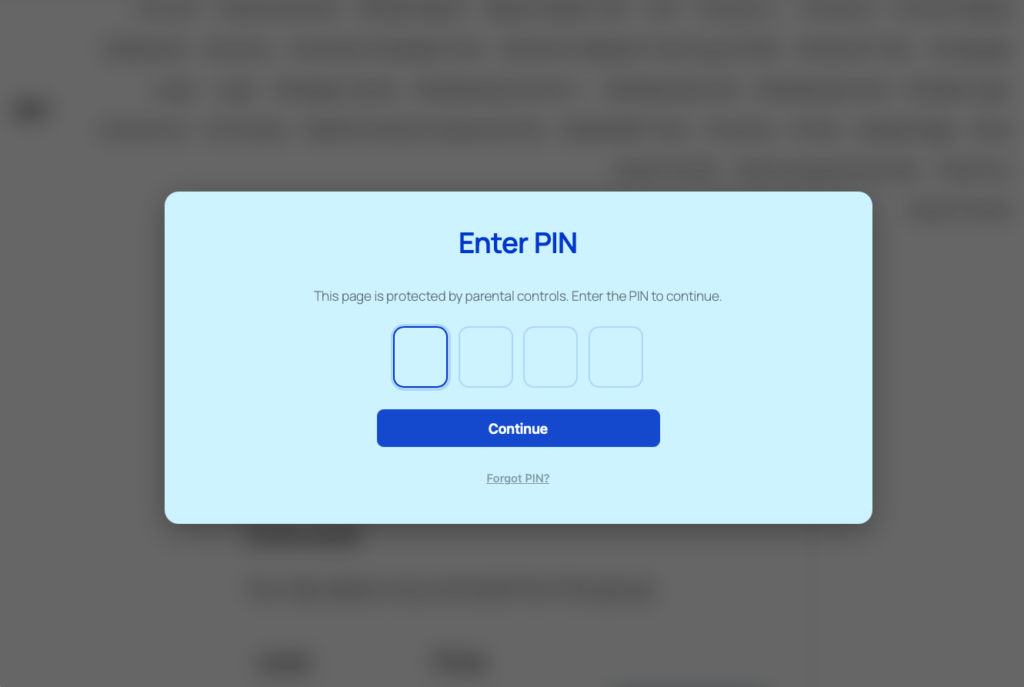
    When a child profile tries to visit a protected page, they don’t see it. Instead, they hit a full-screen PIN gate — a clean, branded page that asks for the parent’s PIN before allowing access. No sneaking past it, no workaround. The child either knows the parent’s PIN or they don’t get through.

    The parent’s profile and any designated manager profiles bypass the PIN gate entirely. They see every page normally, no interruptions. Only child (sub) profiles are restricted.

    Once a child enters the parent’s PIN to access a protected page, the session stays unlocked for one hour. So if a parent enters the PIN to let their child check out, the child won’t be asked again for every protected page during that session. When the session expires, the PIN gate comes back.

    What pages should you protect?

    This depends on your site, but here are the pages most site owners protect:

    Checkout and cart pages

    The most common choice. Prevents children from completing purchases, even if they add items to a cart. The parent must enter their PIN before anyone can check out.

    My Account and account settings pages

    Keeps children away from saved payment methods, billing addresses, and account details. Especially important if your site stores credit card information or allows customers to manage their subscription billing.

    Subscription management pages

    If you use WooCommerce Subscriptions, Paid Memberships Pro, or any plugin that lets users cancel, upgrade, or downgrade plans, you’ll want that page locked. One accidental cancellation and a parent loses access to your service.

    Shop or product catalog pages

    Some site owners want to restrict browsing entirely so children can only access their courses, content, or community — not the storefront. Less common, but useful for sites where kids should have a focused, distraction-free experience.

    You choose which pages to protect from the ProfileSwitch settings in your WordPress dashboard. Any page on your site can be added to the protected list.

    The PIN system: secure but simple

    Parental controls are powered by ProfileSwitch’s PIN system. When parents set a PIN on their profile, it serves double duty: it protects their profile from being switched to by their kids, and it becomes the master key for all protected pages.

    There are two PIN types to choose from:

    • Numeric (4-digit PIN) — Fast to enter, familiar from phone unlock screens. Four separate input boxes with auto-advance, so the experience feels native.
    • Alphanumeric (password-style) — A longer, more secure option for parents who want something stronger than four digits. Minimum four characters, no maximum.

    Security is taken seriously even though this is a PIN and not a full password. PINs are hashed using WordPress’s native password hashing — the same system that protects login passwords. Failed attempts are rate-limited: after five wrong tries, the account is locked out for one minute to prevent brute force guessing. And if a parent forgets their PIN, there’s a “Forgot PIN” flow that sends a one-time reset link to the primary account’s email address.

    Setting up parental controls: step by step

    There are two sides to setting up parental controls with ProfileSwitch: what you do as the site owner, and what your customers do as parents. Here’s both.

    What you do (site owner setup)

    1. Install and activate ProfileSwitch from your WordPress dashboard (setup guide)
    2. Enter your license key on the ProfileSwitch settings page
    3. Create the profile switcher page (one click from the settings page)
    4. Enable Profile PINs from the PINs & Parental Controls tab and choose your PIN type (numeric or alphanumeric)
    5. Enable Parental Controls from the same tab
    6. Select your protected pages — check the pages you want to restrict for child profiles

    That’s the site-wide configuration. You’re telling ProfileSwitch which pages can be protected and making the feature available to your customers.

    What your customer does (parent setup)

    1. Log in and go to the profile switcher page
    2. Set a PIN on their primary profile by clicking Edit Profile
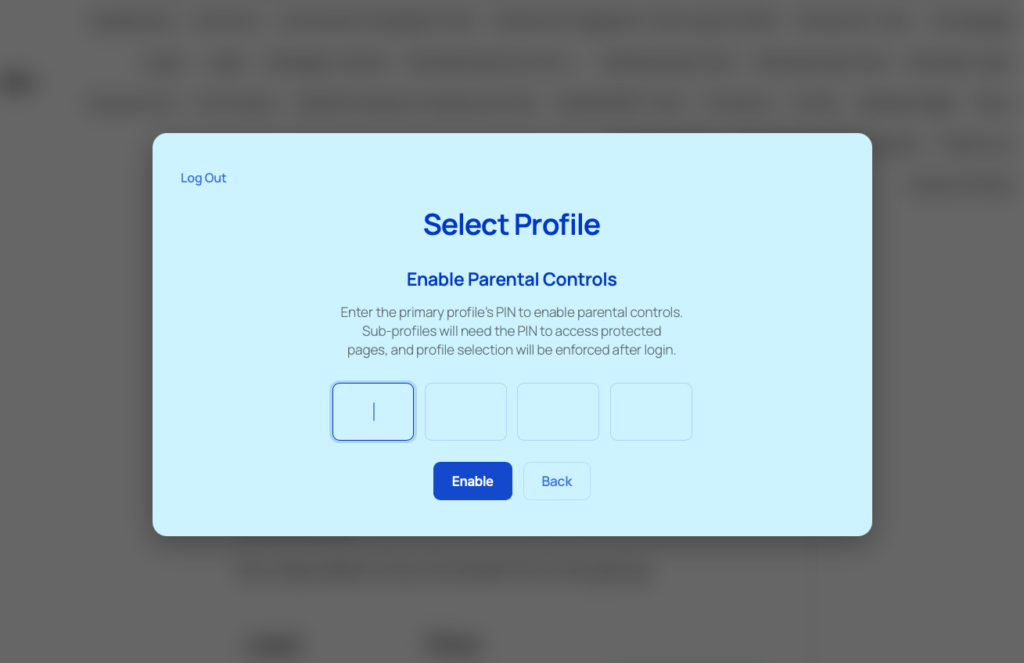
    3. Enable parental controls — a link appears on the profile switcher once a PIN is set
    4. Verify their PIN to confirm they want parental controls active
    5. Create child profiles using the Add Profile button (which now requires the parent’s PIN)

    [IMAGE: Screenshot of the profile switcher page showing the “Enable Parental Controls” option]

    Once parental controls are active, every protected page on your site is locked behind the parent’s PIN for all child profiles in that account. The parent can disable parental controls at any time from the same profile switcher page.

    What the child actually sees

    Here’s the experience from the child’s perspective:

    1. Parent logs in and selects the child’s profile from the profile picker
    2. Child browses the site normally — courses, content, community, whatever isn’t protected
    3. Child clicks a link to a protected page (e.g. checkout)
    4. Instead of the page, they see a full-screen PIN gate asking for the parent’s PIN
    5. Without the PIN, they can’t proceed — they’d need to go back to an unprotected page
    6. If the parent enters the PIN, the protected page loads and stays unlocked for the session

    The PIN gate page is a clean, full-screen design that matches your site’s branding. It’s not a jarring error page — it simply asks for the PIN and provides a clear message about why access is restricted. It also includes a “Forgot PIN?” link that sends a reset email to the parent’s address, so they’re never permanently locked out.

    Which types of sites benefit most?

    Parental controls make sense on any WordPress site where families are part of the customer base. Here are the most common use cases:

    Online learning and course platforms

    A parent buys access to online courses for their children. Each child gets a profile with their own course progress, but the checkout and subscription management pages are locked. Kids focus on learning, parents control spending.

    Homeschool curriculum stores

    Parents buy workbooks, digital downloads, or subscriptions for multiple children. Each child gets their own profile to track their materials, but only the parent can make new purchases or manage the subscription. Kids can browse what’s available without accidentally (or intentionally) ordering something.

    Membership communities and clubs

    Family memberships where each person has their own profile within the community, but the parent maintains control over the billing and membership settings. Think youth sports organizations, scouting groups, or family recreation memberships.

    WooCommerce stores with family customers

    Any store where parents shop for their family. Protect the checkout and My Account pages so kids can browse the catalog on a shared device without the parent worrying about unauthorized purchases or access to payment details.

    What parental controls don’t cover

    ProfileSwitch’s parental controls are page-level restrictions, not a full content filtering system. It’s important to set the right expectations:

    • It blocks pages, not content within pages. You can protect your checkout page, but you can’t hide a specific paragraph on a blog post. If a page is protected, the entire page is behind the PIN gate.
    • It doesn’t filter external links or third-party content. If your site links to an external payment processor or a third-party app, those destinations are outside of ProfileSwitch’s control.
    • It’s not a screen time or device management tool. ProfileSwitch doesn’t limit how long a child can browse or what time of day they can access the site. It only controls which pages they can see.

    That said, for most WordPress sites, page-level restriction is exactly what’s needed. The sensitive actions — buying something, managing a subscription, viewing payment methods — all happen on specific pages. Block those pages, and you’ve covered the critical risk areas.

    More than just parental controls

    Parental controls are one feature within ProfileSwitch’s broader shared account system. When you install ProfileSwitch, your family customers also get:

    • One login for the whole family. No juggling passwords or email addresses for each child. The parent logs in once and switches between profiles with a single click.
    • Separate order history per profile. Each child’s purchases, registrations, and downloads are tracked under their own profile. No more digging through a combined order list.
    • Consolidated order management for parents. The parent sees every order across all profiles from their WooCommerce My Account page, with labels showing which child placed each order.
    • PIN protection on profiles. Even without parental controls, parents can set PINs on individual profiles so kids can’t switch to each other’s profiles and mess with each other’s stuff.
    • Preset avatars for a streaming-service feel. Upload preset avatar images so each profile has its own identity — similar to how Netflix or Disney+ lets family members pick their own icon.

    Parental controls for your WordPress site

    Let parents create profiles for their kids, block access to checkout and payment pages, and keep everything organized under one account. Set up in 5 minutes with a 14-day money-back guarantee.

  • How to Add Shared Accounts to Your WooCommerce Store

    If you run a WooCommerce store, you’ve probably had a customer who doesn’t fit neatly into the “one person, one account” model.

    Maybe it’s a large company where different divisions and locations need to place their own orders, but someone at headquarters needs to see everything. Without shared accounts, that means logging into each division’s account separately to track orders — or everyone shares one login and orders pile up in a single list with no way to tell who placed what.

    Or maybe it’s a family. A parent buys curriculum, gear, or subscriptions for multiple kids. They don’t want to manage separate logins for each child, but they need to keep everyone’s orders organized.

    The core problem is the same: WooCommerce doesn’t have a concept of shared accounts. Every customer is one user, one email, one login. There’s no way to have a master account with sub-accounts underneath it — at least not out of the box.

    ProfileSwitch adds shared accounts to WooCommerce. One login, multiple profiles, and a single place for the account holder to see every order across all profiles. Here’s how it works.

    The problem with one account per person

    WooCommerce ties everything to a single user account: order history, saved addresses, payment methods, and downloads. When multiple people need to share an account — or when they shouldn’t have to create separate ones — you’re stuck with two bad options:

    • One account for everyone. Orders pile up in one list with no way to tell who placed them. A company’s purchasing manager scrolls through hundreds of orders from every division trying to find one shipment. A parent hunts through a mixed order history to find one child’s purchase.
    • Separate accounts for each person. Now a company has dozens of accounts to manage, and their negotiated discount or pricing tier doesn’t carry over. A family juggles multiple logins and passwords, and kids might not even have email addresses.

    What these customers actually need is a master account with sub-accounts underneath it. One login, one pricing structure, one invoice — but separate order tracking for each person or division using it.

    How ProfileSwitch works with WooCommerce

    ProfileSwitch lets one WordPress account have multiple profiles. Each profile is a real WordPress user under the hood, which means WooCommerce treats each one as a separate customer with their own order history, saved addresses, and cart.

    But they all live under one master account. One login, one set of credentials, and any account-level attributes — like a negotiated discount or pricing tier — stay attached to the account regardless of which profile is active.

    After logging in, the user sees a profile picker. They choose who’s shopping — themselves, a division, a team member, a child — and WooCommerce shows that profile’s experience. Switching profiles takes one click from the admin bar or the profile switcher page. No logging out, no password juggling.

    Sub-profiles don’t need their own email addresses. ProfileSwitch generates unique emails automatically using plus addressing (e.g. [email protected] becomes [email protected]), so WooCommerce can identify each profile as a distinct customer without anyone needing to set up extra inboxes.

    See every order in one place

    One of the biggest headaches with shared purchasing is fragmented order history. If a company’s purchasing manager needs to find an order placed by another division, or a parent needs to track down a child’s purchase, they’d normally have to log into a different account entirely.

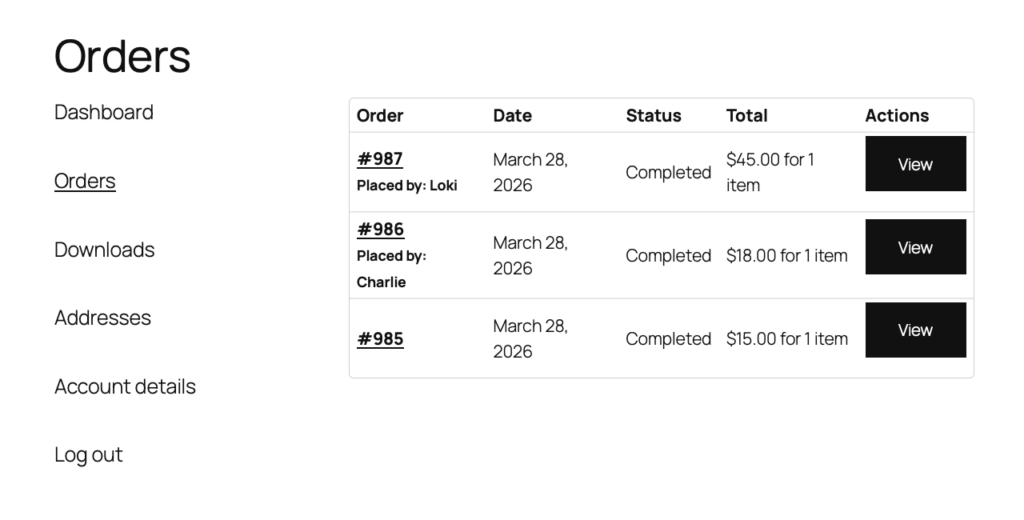
    ProfileSwitch’s WooCommerce order visibility solves this. When enabled, the primary account holder can see and manage orders from every profile in their account, all from the standard WooCommerce My Account orders page. Each order shows a “Placed by” label so it’s immediately clear which profile placed it.

    The primary account holder can click into any order to see the full details — billing address, shipping address, line items — regardless of which profile placed it. Sub-profiles still only see their own orders, so divisions don’t see each other’s purchases and kids don’t see what their parents ordered.

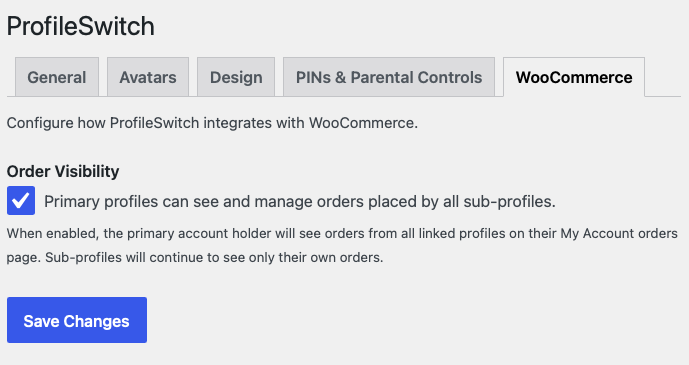
    This is controlled by a simple toggle on the ProfileSwitch WooCommerce settings tab. Turn it on and the primary account becomes the central order dashboard.

    Keep profiles secure with PINs

    Shared accounts raise a fair question: what stops one person from switching to another profile and placing orders on their behalf?

    ProfileSwitch includes Profile PINs. Any profile can set a numeric or alphanumeric PIN that must be entered before switching to that profile. For businesses, this means each division’s profile stays protected. For families, kids can’t switch to a parent’s profile and start buying things.

    The primary account holder’s PIN also works as a master override, so they can always access any sub-profile without needing to know every PIN.

    For family accounts, Parental Controls go a step further. Parents can restrict access to specific pages — like the checkout page or the shop — so children need the parent’s PIN to view them. Useful for stores where kids might be browsing on a shared device.

    PINs are hashed using WordPress’s native password hashing, rate-limited to prevent brute force attempts, and include a forgot PIN flow that sends a one-time reset link to the primary account’s email.

    What types of stores benefit most?

    Any WooCommerce site where multiple people need to share an account — or where splitting into separate accounts creates more problems than it solves.

    B2B and wholesale stores

    A large company has a negotiated discount tied to one account. Different divisions, locations, or departments need to place and track their own orders, but creating separate accounts would break the pricing structure and complicate invoicing. With ProfileSwitch, one master account keeps the discount, each division gets a profile with its own order history, and the account holder sees everything.

    Youth sports, camps, and activity programs

    A parent registers for your site, then creates a profile for each child enrolled in different programs. Each child’s registrations, gear orders, and event purchases stay organized under their own profile. The parent sees it all in one order history.

    Homeschool curriculum and educational stores

    Parents buying curriculum, workbooks, or digital downloads for multiple children can keep each child’s purchases separate. Combine with a membership or LMS plugin, and each child gets their own course access too.

    Subscription boxes and personalized products

    If your store sells items that are personalized per person — clothing sizes, dietary preferences, subscription boxes — profiles let one account manage multiple sets of preferences and order histories without mixing them together.

    Setting up ProfileSwitch with WooCommerce

    Setup takes about 5 minutes. ProfileSwitch works at the WordPress user level, and WooCommerce already tracks everything per user, so there’s nothing complicated to wire up.

    1. Install and activate ProfileSwitch from your WordPress dashboard
    2. Enter your license key on the ProfileSwitch settings page
    3. Create the profile switcher page (one click from the settings page)
    4. Enable WooCommerce order visibility from the WooCommerce tab in ProfileSwitch settings
    5. Enable Profile PINs (optional) from the PINs & Parental Controls tab if you want profiles to be PIN-protected
    6. Upload preset avatars (optional) from the Avatars tab for a polished, streaming-service feel

    That’s it. When a customer with multiple profiles logs in, they see the profile picker. They choose who’s shopping, and WooCommerce takes it from there. Cart, checkout, order history, addresses — everything is scoped to the active profile.

    When the primary account holder switches back to their own profile, they can see every order across every profile in their WooCommerce My Account page. Each order is labeled with the profile that placed it, and they can click into any order for full details.

    What your customers actually experience

    Here’s what it looks like from the customer’s side:

    1. Log in with one set of credentials
    2. Choose a profile from the full-screen profile picker
    3. Browse and shop as that profile — their own cart, their own addresses, their own order history
    4. Switch to another profile with one click when someone else needs to place an order
    5. Switch to the primary profile to see all orders across every profile in the account

    No extra email addresses. No forgotten passwords. No confusion about whose order is whose. Whether it’s a purchasing manager overseeing orders from five regional offices or a parent keeping track of three kids’ gear orders, the experience is the same: simple, organized, and under one roof.

    Frequently asked questions

    Do sub-profiles share the same cart?

    No. Each profile has its own cart, just like each profile has its own order history and saved addresses. When a customer switches from one profile to another, the cart switches too. If Profile A has items in their cart and the user switches to Profile B, Profile B sees their own cart (or an empty one). Profile A’s cart items are still there when they switch back.

    Can sub-profiles see each other’s orders?

    No. Sub-profiles only see their own orders. The consolidated order view (seeing all orders across all profiles) is only available to the primary account holder. This keeps divisions, departments, or family members from seeing each other’s purchases.

    Does it work with WooCommerce Subscriptions?

    Yes. Because each profile is a real WordPress user, WooCommerce Subscriptions treats them as independent customers. Each profile can have its own subscription. The primary account holder can see all subscription orders in their consolidated order view.

    What about coupons and pricing tiers?

    Coupons and role-based pricing apply per profile, since each profile is its own WordPress user. If you want all profiles on an account to share a pricing tier, you can assign them the same WordPress role. For B2B stores using plugins like WooCommerce Wholesale Prices, the primary account’s wholesale role can be mirrored to sub-profiles.

    Shared accounts for your WooCommerce store

    One login. Separate orders for every profile. Consolidated order management for the account holder. Set up in 5 minutes with a 14-day money-back guarantee.

  • How to Add Family Accounts to LearnDash

    If you’re running a LearnDash site for families, especially homeschool families, you’ve probably run into the same question: how do you let a parent buy one subscription and give each of their kids their own course progress?

    LearnDash doesn’t have a built-in family account feature. Every user needs their own login, their own email address, and their own enrollment. That works fine for adult learners, but it creates real friction for families. Kids often don’t have email addresses. Parents don’t want to manage four separate logins. And asking a family to buy four separate subscriptions for one household isn’t a great look.

    There are a few ways to solve this, depending on what you actually need. This guide covers three approaches: LearnDash’s built-in Groups, a parent monitoring plugin, and a full family account solution with profile switching.

    Option 1: LearnDash Groups

    Best for: Small-scale setups where the parent just needs to monitor progress. No additional plugins required.

    LearnDash has a built-in Groups feature that you can repurpose for families. The idea is simple: make the parent a Group Leader, add each child as a Group User, and enroll the group in the relevant courses.

    This gives the parent a dashboard where they can see their children’s course progress and quiz results. Each child still has their own account with their own progress tracking.

    The downsides:

    • Every child still needs their own email address and login credentials
    • Groups were designed for organizations and teams, not families, so the interface can feel heavy for this use case
    • Parents can monitor but not seamlessly switch between children’s accounts
    • Setting up groups for every family is manual work for the admin

    Groups work in a pinch, but they weren’t built for this. If you have more than a handful of families, the admin overhead adds up quickly.

    Option 2: Parent & Student Access plugin

    Best for: Sites where the parent’s main need is monitoring their children’s progress, and each child can have their own login.

    The Parent & Student Access plugin from Honors WP is purpose-built for the parent/child relationship in LearnDash. It lets parents link to their children’s accounts and view their course progress, quiz scores, completed assignments, and certificates from a single dashboard.

    Parents can add students by entering their email address, and the child receives an invitation link to confirm the connection. There’s no limit on the number of students a parent can monitor.

    The downsides:

    • Every child still needs their own email address and separate login
    • It’s a monitoring tool, not a profile switching tool. The parent watches progress but doesn’t “become” the child
    • For younger kids who share a device with their parent, switching between accounts means logging out and back in

    This is a solid choice if the parent primarily needs oversight. But if your goal is to reduce login friction for families, especially families with young children sharing a device, it doesn’t fully solve the problem.

    Option 3: ProfileSwitch (one login, multiple profiles)

    Best for: Families who share a device, kids without email addresses, and sites where reducing login friction is the priority.

    ProfileSwitch takes a completely different approach. Instead of giving every family member their own login, one account gets multiple profiles. After logging in, the family sees a full-screen profile picker where they choose who’s using the site. Each profile is a real WordPress user with its own LearnDash course progress, quiz scores, and completions.

    Think of it like how streaming services work. One account, one password, but everyone gets their own experience.

    ProfileSwitch profile picker showing family member profiles on a WordPress site

    How it works with LearnDash:

    • Parent logs in with one set of credentials
    • They see all family profiles and pick who’s using the site
    • Each child has their own LearnDash course progress, quiz results, and certificates
    • Switching profiles takes one click, no logging out
    • Kids don’t need their own email addresses. ProfileSwitch generates unique emails automatically using plus addressing
    • Parents can create new profiles and edit existing ones from the frontend

    Because each profile is a real WordPress user under the hood, LearnDash treats them as completely separate students. Course enrollments, progress, quizzes, certificates, and assignments are all fully isolated. ProfileSwitch handles the relationship between profiles and the shared login. LearnDash doesn’t need to know or care.

    Which option should you choose?

    LearnDash Groups

    • Free (built into LearnDash)
    • Basic progress monitoring
    • Separate logins required
    • Manual admin setup
    • Not designed for families

    Parent & Student Access

    • Dedicated parent dashboard
    • Detailed progress reports
    • Separate logins required
    • Monitoring focused
    • Kids need email addresses

    ProfileSwitch

    • One login for the family
    • Full-screen profile picker
    • No emails needed for kids
    • Separate data per profile
    • Customizable design

    If your families are mostly adults who each have their own devices and email addresses, and the parent mainly wants to check in on progress, Parent & Student Access is a great fit.

    If your families include young children, share devices, or you just want to eliminate the friction of managing multiple logins, ProfileSwitch is the better choice. One password, one login, and every family member gets their own learning experience.

    Setting up ProfileSwitch with LearnDash

    If you go with ProfileSwitch, setup takes about 5 minutes. There’s nothing LearnDash-specific to configure because ProfileSwitch works at the WordPress user level, and LearnDash already tracks everything per user.

    1. Install and activate ProfileSwitch from your WordPress dashboard
    2. Enter your license key on the ProfileSwitch settings page
    3. Create the profile switcher page (one click from the settings page)
    4. Upload preset avatars (optional) from the Avatars tab to give profiles a visual identity
    5. Customize the design (optional) from the Design tab to match your site

    That’s it. When a parent with multiple profiles logs in, they’ll be redirected to the profile picker. They choose a child’s profile, and LearnDash shows that child’s courses, progress, and quizzes. Switching to another child is one click from the admin bar or the profile switcher page.

    ProfileSwitch edit profile panel with name and avatar selection

    Parents can edit profiles directly from the profile switcher

    What the family experience looks like

    Here’s a concrete example. A homeschool mom has three kids taking a science curriculum on your LearnDash site. With ProfileSwitch installed, her day-to-day experience looks like this:

    1. She logs in once with her email and password.
    2. She sees the profile picker showing her own profile plus her three children — each with a name and avatar.
    3. She taps her oldest child’s profile. The site now shows that child’s LearnDash dashboard — their enrolled courses, their progress bars, their quiz scores. Nothing from the other kids is visible.
    4. The child works through their lesson. When they finish, she switches to the next child’s profile with one click from the admin bar. No logging out, no passwords.
    5. Each child’s progress is completely independent. If all three are taking the same course, each has their own completion percentage, quiz attempts, and certificates.

    From the parent’s perspective, it’s as simple as choosing a name. From LearnDash’s perspective, each child is a fully separate student with their own enrollment and progress data.

    Keeping it secure with PINs

    If the family shares a tablet, ProfileSwitch’s PIN feature adds a layer of protection. The parent can set a PIN on their own profile so kids can’t switch to it and access account settings, billing pages, or other parent-only areas. The parent’s PIN also works as a master override — they can always access any child’s profile without needing to remember multiple PINs.

    Both parents need access? Use Profile Managers

    If both parents need to manage the children’s profiles, ProfileSwitch’s Profile Managers feature lets a second parent log in with their own credentials and access the same set of child profiles. No password sharing, and each parent can check on any child’s course progress independently.

    Frequently asked questions

    Does each child need their own LearnDash license?

    No. LearnDash is licensed per site, not per user. Each child profile is a separate WordPress user, but they all live on the same site under your existing LearnDash license.

    Can I sell one course and give the whole family access?

    Yes. If you use Paid Memberships Pro with LearnDash, ProfileSwitch can share the parent’s membership with all sub-profiles. The parent purchases the membership, and every child profile automatically gets the same course access. You can also set per-level profile limits to create tiered family plans.

    What about LearnDash certificates and badges?

    Each profile earns their own certificates and badges independently. Because every profile is a real WordPress user, LearnDash’s certificate system works exactly as it normally would — each child gets their own certificate with their own name when they complete a course.

    How many profiles can a family create?

    You set the maximum in ProfileSwitch settings (default is 10). If you use Paid Memberships Pro, you can set different limits per membership level — for example, a “Family of 4” plan allows 4 profiles, a “Family of 6” allows 6.

    Give your LearnDash families a better experience

    One login. Separate progress for every family member. Set up in 5 minutes with a 14-day money-back guarantee.

  • Allow Multiple Accounts Alternatives for WordPress (2026)

    If you’ve been using the Allow Multiple Accounts plugin — or just found it while searching for a way to let multiple WordPress users share an email address — you’ve probably noticed it hasn’t been updated in 8 years.

    That’s a problem. An unmaintained plugin means no security patches, no compatibility testing with newer versions of WordPress or PHP, and no support if something breaks. Running it on a production site is a risk.

    But the problem it solved is still real. The most common reason people need multiple accounts on one email is families — parents managing accounts for kids who don’t have their own email address, or households sharing access to an LMS or membership site.

    The old approach: duplicate emails

    Allow Multiple Accounts worked by removing WordPress’s restriction on duplicate email addresses. This let you create multiple user accounts all tied to the same email.

    The problem with this approach is that it breaks things. Password resets go to the same inbox with no way to distinguish which account they’re for. Plugins that look up users by email get confused. It’s a workaround, not a real solution.

    Other workarounds people try

    Allow Multiple Accounts isn’t the only approach people use to work around WordPress’s one-email-per-user restriction. Here are the most common alternatives and where they fall short.

    Manual email aliases (plus addressing)

    The most common DIY method. A parent registers with [email protected], then creates a second account with [email protected]. Gmail delivers both to the same inbox, and WordPress sees them as different users.

    The problem: each account still needs its own login and password. The parent has to log out and back in to switch between accounts. Password reset emails all land in the same inbox with no clear way to tell which account they belong to. And you’re relying on your users to know that plus addressing exists and to set it up correctly themselves — most won’t.

    Creating separate accounts with different emails

    Some site owners just ask each family member to register separately. This works for adult users who each have their own email, but it breaks down completely for families with children. Kids under 13 typically don’t have email addresses, and parents don’t want to create throwaway emails for each child.

    Even when everyone does have an email, there’s no connection between the accounts. The parent can’t see their children’s course progress, manage their memberships, or control their access. Each person is a completely independent user as far as WordPress is concerned.

    Sharing one login for the whole family

    The path of least resistance. The whole family uses one account with one set of credentials. This avoids the multi-login hassle but creates worse problems: course progress, quiz scores, order history, and membership data all get mixed together. If two siblings are taking the same course, their completions overwrite each other. There’s no way to track individual progress or generate per-person reports.

    Group or corporate account plugins

    Plugins like PMPro Group Accounts, LearnDash Groups, or MemberPress Corporate Accounts let one person purchase access for a group. But these were designed for organizations, not families. They typically still require every sub-user to have their own email address and login credentials. They solve the “one person pays for many” problem, but they don’t solve the “one login for the family” problem.

    The common thread: every workaround above either requires multiple logins (friction for families), shares a single account (data gets mixed), or relies on users to manually set up email aliases (most won’t). None of them give you what streaming services figured out years ago: one login, multiple profiles, fully separate data.

    The modern approach: one login, multiple profiles

    Instead of hacking around WordPress’s email restriction, ProfileSwitch takes a fundamentally different approach.

    One account. One login. Multiple profiles.

    After logging in, users see a full-screen profile picker — similar to how streaming services let you choose who’s using the account — and select which profile to use. Each profile is a real WordPress user with its own data, progress, memberships, and activity, all completely separate.

    ProfileSwitch profile picker showing family member profiles on a WordPress site

    The email problem is solved automatically: ProfileSwitch generates unique emails for each profile using plus addressing (e.g., [email protected], [email protected]). Everything routes back to one inbox, but WordPress sees each profile as a distinct user. No duplicate email hacks needed.

    What you get with ProfileSwitch

    One login for the family

    No managing multiple passwords or email addresses

    Separate data per profile

    Course progress, memberships, and activity fully isolated

    Preset avatar system

    Upload custom avatars for users to choose from

    Frontend profile management

    Users create and edit profiles without admin access

    Customizable design

    Light, dark, or custom colors with background images

    Plugin compatibility

    LearnDash, PMPro, WooCommerce, LifterLMS, and more

    Customize it to match your site

    The profile switcher is fully customizable from the WordPress admin. Choose a color scheme, upload a background image, set a custom heading, and upload preset avatars — with a live preview so you can see every change before saving.

    ProfileSwitch Design settings tab with live preview

    Design settings with live preview

    ProfileSwitch Avatars settings tab showing uploaded preset avatars

    Preset avatar management

    Setting up ProfileSwitch (5 minutes)

    If you’re coming from Allow Multiple Accounts — or just looking for a clean way to support families on your site — here’s how to get started.

    1. Install and activate ProfileSwitch from your WordPress dashboard. Upload the plugin zip or install from the Plugins page.
    2. Enter your license key on the Settings > ProfileSwitch page.
    3. Create the profile switcher page — one click from the settings page generates the page automatically.
    4. Upload preset avatars (optional) from the Avatars tab so profiles have a visual identity without users uploading their own images.
    5. Customize the design (optional) — choose a color scheme, upload a background image, and preview everything live before saving.

    That’s the full setup. When a user with multiple profiles logs in, they’ll see the profile picker automatically. They can create new profiles, edit existing ones, and switch between them — all from the frontend, no admin access needed.

    If you were previously using Allow Multiple Accounts, your existing users and their data are unaffected. ProfileSwitch doesn’t modify existing accounts. You can deactivate Allow Multiple Accounts, install ProfileSwitch, and your users will have a better experience immediately.

    Who it’s for

    Online Courses

    Families share one subscription and each member gets their own course progress and quiz results.

    Membership Sites

    A household shares access but each person has their own identity, activity, and data.

    Youth Programs

    Parents manage accounts for multiple children who don’t have their own email addresses.

    Allow Multiple Accounts vs. ProfileSwitch

    Allow Multiple Accounts

    • Last updated 2018
    • Removes duplicate email restriction
    • Each account needs separate login
    • Breaks password resets
    • No profile switching UI
    • No avatar or design customization

    ProfileSwitch

    • Actively maintained and supported
    • Unique emails via plus addressing
    • One login, switch between profiles
    • Everything works correctly
    • Full-screen profile switcher
    • Avatars, themes, background images

    Features Allow Multiple Accounts doesn’t have

    Allow Multiple Accounts was a single-purpose plugin: it removed the duplicate email restriction and nothing else. ProfileSwitch is a complete family account system with features built specifically for the use cases that drove people to Allow Multiple Accounts in the first place.

    Profile PINs and parental controls

    Any profile can be protected with a numeric or alphanumeric PIN. This prevents kids from switching to a parent’s profile. The parent’s PIN also works as a master override so they can access any child profile without needing every PIN. You can also block specific pages (like checkout or account settings) from child profiles entirely with built-in parental controls.

    Profile Managers (shared access for co-parents)

    Families aren’t always one parent with one login. ProfileSwitch lets you designate Profile Managers — other users who can also access and manage the profiles on an account. A co-parent can log in with their own credentials and manage the same set of child profiles without sharing a password.

    Frontend Account Management page

    Parents can view and manage all profiles on their account from a dedicated frontend page — no admin dashboard access needed. They can see each profile’s name, role, and status, edit profile details, and remove profiles they no longer need.

    Plugin integrations

    ProfileSwitch has built-in integrations with the plugins most commonly used alongside family accounts: Paid Memberships Pro (tie profile limits to membership levels, auto-create profiles at checkout), WooCommerce (consolidated order history across all profiles), LearnDash, LifterLMS, BuddyPress, and BuddyBoss. Allow Multiple Accounts had no integrations with anything.

    Frequently asked questions

    Can I use ProfileSwitch and Allow Multiple Accounts at the same time?

    You can, but there’s no reason to. ProfileSwitch handles the email uniqueness problem automatically through plus addressing — there’s no need to remove WordPress’s duplicate email restriction. If you’ve been using Allow Multiple Accounts, you can safely deactivate it after installing ProfileSwitch.

    How many profiles can one account have?

    You set the maximum number of profiles per account in the ProfileSwitch settings. If you use Paid Memberships Pro, you can even set different limits per membership level — for example, a “Family” plan might allow 5 profiles while an “Individual” plan allows none.

    What happens to email notifications?

    All emails go to the parent’s inbox. ProfileSwitch generates unique email addresses for sub-profiles using plus addressing (e.g. [email protected]), which means every notification — course completions, order confirmations, membership updates — is delivered to the parent automatically. No extra inboxes needed.

    Does ProfileSwitch work with my LMS or membership plugin?

    ProfileSwitch works at the WordPress user level, so it’s compatible with any plugin that uses standard WordPress users. It has specific built-in integrations with Paid Memberships Pro, WooCommerce, LearnDash, LifterLMS, BuddyPress, and BuddyBoss. Other plugins like MemberPress, Tutor LMS, and Restrict Content Pro work out of the box because each profile is a real WordPress user.

    Is ProfileSwitch actively maintained?

    Yes. ProfileSwitch is actively developed with regular updates, security patches, and new features. It’s tested against the latest versions of WordPress and PHP. The last Allow Multiple Accounts update was in 2018.

    Ready to upgrade from Allow Multiple Accounts?

    Set up in under 5 minutes. 14-day money-back guarantee.

  • How to Assign Every WordPress User a Unique Profile Picture Automatically (Without Manual Uploads)

    If you run a WordPress membership site, online course platform, or community with multiple users, you’ve probably noticed the blank profile picture problem. When users don’t upload custom avatars, they all end up with the same generic mystery person icon or blank silhouette, making your user list look repetitive and impersonal.

    This is especially problematic for sites with family accounts where parents manage profiles for multiple children. You can’t realistically expect a parent to upload unique profile pictures for each of their five kids. The good news? WordPress has a built-in feature that automatically generates unique, colorful avatars for every user—no uploads required.

    Quick Answer: Enable automatically generated avatars in Settings → Discussion → Default Avatar. Choose from options like Identicon, Wavatar, MonsterID, or Retro to give each user a unique, algorithmically-generated profile picture.

    The Problem: Generic Profile Pictures Make Sites Look Unfinished

    By default, WordPress displays the same gray “mystery person” silhouette for every user without a custom avatar. This creates several issues:

    • Visual confusion – When viewing a list of users or comments, everyone looks identical, making it hard to distinguish between different people at a glance
    • Unprofessional appearance – A wall of generic gray avatars makes your site look incomplete or poorly maintained
    • Poor user experience – Users can’t quickly identify their own profile among others, especially in family account scenarios
    • Low engagement – Generic profiles feel less personal, reducing the sense of community and individual identity

    Why Manual Uploads Don’t Scale

    You might think the solution is to encourage users to upload profile pictures. But in reality:

    • Most users won’t take the time to upload an avatar
    • Parents managing multiple child profiles definitely won’t upload separate images for each child
    • Users on mobile devices find image uploads cumbersome
    • Some users don’t have suitable profile pictures readily available

    WordPress Generated Avatars: The Automatic Solution

    WordPress includes a little-known feature that automatically generates unique avatar images for each user based on their email address. These generated avatars ensure that every profile has a distinctive, colorful picture without requiring any manual work.

    How Generated Avatars Work

    WordPress uses a mathematical algorithm (called a hash function) to convert each user’s email address into a unique visual pattern. Since every email is different, every generated avatar is different too. The same email address will always produce the same avatar, creating consistency across your site.

    💡 Technical Note: WordPress uses the Gravatar service by default, which includes these generated avatar options. When a user doesn’t have a custom Gravatar associated with their email, the system falls back to your chosen generated option.

    Available Generated Avatar Options Explained

    WordPress offers several different styles of generated avatars. Each produces a unique look while maintaining the core benefit: every user gets a distinctive profile picture automatically.

    Identicon (Geometric Pattern)

    Creates a unique geometric pattern with colored blocks arranged in a symmetrical design. Clean, modern, and professional looking. Works well for business or professional communities.

    Wavatar (Generated Faces)

    Generates cartoon-style faces with different combinations of features, colors, and expressions. More playful and friendly. Great for educational sites, family-oriented platforms, or casual communities.

    MonsterID (Friendly Monsters)

    Creates unique, colorful monster characters with different eyes, mouths, and body types. Fun and approachable. Especially popular with kids and youth-oriented programs. Perfect for ProfileSwitch family accounts where children have their own profiles.

    Retro (8-bit Style)

    Generates pixelated, video game-inspired avatars reminiscent of classic 8-bit graphics. Appeals to gaming communities, tech-savvy audiences, or anyone wanting a nostalgic aesthetic.

    Robohash (Robot Avatars)

    Creates unique robot designs with different parts, colors, and styles. Tech-forward and distinctive. Good for STEM programs, technology communities, or sites with a futuristic theme.

    How to Enable Generated Avatars in WordPress

    Setting up automatic generated avatars takes less than a minute. Here’s the step-by-step process:

    Step 1

    Log in to your WordPress admin dashboard

    Step 2

    Navigate to Settings → Discussion

    Step 3

    Scroll down to the “Avatars” section (you may need to scroll past comment settings)

    Step 4

    Find the “Default Avatar” options and select your preferred generated style (Identicon, Wavatar, MonsterID, Retro, or Robohash)

    Step 5

    Click “Save Changes” at the bottom of the page

    Default Avatar setting on the WordPress Discussions settings page

    That’s it! From this point forward, any user without a custom-uploaded avatar will automatically receive a unique generated profile picture based on the style you selected.

    Why Generated Avatars Are Essential for ProfileSwitch

    If you’re using ProfileSwitch to manage family accounts with multiple child profiles, generated avatars become even more important. Here’s why:

    Profile Switching Clarity

    When parents see the profile switcher screen, each child needs a visually distinct avatar so they can quickly identify which profile to select. Generated avatars ensure Emma, Jake, and Sofia each have their own recognizable icon.


    Zero Setup Friction

    Parents won’t upload separate profile pictures for each of their five kids. With generated avatars, new profiles instantly have unique, colorful pictures without any additional steps. This reduces registration friction and abandoned signups.


    Kid-Friendly Visual Identity

    Options like MonsterID or Wavatar create fun, playful avatars that kids enjoy. Each child gets their own “character” which makes the experience more engaging and personal. Children can easily recognize their own profile by its unique monster or robot avatar.


    Professional Appearance

    Instead of a screen full of identical gray silhouettes, your profile switcher and user lists display colorful, unique avatars. This makes your site look polished, complete, and professionally designed—even though you didn’t do any extra work.

    Choosing the Right Avatar Style for Your Site

    Different avatar styles work better for different types of sites. Here are some recommendations:

    Youth Programs & Family Sites

    Best choice: MonsterID or Wavatar

    Playful, colorful, kid-friendly characters that children can easily identify and relate to.

    Professional & Business Sites

    Best choice: Identicon

    Clean geometric patterns that look professional while still being distinctive and recognizable.

    Gaming & Tech Communities

    Best choice: Retro or Robohash

    Appeals to tech-savvy audiences with nostalgic pixelated designs or futuristic robot aesthetics.

    Educational Platforms

    Best choice: Wavatar

    Friendly cartoon faces that work well for all ages, from elementary students to adult learners.

    Common Questions About Generated Avatars

    Will the same user always get the same generated avatar?

    Yes. The avatar is generated based on the user’s email address using a hash function, so it will always be consistent. The same email always produces the same avatar pattern, which helps with recognition.

    Do generated avatars work with all WordPress themes?

    Yes. This is a WordPress core feature, so it works universally with any properly-coded theme or plugin that displays user avatars.

    Can I change the avatar style later?

    Absolutely. You can change the default avatar style anytime in Settings → Discussion. All existing users without custom avatars will immediately display the new style you select.

    Make Your WordPress Profiles Stand Out

    Generated avatars are a simple, zero-maintenance way to give every user on your WordPress site a unique, recognizable profile picture. Whether you’re managing a membership site, running online courses, or using ProfileSwitch for family accounts, this built-in WordPress feature eliminates the blank profile picture problem instantly.

    Take 60 seconds right now to enable generated avatars in Settings → Discussion. Your users—especially families managing multiple profiles—will thank you for the improved visual clarity and professional appearance.

    Need help setting up generated avatars or ProfileSwitch? We’re here to help!

  • The UX Problem with Email Aliases in WordPress

    If you’ve ever needed to support family or household accounts in WordPress, you’ve probably relied on email aliases, often implemented using plus addressing (for example, [email protected]).

    This approach is extremely common. It works with WordPress core, it keeps LMS and membership plugins happy, and it lets multiple users share a single inbox. But while email aliases solve a technical limitation, they also introduce user-facing complexity that tends to surface over time. This article looks at why plus addressing is so widely used in WordPress, its limitations, and how that complexity can be handled more cleanly.

    Why email aliases are so common in WordPress

    WordPress is built around a simple assumption:

    One user = one email address = one person

    That assumption works well for blogs and personal sites, but it falls apart for real-world use cases like:

    In these cases, each individual needs:

    • Separate progress and activity data
    • Independent access and reporting
    • Compatibility with existing plugins

    At the same time:

    • Children may not have their own email addresses
    • Parents don’t want to manage multiple inboxes
    • Site owners want to avoid custom user models

    Email aliases are the compromise that makes all of this possible.

    How plus addressing solves the problem (technically)

    Plus addressing allows variations of the same email address to all deliver to one inbox:

    From WordPress’s perspective, these are distinct users. From the parent’s perspective, everything goes to one inbox.

    This makes plus addressing attractive because it:

    • Requires no changes to WordPress core
    • Works with LMS and membership plugins
    • Keeps user data cleanly separated
    • Avoids building custom account systems

    From an implementation standpoint, it’s a practical and reasonable solution.

    Where email aliases start to cause problems

    The issue with plus addressing isn’t technical — it’s experiential. Over time, these issues lead to friction in places that aren’t obvious at first.

    Login confusion

    Parents forget which alias belongs to which child. Logging in becomes trial and error, especially on shared devices.

    Password resets feel ambiguous

    All reset emails go to the same inbox, but it’s not always clear which account they apply to.

    Support tickets increase

    Support teams end up untangling questions like:

    • “Which email did we use for this child?”
    • “Why is progress missing?”
    • “I logged in but I’m seeing the wrong data”

    Admin context is weak

    In the WordPress dashboard, it’s difficult to tell which users belong to the same household without strict naming conventions or notes.

    None of this means email aliases are a bad solution. It means they were never intended to be a user-facing abstraction.

    The core issue: abstraction leaking to humans

    Plus addressing is a technical workaround that works because WordPress needs distinct users.

    The problem is that the workaround becomes part of the user experience.

    Parents are asked to think in terms of:

    • Multiple logins
    • Email syntax
    • Account mapping

    What they actually want:

    • One login
    • Multiple people
    • Separate data

    This gap between implementation and experience is where friction appears.

    A different approach: keep the alias, hide the complexity

    This is the problem ProfileSwitch was designed to address.

    Instead of asking families to manage email aliases and multiple logins themselves, ProfileSwitch:

    • Maintains one primary account
    • Creates multiple profiles under that account
    • Keeps each profile’s data, progress, and access separate
    • Remains compatible with existing WordPress plugins

    Important transparency note

    ProfileSwitch still relies on standard WordPress users and email addresses under the hood (including plus-addressed aliases) because that’s the most reliable way to integrate with the WordPress ecosystem.

    The difference is where the complexity lives.

    With ProfileSwitch, the system manages the aliases. Users never have to see or think about them.

    How the two approaches compare in practice

    Manual Email Aliases ProfileSwitch
    Single inbox
    Separate User Data
    Single login to manage
    Profiles linked in admin dashboard
    Plugin compatibility

    Both approaches are valid. One just treats plus addressing as an internal detail instead of a user responsibility.

    When managing aliases manually is fine

    Manual email aliases may be sufficient if:

    • You have a small number of families
    • Users are technically comfortable
    • Support requests are rare
    • The system isn’t growing quickly

    In those cases, the workaround may never become painful.

    When hiding the workaround matters

    Abstracting email aliases away becomes valuable when:

    • Parents regularly contact support
    • Progress or access issues are common
    • The site is growing
    • The workaround starts to feel fragile

    At that point, the question isn’t whether plus addressing works — it’s whether users should be exposed to it.

    Final thoughts

    Email aliases and plus addressing are a clever and widely used way to support multiple users under one email in WordPress. They exist because WordPress doesn’t natively support family or household accounts.

    ProfileSwitch doesn’t replace that foundation. It builds on it by turning a technical workaround into a clean, intentional user experience. If you’re ready to explore how it could simplify multi-profile accounts on your site, you can check out our pricing and get started here.

  • Netflix-Style Profiles for WordPress Sites

    Every streaming service figured this out years ago. You open Netflix, and the first thing you see isn’t a login screen — it’s a profile picker. “Who’s watching?” Mom, Dad, Emma, Liam. One click and you’re in your own world: your watchlist, your recommendations, your progress on that show you’re halfway through. Nobody logs out. Nobody shares a password. Nobody’s data gets mixed up.

    Disney+, Spotify, YouTube, Hulu — they all work the same way. One account, multiple profiles, each with their own data. It’s so natural that people don’t even think about it anymore. It’s just how shared accounts work.

    Until they visit your WordPress site. Suddenly every person needs their own email address and password. Kids who don’t have email addresses can’t sign up. Families who share a device have to log out and back in to switch between people. Or everyone uses one account and all their data gets tangled together.

    This post explains exactly how to add Netflix-style profile switching to a WordPress site — what it looks like, how it works under the hood, and what types of sites benefit most.

    Why WordPress doesn’t have this built in

    WordPress was designed around a simple model: one person, one account, one email, one password. Every WordPress user is an independent entity with their own login credentials and their own data. This works perfectly for most websites — blogs, business sites, online stores where each customer is an individual.

    But it falls apart when multiple people need to share one account while keeping their data separate. WordPress has no concept of “these five users are actually one family” or “this person manages those three people.” There’s no profile switcher, no parent-child account relationship, no way to create a user without an email address.

    This means sites that serve families — online courses, membership communities, youth sports, camps, homeschool programs — have to work around a system that wasn’t built for them. And the workarounds are all bad:

    • Shared logins. The whole family uses one account. Dad’s course progress gets overwritten by his daughter’s. Mom’s forum posts appear under a generic “Johnson Family” name. Quiz scores, completion certificates, activity history — all mixed together in one unusable mess.
    • Fake email addresses. Parents create accounts like [email protected] for each kid. These emails don’t actually exist, so password resets don’t work, email notifications bounce, and your database fills up with dead addresses. Next season, nobody remembers the passwords.
    • Separate accounts for everyone. Each family member gets their own legitimate account. This means the parent manages four or five different logins, logs in and out constantly, and pays separately on each account. Most families won’t do this — they’ll leave.
    • Corporate/group plugins. Tools like MemberPress Corporate Accounts or PMPro Group Accounts can give multiple people access under one membership. But they’re designed for businesses, not families — they require each sub-user to have their own email address and login. A 7-year-old doesn’t have an email address.

    None of these solutions give you what Netflix gives you: one account, multiple profiles, each with their own identity and data, switchable in one click without logging out.

    What Netflix-style profiles actually means

    When we say “Netflix-style profiles,” we mean a specific set of behaviors that users already understand intuitively:

    One account, one login

    One person creates the account with their real email and password. They handle billing, account settings, and everything administrative. Everyone else in the family accesses the site through this one account — no separate signups, no extra credentials.

    A profile picker after login

    After logging in, the first thing users see is “Who’s using this?” — a clean grid of profile avatars. Each person picks their own profile and the site loads with their data. No second login, no password. Just tap your name and you’re in.

    Screenshot of the Select Profile page

    Completely separate data per profile

    This is the critical part. Each profile has its own:

    • Course progress — Emma is on Lesson 5, Jack is on Lesson 12. Completely independent.
    • Quiz scores and certificates — Each person’s results are their own.
    • Membership and registration data — Individual membership levels, payment history, and access.
    • Community identity — Separate display name, avatar, forum posts, and activity.
    • WooCommerce orders — Each profile’s purchases are tracked individually.

    Nothing bleeds between profiles. When Emma is active, the site shows Emma’s data. When Jack switches in, it shows Jack’s. The parent can switch between them to check on each child’s progress, and everything stays clean.

    One-click switching

    Switching between profiles doesn’t require logging out and back in. You go to the profile switcher page — or click “Switch Profile” in the WordPress toolbar — and pick a different profile. The transition is instant. You can switch as many times as you want within a session.

    The account owner stays in control

    Just like Netflix, the account owner (the parent) controls everything — who can have a profile, who can manage the account, and what child profiles are allowed to do. Child profiles can use the site, but they can’t change the account settings, manage billing, or create new profiles without permission.

    How it works under the hood

    ProfileSwitch is the WordPress plugin that makes this possible. Here’s what’s actually happening behind the scenes when a family uses your site.

    Each profile is a real WordPress user

    This is the key architectural decision that makes everything work. When a parent creates a profile for their child, ProfileSwitch creates an actual WordPress user account behind the scenes. That user has their own user ID, their own user meta, and their own data in every plugin’s database tables.

    This means your existing plugins don’t need to know ProfileSwitch exists. LearnDash sees a user and tracks their course progress. PMPro sees a user and assigns them a membership level. WooCommerce sees a user and records their orders. BuddyPress sees a user and gives them a community profile. Each plugin does exactly what it already does — ProfileSwitch just makes it possible for one family to have multiple users without the email and login headache.

    No email addresses required

    WordPress requires every user to have an email address. ProfileSwitch works around this using plus-addressing — a standard email feature where [email protected] and [email protected] both deliver to the same inbox. When the parent creates a profile for Emma, ProfileSwitch automatically generates [email protected] as the email address. The parent never sees this. All emails — password resets, notifications, membership reminders — go to the parent’s real inbox.

    No fake email addresses, no dead addresses that bounce, no children signing up for accounts they can’t manage. The parent’s real email is the single point of contact for everything.

    Switching profiles switches the active user

    When someone selects a profile from the switcher, ProfileSwitch logs out the current WordPress user and logs in the selected profile’s user. This isn’t a cosmetic change — the site is genuinely running as that user. Every plugin, every query, every permission check sees the selected profile as the logged-in user. That’s why data separation works so completely — there’s nothing to “fake” or intercept. Each profile is the real deal.

    Beyond Netflix: features streaming services don’t need

    Streaming services have a narrow use case — watching video. WordPress membership sites are more complex. People make purchases, take quizzes, post in forums, manage subscriptions. ProfileSwitch has features that go beyond the Netflix model to handle these scenarios.

    PIN protection and parental controls

    Netflix has PINs to prevent kids from accessing adult content. ProfileSwitch takes this further. Parents can set a PIN on their profile so kids can’t switch to it. They can mark specific pages as “protected” — checkout, billing, account settings — so child profiles need the parent’s PIN to access them. And when parental controls are enabled, child profiles can’t create new profiles without the parent’s PIN.

    PINs are hashed and stored securely (the same way WordPress handles passwords), with rate limiting on failed attempts and a “Forgot PIN” recovery flow that emails a one-time reset link to the account owner.

    Screenshot of a PIN being required to switch profiles

    Profile managers

    Netflix only has one account owner. In a family, both parents usually need full control. ProfileSwitch lets the account owner designate other profiles as “managers.” Managers get the same privileges — they can access protected pages, bypass PINs, and manage all profiles in the family. Combined with custom credentials (giving a manager their own email and password), both parents can log in independently on their own devices while sharing the same set of child profiles.

    Custom credentials for older kids or co-parents

    Most child profiles don’t need their own login — the parent switches to them from the profile picker. But sometimes a profile needs to be independently accessible. A 16-year-old who wants to log in on their own laptop. A co-parent who needs their own credentials. ProfileSwitch lets you optionally set a real email and password on any profile, giving them their own way in while keeping them linked to the family account.

    Preset avatars

    The profile picker looks and feels like a streaming service because each profile has its own avatar. As the site owner, you upload a set of preset avatar images — whatever fits your brand. Users pick from these when creating a profile. It’s the small detail that makes the whole experience feel familiar and polished instead of like a WordPress workaround.

    Account management

    The account owner can manage their family from the profile switcher page — edit profiles, assign managers, unlink profiles that need to become standalone accounts, or delete auto-generated profiles entirely. Sensitive actions (like managing profiles or unlinking accounts) are gated behind email verification for security. If a profile with a real email address needs to leave the family, it can be unlinked and becomes an independent WordPress account with all its data intact.

    What it works with

    Because each profile is a real WordPress user, ProfileSwitch works with virtually any plugin that stores data per-user. But it has dedicated integrations with several popular plugins for a tighter experience:

    Paid Memberships Pro

    Each profile can have its own independent membership level and payment history. Or you can enable membership sharing, where the primary profile’s membership is automatically extended to all sub-profiles — with optional per-level profile limits to create tiered family plans. Sub-profiles are automatically blocked from managing billing and membership settings.

    WooCommerce

    Each profile has its own order history. The primary account holder and managers can see and manage orders from all profiles in the family, giving parents a unified view of every purchase made under their account.

    BuddyPress and BuddyBoss

    Each profile gets its own community identity — avatar, display name, and profile fields. ProfileSwitch can pull BuddyPress custom fields into the profile creation form, so parents fill in details like age, grade level, or emergency contact when they create each child’s profile. The data attaches to the individual child, not the parent.

    LearnDash, LifterLMS, and Tutor LMS

    No special integration needed — these LMS plugins store everything per-user, so each profile automatically gets its own course enrollments, lesson progress, quiz scores, assignments, and certificates. A parent can switch between profiles to check each child’s progress in their courses.

    Which types of sites benefit most

    Profile switching adds value to any site where multiple people share access. But some types of WordPress sites see a particularly strong impact:

    • Online learning platforms. Parents buy access and enroll multiple kids. Each child has their own course progress, quiz scores, and certificates. Homeschool families are a particularly strong audience — one parent often teaches multiple children across different grade levels, and they need individual tracking for each student.
    • Youth sports and recreation. A parent registers multiple kids for different teams or programs. Each child needs their own roster spot, schedule, and registration history. The parent manages everything from one login without creating fake email addresses.
    • Camps and summer programs. Parents register multiple campers for different sessions. Each camper has their own medical info, emergency contacts, and registration. The parent switches between profiles to manage each child’s enrollment.
    • Membership communities. Sites with forums, groups, or social features where each family member wants their own identity. When someone posts in a discussion, it shows up under their name and avatar — not the parent’s. Works especially well with BuddyPress or BuddyBoss.
    • Content libraries and subscription sites. Families sharing a subscription to premium content, courses, or resources. Each person has their own reading history, bookmarks, and progress — the same way each Netflix profile has its own watchlist.

    Setting it up

    Getting Netflix-style profiles on your WordPress site takes about ten minutes:

    1. Install ProfileSwitch and activate your license.
    2. Create the profile switcher page — one click from the General settings tab. This is the “Who’s using this?” page users see after login.
    3. Upload preset avatars on the Avatars tab. Pick images that fit your brand — characters, icons, photos, whatever makes the profile picker feel like your site.
    4. Customize the look on the Design tab. Choose light or dark mode, set a custom heading, pick colors, and optionally add a background image or blur effect.
    5. Enable PINs and parental controls if your site serves families with kids. Set protected pages, enable forced profile selection after login, and turn on profile managers so both parents can have full control.
    6. Configure integrations if you’re using PMPro, WooCommerce, or BuddyPress. Each integration has a few toggle settings in the Integrations tab.

    Once it’s set up, your users see the profile picker after logging in. They create profiles for their family, pick avatars, and start using the site — each with their own data, their own identity, and their own experience. The same model that made Netflix the default for shared subscriptions, now on your WordPress site.

    Netflix-style profiles for your WordPress site

    One account, multiple profiles, completely separate data. No extra emails, no password juggling. Works with Paid Memberships Pro, WooCommerce, LearnDash, BuddyPress, and most WordPress plugins.