If you’ve ever needed to support family or household accounts in WordPress, you’ve probably relied on email aliases, often implemented using plus addressing (for example, [email protected]).
This approach is extremely common. It works with WordPress core, it keeps LMS and membership plugins happy, and it lets multiple users share a single inbox. But while email aliases solve a technical limitation, they also introduce user-facing complexity that tends to surface over time. This article looks at why plus addressing is so widely used in WordPress, its limitations, and how that complexity can be handled more cleanly.
Why email aliases are so common in WordPress
WordPress is built around a simple assumption:
One user = one email address = one person
That assumption works well for blogs and personal sites, but it falls apart for real-world use cases like:
Keeps each profile’s data, progress, and access separate
Remains compatible with existing WordPress plugins
Important transparency note
ProfileSwitch still relies on standard WordPress users and email addresses under the hood (including plus-addressed aliases) because that’s the most reliable way to integrate with the WordPress ecosystem.
The difference is where the complexity lives.
With ProfileSwitch, the system manages the aliases. Users never have to see or think about them.
How the two approaches compare in practice
Manual Email Aliases
ProfileSwitch
Single inbox
✅
✅
Separate User Data
✅
✅
Single login to manage
❌
✅
Profiles linked in admin dashboard
❌
✅
Plugin compatibility
✅
✅
Both approaches are valid. One just treats plus addressing as an internal detail instead of a user responsibility.
When managing aliases manually is fine
Manual email aliases may be sufficient if:
You have a small number of families
Users are technically comfortable
Support requests are rare
The system isn’t growing quickly
In those cases, the workaround may never become painful.
At that point, the question isn’t whether plus addressing works — it’s whether users should be exposed to it.
Final thoughts
Email aliases and plus addressing are a clever and widely used way to support multiple users under one email in WordPress. They exist because WordPress doesn’t natively support family or household accounts.
ProfileSwitch doesn’t replace that foundation. It builds on it by turning a technical workaround into a clean, intentional user experience. If you’re ready to explore how it could simplify multi-profile accounts on your site, you can check out our pricing and get started here.
Every streaming service figured this out years ago. You open Netflix, and the first thing you see isn’t a login screen — it’s a profile picker. “Who’s watching?” Mom, Dad, Emma, Liam. One click and you’re in your own world: your watchlist, your recommendations, your progress on that show you’re halfway through. Nobody logs out. Nobody shares a password. Nobody’s data gets mixed up.
Disney+, Spotify, YouTube, Hulu — they all work the same way. One account, multiple profiles, each with their own data. It’s so natural that people don’t even think about it anymore. It’s just how shared accounts work.
Until they visit your WordPress site. Suddenly every person needs their own email address and password. Kids who don’t have email addresses can’t sign up. Families who share a device have to log out and back in to switch between people. Or everyone uses one account and all their data gets tangled together.
This post explains exactly how to add Netflix-style profile switching to a WordPress site — what it looks like, how it works under the hood, and what types of sites benefit most.
Why WordPress doesn’t have this built in
WordPress was designed around a simple model: one person, one account, one email, one password. Every WordPress user is an independent entity with their own login credentials and their own data. This works perfectly for most websites — blogs, business sites, online stores where each customer is an individual.
But it falls apart when multiple people need to share one account while keeping their data separate. WordPress has no concept of “these five users are actually one family” or “this person manages those three people.” There’s no profile switcher, no parent-child account relationship, no way to create a user without an email address.
This means sites that serve families — online courses, membership communities, youth sports, camps, homeschool programs — have to work around a system that wasn’t built for them. And the workarounds are all bad:
Shared logins. The whole family uses one account. Dad’s course progress gets overwritten by his daughter’s. Mom’s forum posts appear under a generic “Johnson Family” name. Quiz scores, completion certificates, activity history — all mixed together in one unusable mess.
Fake email addresses. Parents create accounts like [email protected] for each kid. These emails don’t actually exist, so password resets don’t work, email notifications bounce, and your database fills up with dead addresses. Next season, nobody remembers the passwords.
Separate accounts for everyone. Each family member gets their own legitimate account. This means the parent manages four or five different logins, logs in and out constantly, and pays separately on each account. Most families won’t do this — they’ll leave.
Corporate/group plugins. Tools like MemberPress Corporate Accounts or PMPro Group Accounts can give multiple people access under one membership. But they’re designed for businesses, not families — they require each sub-user to have their own email address and login. A 7-year-old doesn’t have an email address.
None of these solutions give you what Netflix gives you: one account, multiple profiles, each with their own identity and data, switchable in one click without logging out.
What Netflix-style profiles actually means
When we say “Netflix-style profiles,” we mean a specific set of behaviors that users already understand intuitively:
One account, one login
One person creates the account with their real email and password. They handle billing, account settings, and everything administrative. Everyone else in the family accesses the site through this one account — no separate signups, no extra credentials.
A profile picker after login
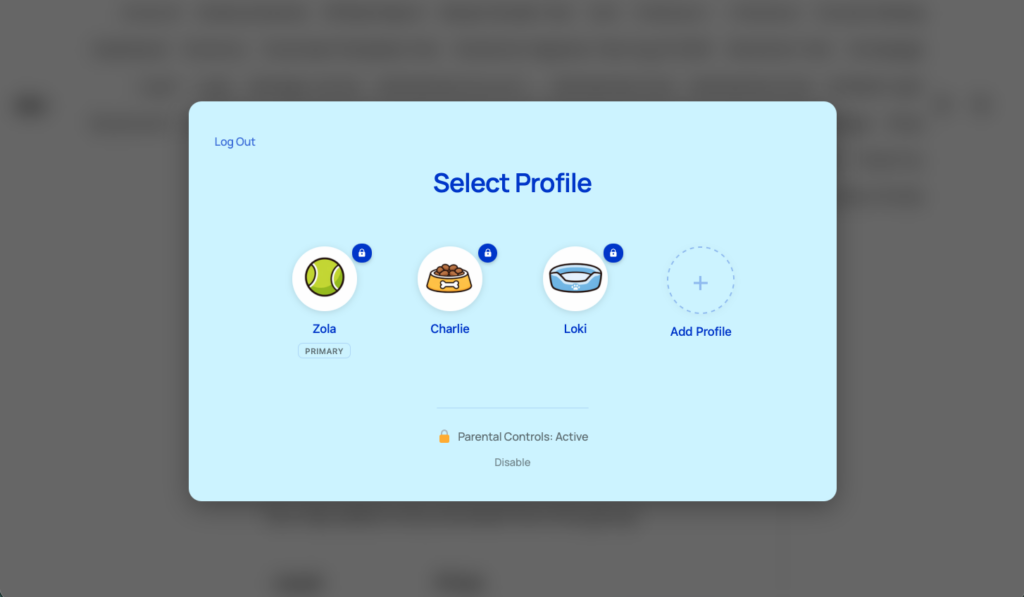
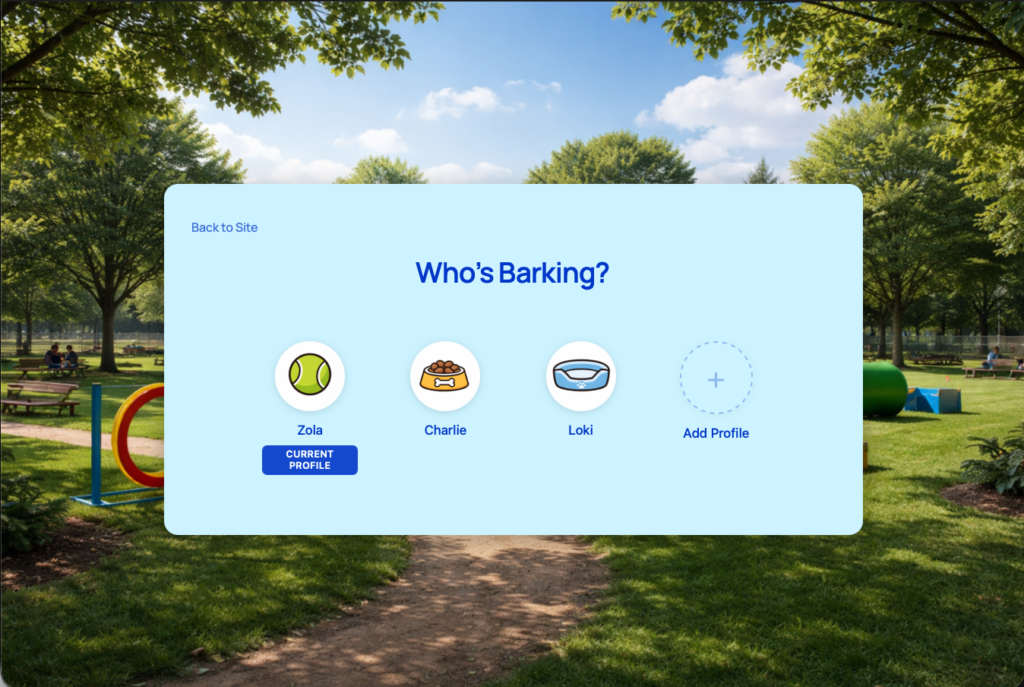
After logging in, the first thing users see is “Who’s using this?” — a clean grid of profile avatars. Each person picks their own profile and the site loads with their data. No second login, no password. Just tap your name and you’re in.
Completely separate data per profile
This is the critical part. Each profile has its own:
Course progress — Emma is on Lesson 5, Jack is on Lesson 12. Completely independent.
Quiz scores and certificates — Each person’s results are their own.
Membership and registration data — Individual membership levels, payment history, and access.
Community identity — Separate display name, avatar, forum posts, and activity.
WooCommerce orders — Each profile’s purchases are tracked individually.
Nothing bleeds between profiles. When Emma is active, the site shows Emma’s data. When Jack switches in, it shows Jack’s. The parent can switch between them to check on each child’s progress, and everything stays clean.
One-click switching
Switching between profiles doesn’t require logging out and back in. You go to the profile switcher page — or click “Switch Profile” in the WordPress toolbar — and pick a different profile. The transition is instant. You can switch as many times as you want within a session.
The account owner stays in control
Just like Netflix, the account owner (the parent) controls everything — who can have a profile, who can manage the account, and what child profiles are allowed to do. Child profiles can use the site, but they can’t change the account settings, manage billing, or create new profiles without permission.
How it works under the hood
ProfileSwitch is the WordPress plugin that makes this possible. Here’s what’s actually happening behind the scenes when a family uses your site.
Each profile is a real WordPress user
This is the key architectural decision that makes everything work. When a parent creates a profile for their child, ProfileSwitch creates an actual WordPress user account behind the scenes. That user has their own user ID, their own user meta, and their own data in every plugin’s database tables.
This means your existing plugins don’t need to know ProfileSwitch exists. LearnDash sees a user and tracks their course progress. PMPro sees a user and assigns them a membership level. WooCommerce sees a user and records their orders. BuddyPress sees a user and gives them a community profile. Each plugin does exactly what it already does — ProfileSwitch just makes it possible for one family to have multiple users without the email and login headache.
No email addresses required
WordPress requires every user to have an email address. ProfileSwitch works around this using plus-addressing — a standard email feature where [email protected] and [email protected] both deliver to the same inbox. When the parent creates a profile for Emma, ProfileSwitch automatically generates [email protected] as the email address. The parent never sees this. All emails — password resets, notifications, membership reminders — go to the parent’s real inbox.
No fake email addresses, no dead addresses that bounce, no children signing up for accounts they can’t manage. The parent’s real email is the single point of contact for everything.
Switching profiles switches the active user
When someone selects a profile from the switcher, ProfileSwitch logs out the current WordPress user and logs in the selected profile’s user. This isn’t a cosmetic change — the site is genuinely running as that user. Every plugin, every query, every permission check sees the selected profile as the logged-in user. That’s why data separation works so completely — there’s nothing to “fake” or intercept. Each profile is the real deal.
Beyond Netflix: features streaming services don’t need
Streaming services have a narrow use case — watching video. WordPress membership sites are more complex. People make purchases, take quizzes, post in forums, manage subscriptions. ProfileSwitch has features that go beyond the Netflix model to handle these scenarios.
PIN protection and parental controls
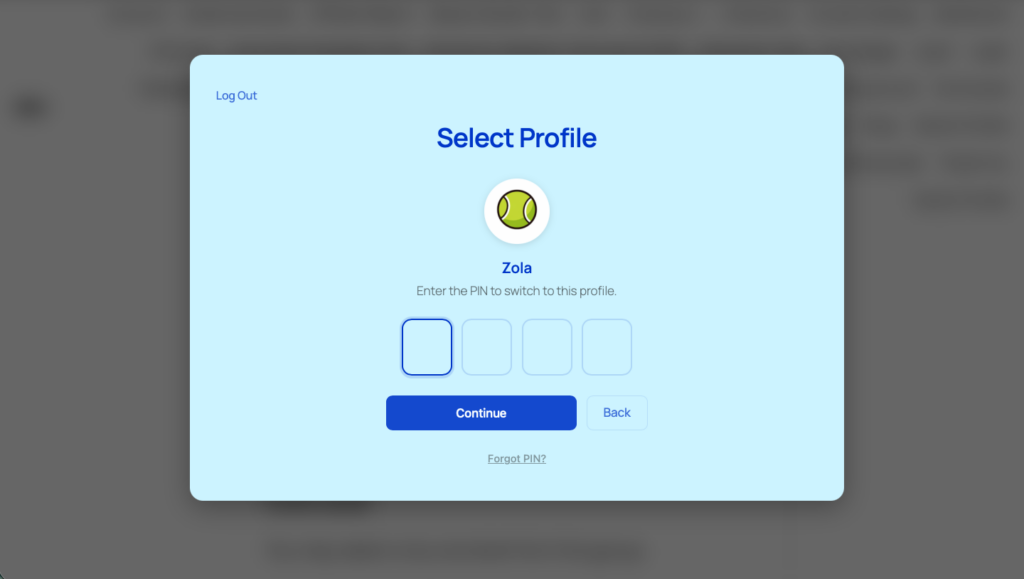
Netflix has PINs to prevent kids from accessing adult content. ProfileSwitch takes this further. Parents can set a PIN on their profile so kids can’t switch to it. They can mark specific pages as “protected” — checkout, billing, account settings — so child profiles need the parent’s PIN to access them. And when parental controls are enabled, child profiles can’t create new profiles without the parent’s PIN.
PINs are hashed and stored securely (the same way WordPress handles passwords), with rate limiting on failed attempts and a “Forgot PIN” recovery flow that emails a one-time reset link to the account owner.
Profile managers
Netflix only has one account owner. In a family, both parents usually need full control. ProfileSwitch lets the account owner designate other profiles as “managers.” Managers get the same privileges — they can access protected pages, bypass PINs, and manage all profiles in the family. Combined with custom credentials (giving a manager their own email and password), both parents can log in independently on their own devices while sharing the same set of child profiles.
Custom credentials for older kids or co-parents
Most child profiles don’t need their own login — the parent switches to them from the profile picker. But sometimes a profile needs to be independently accessible. A 16-year-old who wants to log in on their own laptop. A co-parent who needs their own credentials. ProfileSwitch lets you optionally set a real email and password on any profile, giving them their own way in while keeping them linked to the family account.
Preset avatars
The profile picker looks and feels like a streaming service because each profile has its own avatar. As the site owner, you upload a set of preset avatar images — whatever fits your brand. Users pick from these when creating a profile. It’s the small detail that makes the whole experience feel familiar and polished instead of like a WordPress workaround.
Account management
The account owner can manage their family from the profile switcher page — edit profiles, assign managers, unlink profiles that need to become standalone accounts, or delete auto-generated profiles entirely. Sensitive actions (like managing profiles or unlinking accounts) are gated behind email verification for security. If a profile with a real email address needs to leave the family, it can be unlinked and becomes an independent WordPress account with all its data intact.
What it works with
Because each profile is a real WordPress user, ProfileSwitch works with virtually any plugin that stores data per-user. But it has dedicated integrations with several popular plugins for a tighter experience:
Each profile can have its own independent membership level and payment history. Or you can enable membership sharing, where the primary profile’s membership is automatically extended to all sub-profiles — with optional per-level profile limits to create tiered family plans. Sub-profiles are automatically blocked from managing billing and membership settings.
Each profile has its own order history. The primary account holder and managers can see and manage orders from all profiles in the family, giving parents a unified view of every purchase made under their account.
Each profile gets its own community identity — avatar, display name, and profile fields. ProfileSwitch can pull BuddyPress custom fields into the profile creation form, so parents fill in details like age, grade level, or emergency contact when they create each child’s profile. The data attaches to the individual child, not the parent.
LearnDash, LifterLMS, and Tutor LMS
No special integration needed — these LMS plugins store everything per-user, so each profile automatically gets its own course enrollments, lesson progress, quiz scores, assignments, and certificates. A parent can switch between profiles to check each child’s progress in their courses.
Which types of sites benefit most
Profile switching adds value to any site where multiple people share access. But some types of WordPress sites see a particularly strong impact:
Online learning platforms. Parents buy access and enroll multiple kids. Each child has their own course progress, quiz scores, and certificates. Homeschool families are a particularly strong audience — one parent often teaches multiple children across different grade levels, and they need individual tracking for each student.
Youth sports and recreation. A parent registers multiple kids for different teams or programs. Each child needs their own roster spot, schedule, and registration history. The parent manages everything from one login without creating fake email addresses.
Camps and summer programs. Parents register multiple campers for different sessions. Each camper has their own medical info, emergency contacts, and registration. The parent switches between profiles to manage each child’s enrollment.
Membership communities. Sites with forums, groups, or social features where each family member wants their own identity. When someone posts in a discussion, it shows up under their name and avatar — not the parent’s. Works especially well with BuddyPress or BuddyBoss.
Content libraries and subscription sites. Families sharing a subscription to premium content, courses, or resources. Each person has their own reading history, bookmarks, and progress — the same way each Netflix profile has its own watchlist.
Setting it up
Getting Netflix-style profiles on your WordPress site takes about ten minutes:
Create the profile switcher page — one click from the General settings tab. This is the “Who’s using this?” page users see after login.
Upload preset avatars on the Avatars tab. Pick images that fit your brand — characters, icons, photos, whatever makes the profile picker feel like your site.
Customize the look on the Design tab. Choose light or dark mode, set a custom heading, pick colors, and optionally add a background image or blur effect.
Enable PINs and parental controls if your site serves families with kids. Set protected pages, enable forced profile selection after login, and turn on profile managers so both parents can have full control.
Configure integrations if you’re using PMPro, WooCommerce, or BuddyPress. Each integration has a few toggle settings in the Integrations tab.
Once it’s set up, your users see the profile picker after logging in. They create profiles for their family, pick avatars, and start using the site — each with their own data, their own identity, and their own experience. The same model that made Netflix the default for shared subscriptions, now on your WordPress site.
Netflix-style profiles for your WordPress site
One account, multiple profiles, completely separate data. No extra emails, no password juggling. Works with Paid Memberships Pro, WooCommerce, LearnDash, BuddyPress, and most WordPress plugins.
If you’re running an online course, membership site, or youth program on WordPress, you’ve likely encountered this common frustration: Parents want to have separate accounts for each of their children, but WordPress’s default user system forces every individual, including young children, to have their own separate login and email address.
Parents end up juggling multiple accounts, kids without emails can’t sign up independently, and site owners deal with higher abandonment rates, forgotten passwords, and mixed-up progress tracking. Shared logins? They cause even bigger problems, like one child’s quiz scores overwriting another’s or course completions getting confused.
What if you could offer true family accounts in WordPress: One parent login, unlimited separate profiles for each family member, and completely isolated data, progress, and access just like switching profiles on Netflix, Disney+, or Hulu.
Good news: You can. And it’s easier than you think.
Why Default WordPress (and Most Workarounds) Fall Short for Families
Out of the box, WordPress ties every user account to a unique email and login. That’s great for individual users, but terrible for families:
Kids often don’t have emails → Parents can’t create accounts for them without using fake emails (which breaks verification) or sharing one login.
Shared logins mix everything up → Course progress, quiz results, memberships, and activity all blend together. One sibling finishes a module, and it shows as completed for everyone.
Multiple separate accounts → More friction for parents (managing logins/passwords), more admin overhead for you (inactive accounts, support tickets), and no easy way to tie them together.
Popular membership and LMS plugins (like Paid Memberships Pro, LifterLMS, MemberPress or LearnDash) have add-ons for “group” or “corporate” accounts, but these are designed for businesses, not families. They often still require unique emails for sub-users or don’t fully isolate progress in courses.
Custom code or general user management plugins (like Ultimate Member or ProfileGrid) can add front-end profiles, but they don’t solve the core issue: seamless profile switching under one login with separate data storage.
The Ideal Family Account Setup for WordPress Sites
Here’s what families (and site owners) really need:
🔑
One parent login and email for the whole family.
👥
Unlimited sub-profiles (e.g., for each child or family member).
↔️
Easy, intuitive switching between profiles—without logging out and back in.
🔒
Completely separate data per profile: Individual course progress, quiz scores, completion certificates, membership access, and activity history.
📧
Centralized management: All emails and notifications go to the parent.
🔌
Compatibility with popular LMS (LearnDash, LifterLMS, Tutor LMS) and membership plugins.
This setup reduces signup friction, boosts course completions, and makes your site more family-friendly—perfect for online education, youth sports clubs, day camps, or paid membership communities.
How to Set Up Family Accounts in WordPress: Step-by-Step
The simplest and most robust way to achieve this is with ProfileSwitch, a new WordPress plugin built specifically for family-style accounts.
ProfileSwitch lets users create and switch between multiple profiles using a single login, while keeping everything separate behind the scenes.
Step 1: Install and Activate ProfileSwitch
Log in to your WordPress dashboard.
Go to Plugins > Add New.
Search for “ProfileSwitch” (or upload the plugin if downloading from profileswitch.com).
Install and activate it.
No complex setup required—it’s designed to work out of the box.
Step 2: Configure Basic Settings
Head to Settings > ProfileSwitch:
Set up the full-page profile switcher interface
Step 3: Let Users Create and Manage Profiles
From the front end:
A new user (parent) registers with their email.
After logging in, they see an option to “Switch Profile.”
They create profiles for each family member, no extra emails needed.
Switching profiles is as easy as clicking a name on the full-page switcher.
All notifications (course updates, memberships, etc.) route to the main account email.
Real-World Benefits and Use Cases
Online Courses
Each child tracks their own course progress independently.
Membership Sites
Allow switching between each family member’s profile without compromising security or data privacy.
Youth Programs & Clubs
Parents manage registrations and participation for multiple kids under one account. Ideal for sports leagues, scouts, or summer camps.
By making your site more accessible to families, you’ll stand out in a crowded market and see better engagement.
How ProfileSwitch Compares to Other Approaches
You might be wondering how ProfileSwitch stacks up against the workarounds people commonly use. Here’s a quick comparison.
Shared Login
One login for everyone
All data mixed together
No individual progress
No per-person tracking
Separate Accounts
Individual data per person
Kids need email addresses
Multiple logins to manage
No connection between family
ProfileSwitch
One login, multiple profiles
Fully separate data per person
No emails needed for kids
Parent manages everything
ProfileSwitch gives you the best of both worlds: the convenience of a single login with the data isolation of separate accounts. Each profile is a real WordPress user under the hood, so your LMS, membership, and ecommerce plugins all see separate individuals with their own progress, orders, and access — while the parent only deals with one email and one password.
Frequently Asked Questions
How do child profiles get their email addresses?
ProfileSwitch automatically generates unique email addresses using plus addressing. If the parent’s email is [email protected], child profiles get emails like [email protected] and [email protected]. These all deliver to the parent’s inbox — no extra email accounts needed, and every notification goes straight to the parent.
Can kids switch to the parent’s profile and make purchases?
Not if you enable Profile PINs. Parents can set a PIN on their own profile, and kids will need to enter it before they can switch. The parent’s PIN also works as a master override for accessing any child’s profile. You can also use Parental Controls to block specific pages (like checkout or account settings) from child profiles entirely.
What if both parents need to manage the family account?
ProfileSwitch’s Profile Managers feature allows a second parent (or any other user) to log in with their own credentials and access the same set of child profiles. No password sharing needed — each parent has their own login while managing the same family.
Which plugins does ProfileSwitch work with?
ProfileSwitch works with any plugin that uses standard WordPress users. It has specific built-in integrations with Paid Memberships Pro (share memberships, per-level profile limits), WooCommerce (consolidated order history), LearnDash, LifterLMS, BuddyPress, and BuddyBoss. Other popular plugins like MemberPress, Tutor LMS, and Restrict Content Pro work out of the box.
How many profiles can a family create?
You control the maximum in ProfileSwitch settings (default is 10). If you use Paid Memberships Pro, you can set different limits per membership level — a “Family” plan might allow 5 profiles while an “Individual” plan allows none.
Ready to Make Your WordPress Site Family-Friendly?
Implementing family accounts no longer requires custom development or clunky workarounds. With ProfileSwitch, you can deliver a modern, streaming-service-like experience that families love.
Head over to the ProfileSwitch pricing page and get started today. Installation takes minutes, and you’ll wonder how you managed without it.