
Paid Memberships Pro
Share one membership with the whole family, or let each profile hold its own, and set how many profiles each level allows.
Two ways to handle memberships
| Approach | When to use it |
|---|---|
| Separate (default) | Each profile holds its own membership. Good when every child is registered individually, like a youth program. |
| Shared | The primary profile’s membership covers every profile. Good for family plans. |
The settings appear on the ProfileSwitch Integrations tab when both plugins are active.
Set up membership sharing
Turn on Share Membership
Go to ProfileSwitch → Integrations and check Share Membership. This reveals the other options below.
Choose an access mode
Pick Filter-based access or Level sync (see below).
Save your settings
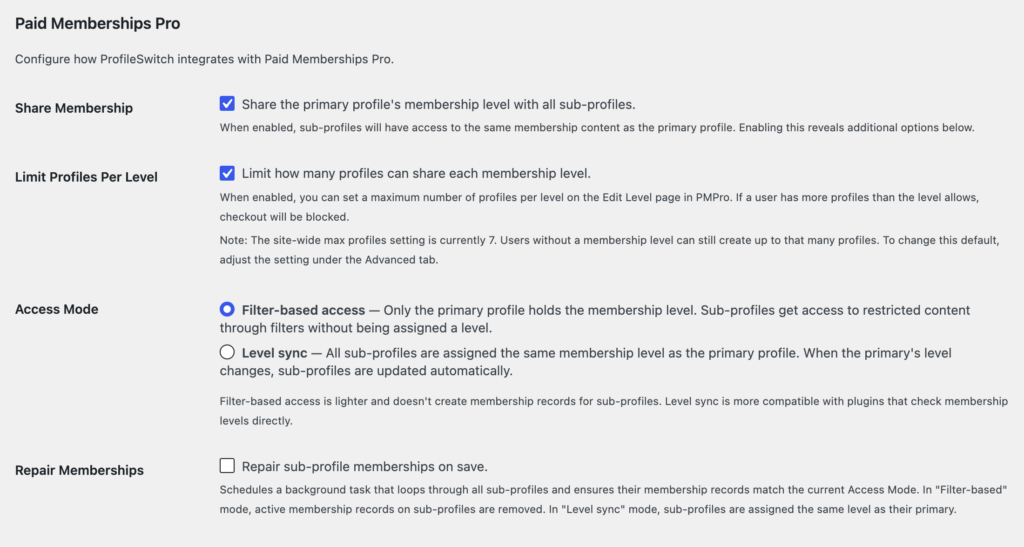
With sharing on, sub-profiles can’t open the Levels, Checkout, Billing or Cancel pages and can’t complete a checkout. Only the primary profile and any managers manage the membership.
Access modes
| Mode | How it works |
|---|---|
| Filter-based (default) | Only the primary profile holds the level. Sub-profiles are given the primary’s levels on the fly through Paid Memberships Pro’s membership level filters, so they pass the same checks the primary does. No extra membership records are created. Best for most sites. |
| Level sync | Every sub-profile is given the same level in the database, and changes to the primary’s level carry over. Best when other plugins or custom code read membership levels directly. |
In Level sync mode, a profile gets the primary’s levels as soon as it’s linked. When a profile is unlinked, all of its membership levels are cancelled.
Profile limits per level
Check Limit Profiles Per Level to give each membership level its own profile limit. Per-level limits only work while Share Membership is on.
Then edit a membership level, check Override the global max profiles setting for this level and enter the maximum number of profiles, including the primary.

- Once an account reaches its limit, the Add Profile option disappears from the switcher.
- Checking out for a level is blocked if the account already has more profiles than that level allows.
- If a member has several levels with limits, the highest one applies. Levels without a limit are ignored.
- The global Max Profiles Per Account setting is used only when none of the member’s levels has a limit, or they have no membership.
Repair existing memberships
If you turn on sharing on a site that already has profiles and memberships, check Repair sub-profile memberships on save and click Save Changes. You only need to do this once after setup, or after changing access modes.
| Mode | What the repair does |
|---|---|
| Filter-based | Removes active membership records from sub-profiles, since they get access through the primary. |
| Level sync | Gives each sub-profile the primary’s levels and removes any levels the primary doesn’t have. |
The repair runs in the background with Action Scheduler when it’s available. Otherwise it runs right after the settings are saved.
Examples
Family membership
A parent buys a membership and adds a profile for each child. With sharing on, every profile can open members-only content, and the parent handles billing from their own profile. For a full walkthrough, see How to Add Family Plans to Your PMPro Membership Site.
Tiered profile limits
A “Basic” plan allows 3 profiles and a “Premium” plan allows 10. Turn on sharing and per-level limits, then set each level’s limit. A Basic member who reaches 3 profiles no longer sees Add Profile and can upgrade to get more.
Still stuck? Contact support and we’ll help you get set up.