
If you run a youth sports organization — a swim club, soccer league, martial arts school, gymnastics program, or anything where kids are the participants and parents are the ones signing up — you’ve probably hit the same wall everyone hits when building a registration site with WordPress.
Parents have multiple kids. Each kid needs their own profile — their own name, their own age group, their own registration. But parents are the ones managing everything. They’re the ones logging in, paying, and keeping track of who’s signed up for what.
WordPress doesn’t handle this well out of the box. Every account needs a unique email address. Every user is treated as an independent person. There’s no concept of “this parent manages these three kids.” So you end up with parents creating fake email addresses for their 8-year-olds, or everyone sharing one login and losing track of who’s registered for what.
This guide walks through how to build a youth sports registration site on WordPress where one parent account can manage multiple child profiles — each with their own identity, their own data, and their own registrations. No fake emails, no shared logins, no confusion.
The problem with youth sports registration on WordPress
Think about what actually happens when a family signs up for your program. A parent goes to your website and wants to register three kids for soccer. Each kid plays in a different age group, needs their own roster spot, and might need different session times. In the real world, one parent handles all of this. Simple.
But on a standard WordPress site, each participant needs their own WordPress account. And every WordPress account needs a unique email address and password. So now that parent has to:
- Create an account for themselves
- Create a separate account for 8-year-old Emma (who doesn’t have an email address)
- Create another account for 6-year-old Jack (who also doesn’t have an email)
- Create a third account for 10-year-old Sophie (same problem)
- Remember four different logins
- Log in to each account separately to register and pay
Most parents will give up before finishing step two. The ones who push through will make up emails like [email protected], immediately forget the passwords, and call you when they can’t log in next season. You’ll spend hours helping families reset passwords for accounts that never should have existed in the first place.
The alternative is even worse: everyone shares one login. Dad registers for soccer as “The Johnson Family.” Now all three kids’ registrations are under one name, you can’t tell who’s on which team, and your roster sheets are useless.
What a youth sports site actually needs
Before we get into the solution, let’s define what a good youth sports registration site looks like from both sides — the parent’s experience and the organization’s experience.
For parents
- One login. The parent creates one account and manages everything from there.
- Separate profiles for each kid. Emma, Jack, and Sophie each have their own name, avatar, and registration history — but the parent manages all of them.
- No emails needed for kids. Children don’t have email addresses, and the site shouldn’t require them.
- Register each kid individually. Switch to Emma’s profile, register her for the U-10 league, pay. Switch to Jack, register him for U-8, pay. Each kid gets their own registration tied to their own profile.
- Easy profile switching. If the parent needs to check Sophie’s schedule, they switch to Sophie’s profile. If they need to update Jack’s info, they switch to Jack. No logging out and back in.
For the organization
- Each participant is a real WordPress user. You can see them in the admin, assign them to groups, and pull reports on individual kids — not on “The Johnson Family.”
- Clean registration data. Each kid has their own membership level, their own payment history, and their own profile fields. No data mixing.
- Individual registrations. Each kid registers for their own age group or session. You can see exactly who’s on each roster.
- Works with your existing plugins. Your membership plugin, event registration plugin, or LMS should all see each child as an individual user and track their data separately.
This is exactly what streaming services figured out years ago. Netflix doesn’t make you create a separate account for every person in your house. One account, multiple profiles, each with their own viewing history. The same model works perfectly for youth sports — except here, each profile also gets their own registration.
The tools you need
Here’s a practical WordPress stack for a youth sports registration site with family accounts.
ProfileSwitch — Family accounts and profile switching
ProfileSwitch is the core piece that makes family accounts work. It lets one parent account create multiple child profiles — each as a real WordPress user with their own name, avatar, and data — without needing separate email addresses or passwords. Parents switch between profiles from a Netflix-style profile selection screen. The parent controls the account; the kids just use the site.
Paid Memberships Pro — Registration and payments
Paid Memberships Pro handles the actual registration — membership levels, payments, and content restriction. You create a membership level for each program or age group (U-8 Soccer, U-10 Soccer, Swim Team, etc.), and each child registers individually for their level. Since every ProfileSwitch child profile is a real WordPress user, PMPro treats each one as an independent registrant with their own membership, payment record, and access.
Optional: BuddyPress or BuddyBoss — Community and profile fields
If you want team rosters, member directories, or need to collect detailed per-participant info (age, emergency contacts, jersey number), BuddyPress or BuddyBoss gives each profile custom fields and a community identity. ProfileSwitch integrates with both — it can pull in BuddyPress profile fields when creating a new child profile, so parents fill in the important details at profile creation time.
How it works: the family registration flow
Let’s walk through what the experience looks like for a family with three kids signing up for your soccer league.
1. Parent creates an account
The parent signs up on your site like any normal WordPress user — their name, their email, their password. At this point, no registration or payment happens. The parent account is just the hub for managing the family.
2. Parent creates profiles for each child
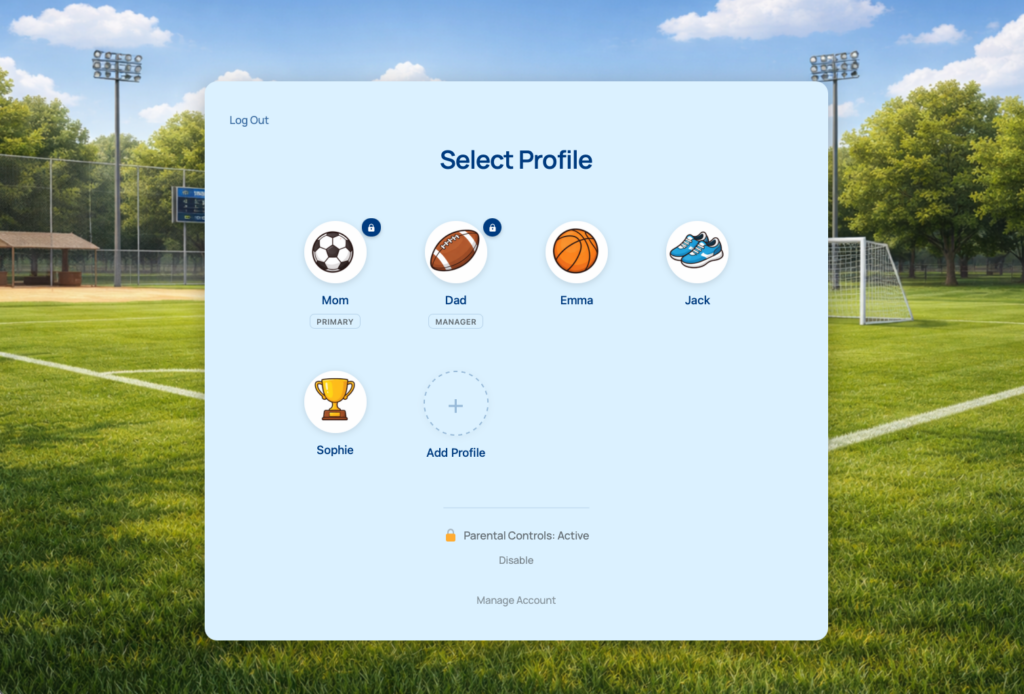
After logging in, the parent sees the profile switcher — a clean, full-page interface showing their profile and an “Add Profile” button. They create a profile for each child: “Emma,” “Jack,” and “Sophie.” Each kid picks an avatar from preset options you’ve uploaded (team mascots, sports icons, or whatever fits your brand). No email addresses or passwords required — ProfileSwitch handles that automatically behind the scenes using plus-addressed emails tied to the parent’s account.
If you’re using BuddyPress, the parent can also fill in custom profile fields at this step — things like the child’s date of birth, jersey number, emergency contact, or medical notes. These fields are attached to the child’s individual profile, not the parent’s.
3. Parent switches to each child and registers them
This is where ProfileSwitch and PMPro work together. The parent switches to Emma’s profile and goes to the PMPro checkout page. They register Emma for the U-10 Fall League — $75 for the season. The membership is assigned to Emma’s profile, the payment is recorded under Emma’s user account, and Emma now has access to everything the U-10 Fall League level includes (schedules, team info, etc.).
Then the parent switches to Jack’s profile and registers him for the U-8 Spring League. Then Sophie for the U-12 Swim Team. Three registrations, three separate membership records, one parent doing all of it from a single login. No logging out, no juggling passwords, no fake emails.
Since each child profile is a real WordPress user, PMPro doesn’t know or care that the profile was created through ProfileSwitch. It just sees a user checking out for a membership level — exactly like any other registrant.
4. Parent manages everything from one account
Throughout the season, the parent switches between profiles to check each kid’s schedule, update their info, or renew their registration. Need to see Emma’s practice schedule? Switch to Emma. Need to update Jack’s emergency contact? Switch to Jack. It’s one click from the profile switcher or from the “Switch Profile” link in the WordPress admin bar.
All confirmation emails go to the parent’s real email address, since ProfileSwitch’s auto-generated child emails use plus-addressing tied to the parent’s inbox. So when Emma’s registration is confirmed, Mom gets the email. When Jack’s membership is about to expire, Mom gets that notice too.
Why individual registrations matter for sports
You might be wondering: why not just sell a “family membership” and give everyone access? For some types of sites that makes sense. But for youth sports, individual registrations are usually the right model. Here’s why:
- Different kids, different programs. Emma plays soccer. Jack swims. Sophie does gymnastics. They each need to register for their specific program, and each program has its own fee. A family membership doesn’t map to this.
- Age group matters. The U-8 division and U-12 division might have different schedules, different fields, and different content on the site. Each kid’s registration needs to reflect their actual age group.
- Roster accuracy. When you pull the roster for U-10 Fall Soccer, you need to see the individual kids registered for that level — not a family account that “includes” them. Each child as a separate PMPro member means clean, accurate rosters.
- Per-participant pricing. Most sports organizations charge per kid, not per family. If the U-10 league is $75 and the U-8 league is $60, the parent pays $75 for Emma and $60 for Jack — two separate transactions on two separate profiles.
- Some kids might not renew. Sophie decides she’s done with swim team, but Emma and Jack continue. With individual registrations, you just don’t renew Sophie’s membership. The other two continue independently.
ProfileSwitch gives you the family account structure — one parent manages everything — while PMPro gives each child their own independent registration. The parent gets convenience; you get clean data.
Keeping parents in control with PINs and parental controls
On a youth sports site, the parent’s device often ends up in the kid’s hands. Maybe it’s a shared family tablet, or maybe the kid borrows a phone to check the practice schedule. ProfileSwitch has a full parental control system designed for exactly this situation.
Profile PINs
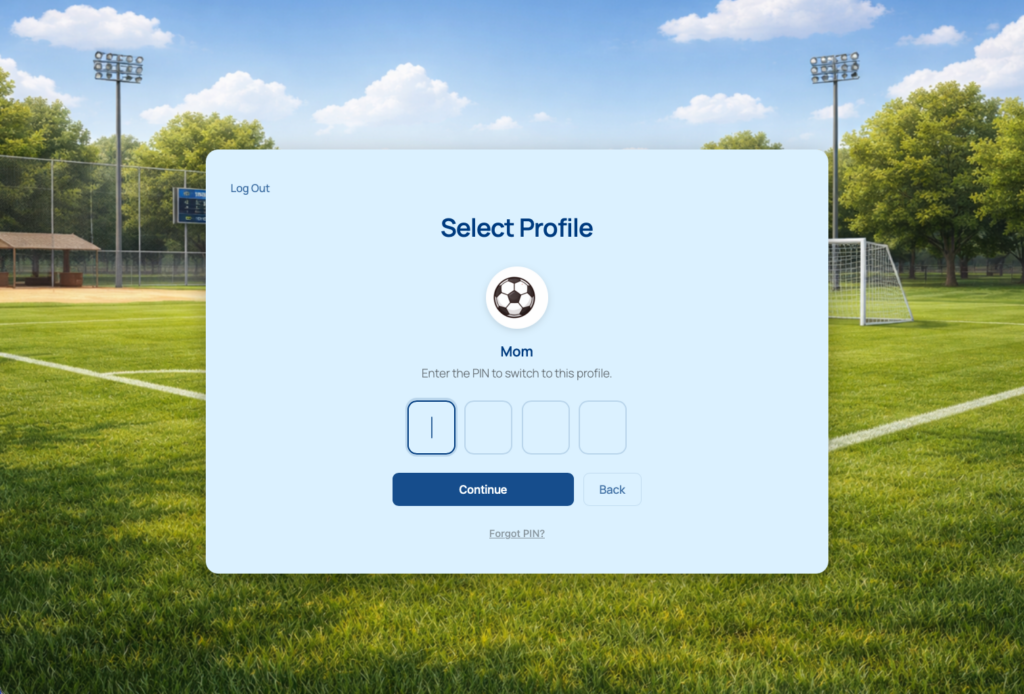
Parents can set a PIN on their own profile — either a 4-digit numeric PIN or an alphanumeric password. When a PIN is set, anyone trying to switch to that profile has to enter the PIN first. A lock icon appears on PIN-protected profiles so everyone knows it’s locked. The parent’s PIN also works as a master override for all child profiles in the account.
PINs are hashed and stored securely — the same way WordPress stores passwords. There’s rate limiting built in too: five failed attempts triggers a one-minute lockout. And if someone forgets their PIN, there’s a “Forgot PIN” flow that sends a one-time reset link to the primary account’s email.
Protected pages
You can mark specific pages on your site as “protected” in ProfileSwitch’s settings. When parental controls are enabled, child profiles need to enter the parent’s PIN to access those pages. For a sports site, this is useful for protecting the checkout page — so a kid browsing the practice schedule can’t accidentally (or intentionally) register for a new program or buy merchandise without a parent present.
Forced profile selection
ProfileSwitch requires users to select a profile immediately after login. Instead of landing on the homepage as the parent account, the site sends them straight to the “Select Profile” screen. This prevents kids from accidentally browsing the site under the parent’s identity — they pick their own profile and see their own schedule, roster, and content.
Both parents need access? Use profile managers
In most families, both parents need to manage the kids’ registrations. Maybe mom signs up and pays, but dad needs to check the practice schedule and update emergency contacts too. ProfileSwitch handles this with profile managers.
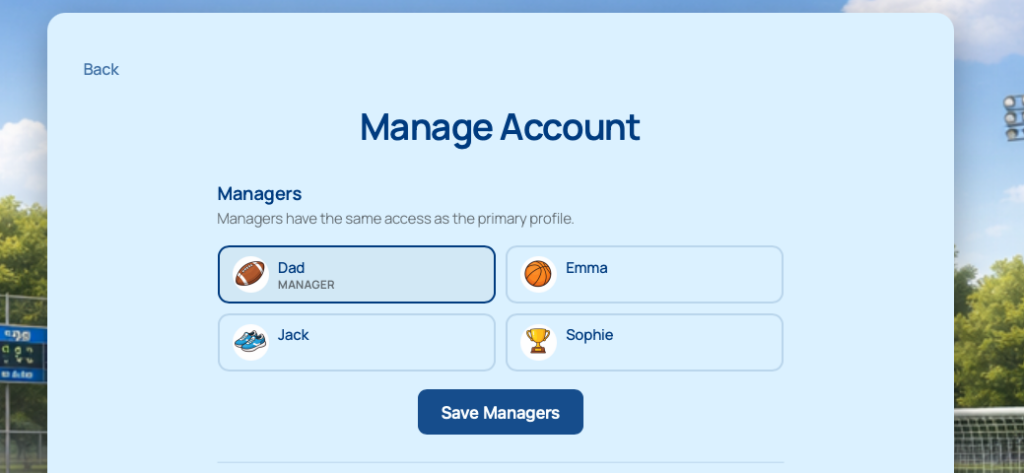
The primary account holder can designate any other profile in the account as a “manager.” Managers get the same privileges as the primary — they can access protected pages, bypass PINs, and manage the family’s profiles. To set up a second parent as a manager, the primary creates a profile for them (optionally with custom login credentials so the other parent can sign in independently) and then promotes them to manager from the account management screen.
The custom credentials feature is especially useful here. When enabled in your site’s settings, it lets the primary set a real email address and password on the second parent’s profile. That way, both parents can log in independently on their own devices — one from the primary account, one from the manager profile — while still sharing the same family of child profiles. Either parent can switch to any child’s profile to register them, check their schedule, or update their information.
Real-world example: a youth swim club
Let’s put it all together with a concrete example. You run a youth swim club website with WordPress, PMPro for registration, and BuddyPress for team directories. You have membership levels for each team: Bronze Squad ($200/season), Silver Squad ($250/season), and Gold Squad ($300/season), based on skill level.
The Martinez family has three kids in the club. Here’s their experience:
- Mom creates an account on your site with her email and password.
- She creates profiles for Carlos (12), Sofia (9), and Mateo (7). Each kid picks a swimmer avatar. She fills in their ages and swim levels via BuddyPress profile fields.
- She creates a profile for Dad with his real email and password using the custom credentials feature, then promotes him to profile manager.
- She switches to Carlos’s profile and registers him for Gold Squad ($300/season). Carlos has been swimming competitively for three years.
- She switches to Sofia’s profile and registers her for Silver Squad ($250/season).
- She switches to Mateo’s profile and registers him for Bronze Squad ($200/season). He’s just starting out.
- Three registrations, three payments, three separate memberships — each tied to the individual child. Mom did it all in five minutes without creating a single fake email address.
- She sets a PIN on her profile and enables parental controls so the kids can’t register for anything else without her.
- Dad logs in on his phone with his own credentials. He can see all three kids’ profiles, switch between them to check practice schedules, and update info — because he’s a manager.
- When Carlos borrows the family tablet to check his practice times, he picks his profile from the switcher. He can see the Gold Squad schedule and content, but he can’t switch to Mom’s profile without her PIN, and the checkout page is protected.
From the club’s perspective, the admin dashboard shows five distinct WordPress users — Mom, Dad, Carlos, Sofia, and Mateo — all linked together. When you pull the Gold Squad roster, you see “Carlos Martinez, age 12.” When you pull the Bronze Squad roster, you see “Mateo Martinez, age 7.” Each child has their own PMPro membership record, their own payment history, and their own profile data. Clean, individual records for every swimmer.
What this looks like for your organization
As the admin of the site, here’s what you get:
- Individual user records for every participant. Each child is a real WordPress user. You can view their profile, see which family they belong to, and manage their data from the standard WordPress admin.
- Individual PMPro membership records. Each child has their own membership level, their own start and end dates, and their own payment history. You can filter members by level to pull rosters — all the Gold Squad members, all the U-10 players, etc.
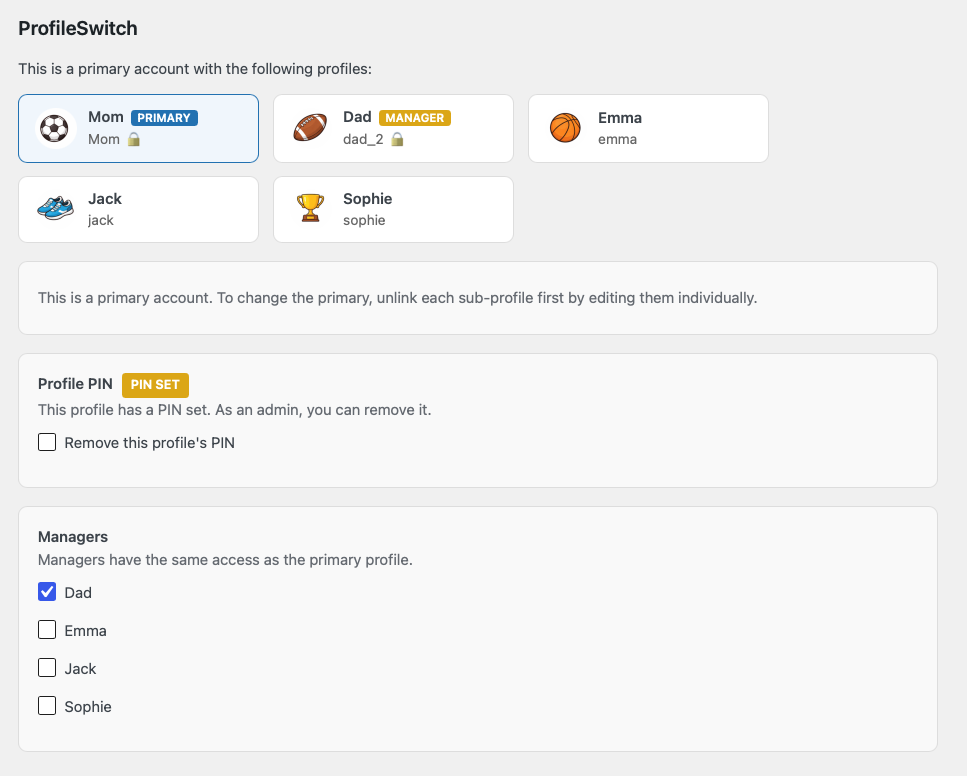
- Family linkage visible in the admin. When you edit a user’s profile in the WordPress admin, you’ll see all the other profiles in their family — with badges showing who’s the primary, who’s a manager, and who has a PIN set.
- No fake email addresses cluttering your database. Child profiles use auto-generated plus-addressed emails (like
[email protected]) that all route to the parent’s inbox. No[email protected]addresses that bounce. - All communication goes to the parent. Registration confirmations, membership renewal reminders, expiration notices — everything goes to the parent’s real email address. You’re always communicating with the person who can actually act on the information.
- Clean data when families leave. If a family moves away, you can unlink profiles (making them standalone accounts that keep their data) or delete auto-generated profiles entirely. ProfileSwitch cleans up all its metadata automatically.
Getting started
The full setup takes about ten minutes:
- Install ProfileSwitch and activate your license.
- Create the profile switcher page — one click from the General settings tab.
- Upload some preset avatars on the Avatars tab. Sports icons, team mascots, or fun character illustrations all work well for a youth sports audience.
- Enable profile PINs and parental controls on the PINs & Access Control tab. Mark your checkout page and any other sensitive pages as protected.
- Enable profile managers so both parents can manage the family account.
- Enable custom credentials on the Advanced tab so co-parents can have their own login.
- Set up your PMPro membership levels — one level per program, age group, or season. Each child will register for their own level individually.
- If using BuddyPress: Create your profile fields (age, emergency contact, jersey number, etc.) and select the field source in ProfileSwitch’s Integrations tab so parents fill in these details when creating child profiles.
That’s it. Your parents can now create one account, add profiles for all their kids, and register each child individually for the right program — all from a single login. Each child shows up as an individual participant in your system with their own registration, payment history, and profile data. No more fake emails, no more shared logins, no more confused rosters.
Stop juggling logins. Start registering families.
ProfileSwitch adds Netflix-style family accounts to any WordPress site. One parent login, multiple child profiles, each with their own identity and data. Works with Paid Memberships Pro, WooCommerce, LearnDash, BuddyPress, and more — because each profile is a real WordPress user.
Leave a Reply