Managing Profiles
How profiles work
Every profile in ProfileSwitch is a real WordPress user. When a user creates a new profile, a new WordPress user account is created and linked to the primary account. This means profiles work seamlessly with any plugin that uses WordPress users — LearnDash, Paid Memberships Pro, WooCommerce, and others.
The primary profile is the original account that created the sub-profiles. Sub-profile emails are automatically generated using plus addressing (e.g. [email protected]) so all emails route to the primary’s inbox. Sub-profile usernames are auto-generated with a numeric suffix (e.g. user_2, user_3).
User-facing
These features are available to users from the profile switcher page.
Account management
Primary profiles can manage their account directly from the profile switcher page by clicking “Manage Account.” This opens the account management panel, which is gated by email verification for security.
Email verification
Before accessing account management, the primary profile must verify their identity by entering a 6-digit code sent to their email address. The code expires after 10 minutes. Once verified, the session lasts for 30 minutes before requiring re-verification.
What you can do
From the account management panel, primary profiles can:
- Assign managers — Designate which sub-profiles have manager-level access (requires Profile Managers to be enabled).
- Unlink profiles — Unlink a profile that has its own email address (set via Custom Credentials). The profile becomes a standalone WordPress account.
- Delete profiles — Delete profiles that have auto-generated (plus-addressed) emails. Profiles with their own email must be unlinked instead.
Admin bar
A “Switch Profile” link is added to the WordPress admin bar for all logged-in users. It links to the profile switcher page and includes a return URL so users come back to where they were after switching.
Admin-facing
These features are available to site administrators from the WordPress admin.
Linking profiles from the admin
Admins can manually link any existing WordPress user to a primary account. Go to Users → Edit User and scroll to the ProfileSwitch section. Enter the username or email of the primary account in the “Link to Primary Account” field and save.
To unlink a profile, clear the field and save.
Profile cards
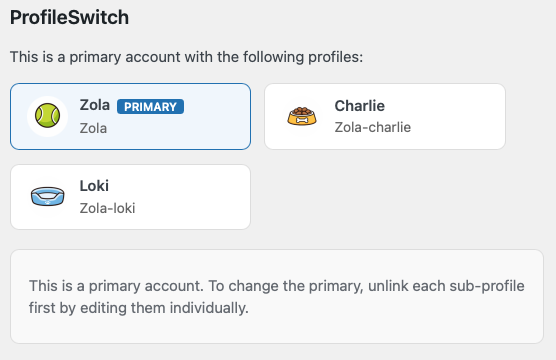
When viewing a user that belongs to a profile set, the ProfileSwitch section shows card-style previews of all linked profiles with their avatar, display name, and username. The primary profile is labeled with a “primary” badge. Managers show a “manager” badge. Profiles with a PIN set show a lock badge. Each card links to that profile’s edit page.
Removing a profile’s PIN
If PINs are enabled and a profile has one set, admins will see a “PIN Set” badge and a “Remove this profile’s PIN” checkbox on the Edit User page. Check the box and save to remove the PIN.
What happens when a user is deleted
ProfileSwitch automatically cleans up when a WordPress user is deleted:
- If a primary profile is deleted, all sub-profiles are unlinked (they become standalone accounts).
- If a sub-profile is deleted, the primary’s profile cache is invalidated so it no longer shows the deleted profile.
- All ProfileSwitch user meta is removed from the deleted user.