BuddyPress
Show BuddyPress profile fields when families add or edit profiles, and use each profile’s preset avatar on BuddyPress screens.
Using BuddyBoss Platform instead? See the BuddyBoss page.
Setup
Open the Integrations tab
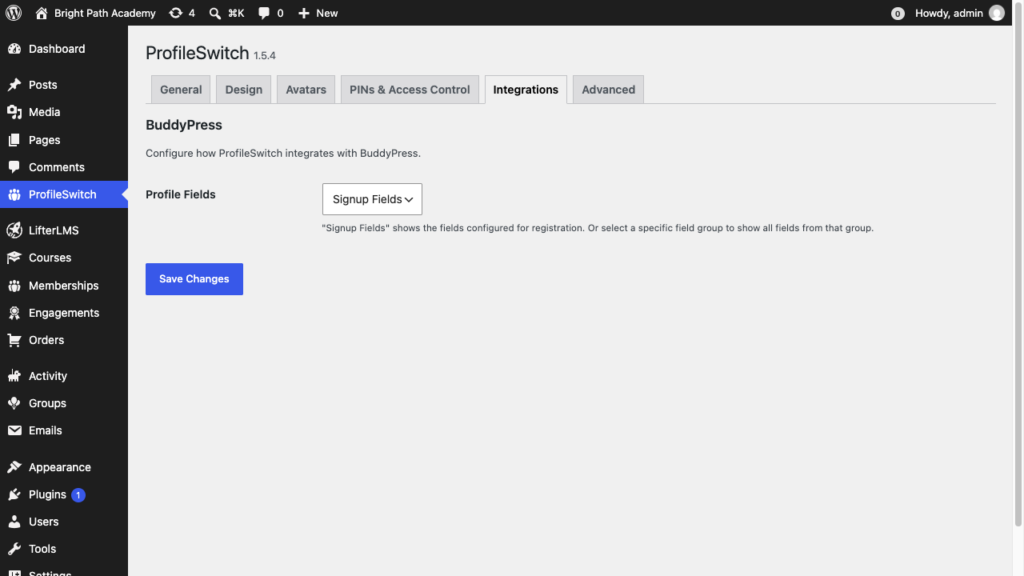
Go to ProfileSwitch → Integrations. The BuddyPress section appears when BuddyPress is active.
Choose your profile fields
Use the Profile Fields dropdown to pick which fields to show.
Save your settings
Which fields to show
| Option | What shows |
|---|---|
| None (default) | No extra fields on the profile forms. |
| Signup Fields | The fields BuddyPress uses on its registration form. If none are set up, your base profile field group is shown. |
| A field group | Every field in the group you choose. |
The fields appear on the Add Profile and Edit Profile forms on the profile switcher, and the answers are saved to that profile’s BuddyPress profile. BuddyPress profile fields are managed under Users → Profile Fields.
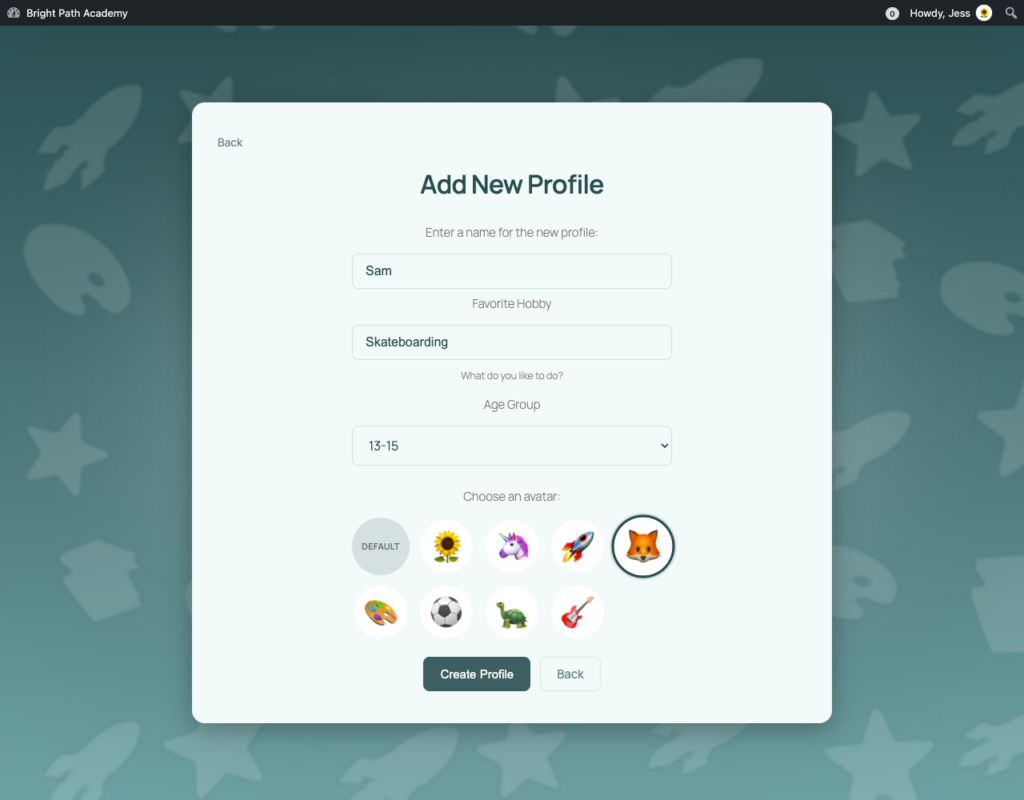
Required fields are marked with an asterisk, but ProfileSwitch doesn’t stop a profile from being saved if they’re left blank.
Supported field types
- Text, textarea, WordPress textbox and WordPress biography
- Select box and multi-select
- Radio buttons and checkboxes
- Date picker
- Number, URL and telephone
- Checkbox acceptance
- BuddyBoss Gender
The Name field is skipped because ProfileSwitch has its own name field. BuddyBoss-only types like social networks and member types are also skipped.
Display names and avatars
When a profile is created or renamed on the profile switcher, ProfileSwitch copies its name to BuddyPress’s Name field, so it appears correctly in member directories and activity streams.
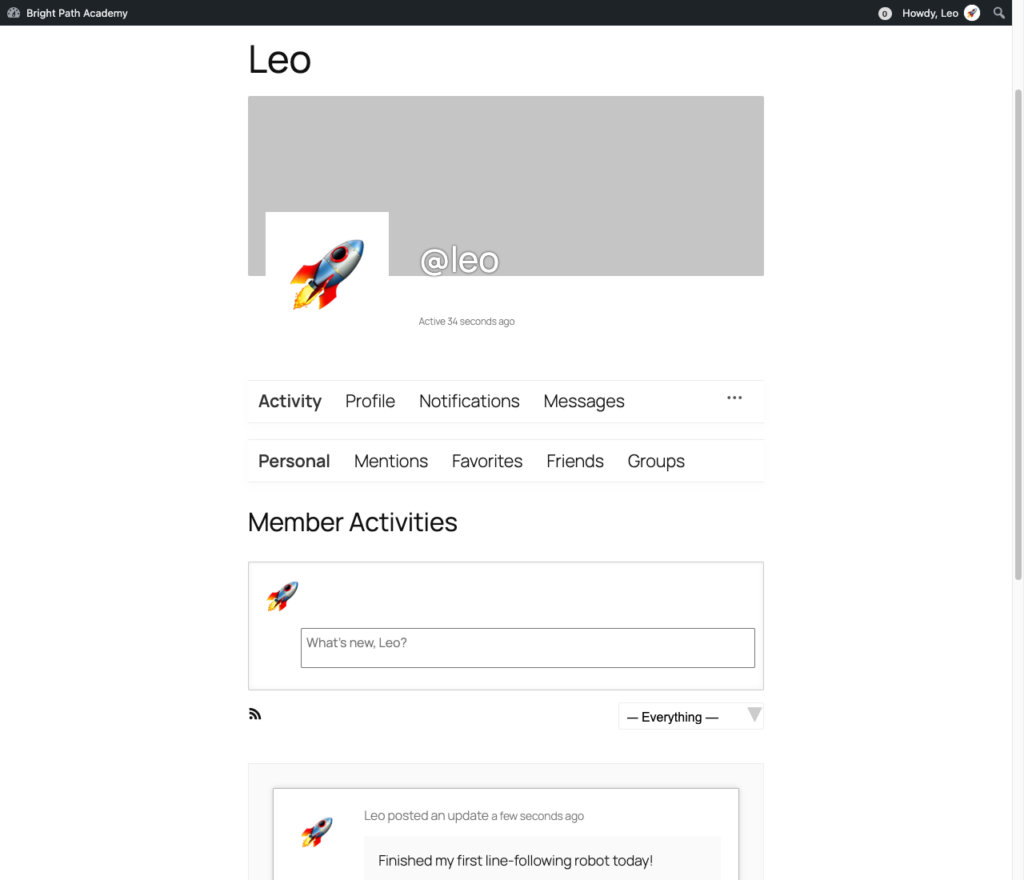
When a profile has a preset avatar, BuddyPress shows it wherever it shows member photos, including the member’s profile page, the Members directory and activity. If the member uploads their own photo in BuddyPress, that photo is shown instead. Profiles without a preset avatar use BuddyPress’s own avatar handling.
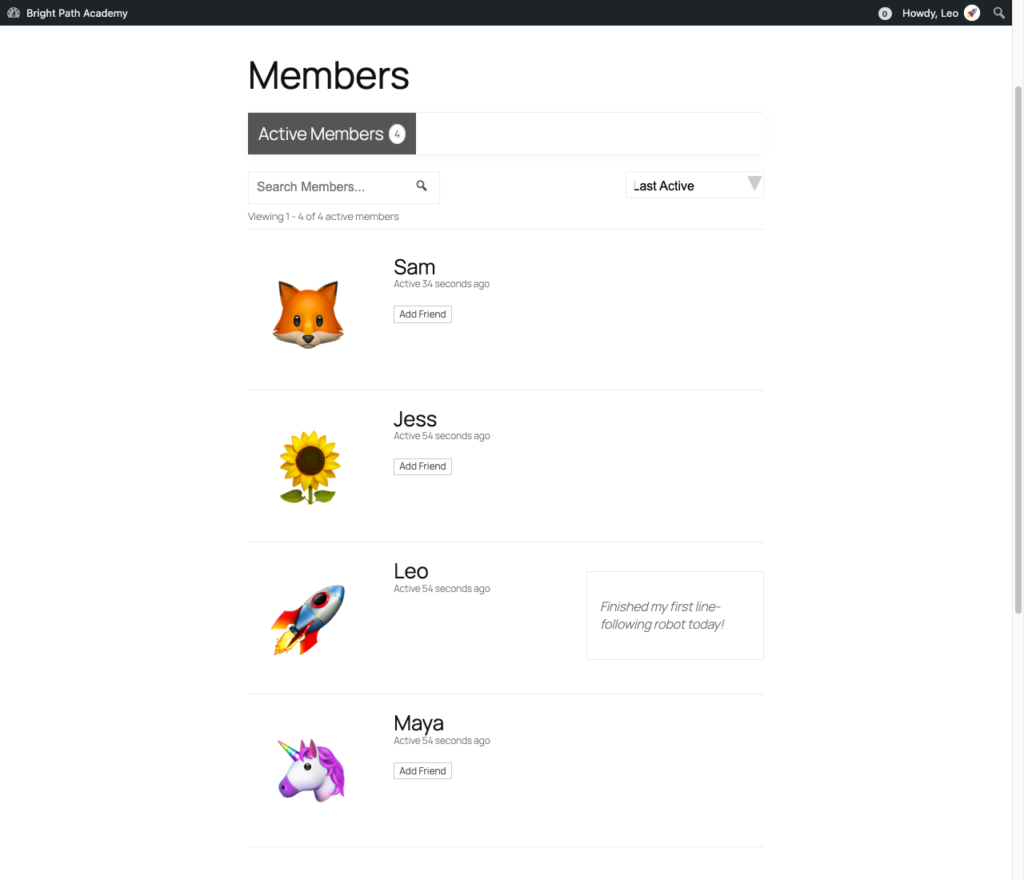
To keep members on preset avatars only, go to Settings → BuddyPress → Options and uncheck Allow registered members to upload avatars.
Parental controls
Parental controls protect WordPress Pages with the primary profile’s PIN. BuddyPress screens work differently:
- BuddyPress’s Activity, Members and Groups directories aren’t regular WordPress Pages, so they don’t appear in the protected pages list.
- A member’s own screens, such as their profile, Messages, Settings and Friends, aren’t WordPress Pages either, so they can’t be PIN-protected.
If sub-profiles shouldn’t send private messages, turn off Private Messaging under Settings → BuddyPress → Components. A PIN can’t block it.
Still stuck? Contact support and we’ll help you get set up.