If you’re running a LearnDash site for families, especially homeschool families, you’ve probably run into the same question: how do you let a parent buy one subscription and give each of their kids their own course progress?
LearnDash doesn’t have a built-in family account feature. Every user needs their own login, their own email address, and their own enrollment. That works fine for adult learners, but it creates real friction for families. Kids often don’t have email addresses. Parents don’t want to manage four separate logins. And asking a family to buy four separate subscriptions for one household isn’t a great look.
There are a few ways to solve this, depending on what you actually need. This guide covers three approaches: LearnDash’s built-in Groups, a parent monitoring plugin, and a full family account solution with profile switching.
Option 1: LearnDash Groups
Best for: Small-scale setups where the parent just needs to monitor progress. No additional plugins required.
LearnDash has a built-in Groups feature that you can repurpose for families. The idea is simple: make the parent a Group Leader, add each child as a Group User, and enroll the group in the relevant courses.
This gives the parent a dashboard where they can see their children’s course progress and quiz results. Each child still has their own account with their own progress tracking.
The downsides:
- Every child still needs their own email address and login credentials
- Groups were designed for organizations and teams, not families, so the interface can feel heavy for this use case
- Parents can monitor but not seamlessly switch between children’s accounts
- Setting up groups for every family is manual work for the admin
Groups work in a pinch, but they weren’t built for this. If you have more than a handful of families, the admin overhead adds up quickly.
Option 2: Parent & Student Access plugin
Best for: Sites where the parent’s main need is monitoring their children’s progress, and each child can have their own login.
The Parent & Student Access plugin from Honors WP is purpose-built for the parent/child relationship in LearnDash. It lets parents link to their children’s accounts and view their course progress, quiz scores, completed assignments, and certificates from a single dashboard.
Parents can add students by entering their email address, and the child receives an invitation link to confirm the connection. There’s no limit on the number of students a parent can monitor.
The downsides:
- Every child still needs their own email address and separate login
- It’s a monitoring tool, not a profile switching tool. The parent watches progress but doesn’t “become” the child
- For younger kids who share a device with their parent, switching between accounts means logging out and back in
This is a solid choice if the parent primarily needs oversight. But if your goal is to reduce login friction for families, especially families with young children sharing a device, it doesn’t fully solve the problem.
Option 3: ProfileSwitch (one login, multiple profiles)
Best for: Families who share a device, kids without email addresses, and sites where reducing login friction is the priority.
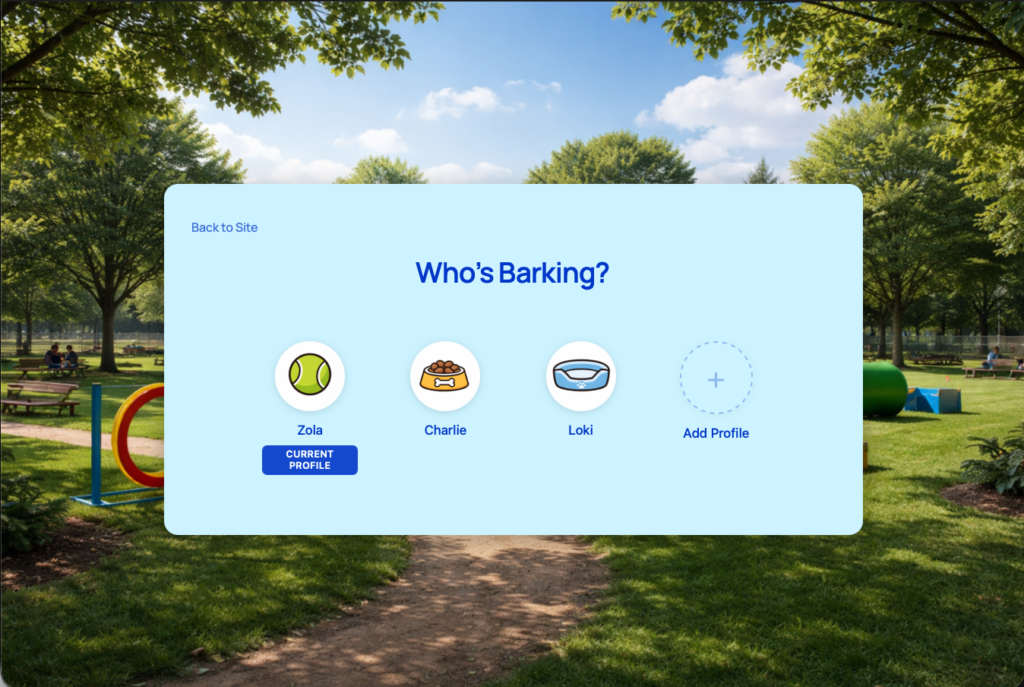
ProfileSwitch takes a completely different approach. Instead of giving every family member their own login, one account gets multiple profiles. After logging in, the family sees a full-screen profile picker where they choose who’s using the site. Each profile is a real WordPress user with its own LearnDash course progress, quiz scores, and completions.
Think of it like how streaming services work. One account, one password, but everyone gets their own experience.
How it works with LearnDash:
- Parent logs in with one set of credentials
- They see all family profiles and pick who’s using the site
- Each child has their own LearnDash course progress, quiz results, and certificates
- Switching profiles takes one click, no logging out
- Kids don’t need their own email addresses. ProfileSwitch generates unique emails automatically using plus addressing
- Parents can create new profiles and edit existing ones from the frontend
Because each profile is a real WordPress user under the hood, LearnDash treats them as completely separate students. Course enrollments, progress, quizzes, certificates, and assignments are all fully isolated. ProfileSwitch handles the relationship between profiles and the shared login. LearnDash doesn’t need to know or care.
Which option should you choose?
LearnDash Groups
- Free (built into LearnDash)
- Basic progress monitoring
- Separate logins required
- Manual admin setup
- Not designed for families
Parent & Student Access
- Dedicated parent dashboard
- Detailed progress reports
- Separate logins required
- Monitoring focused
- Kids need email addresses
ProfileSwitch
- One login for the family
- Full-screen profile picker
- No emails needed for kids
- Separate data per profile
- Customizable design
If your families are mostly adults who each have their own devices and email addresses, and the parent mainly wants to check in on progress, Parent & Student Access is a great fit.
If your families include young children, share devices, or you just want to eliminate the friction of managing multiple logins, ProfileSwitch is the better choice. One password, one login, and every family member gets their own learning experience.
Setting up ProfileSwitch with LearnDash
If you go with ProfileSwitch, setup takes about 5 minutes. There’s nothing LearnDash-specific to configure because ProfileSwitch works at the WordPress user level, and LearnDash already tracks everything per user.
- Install and activate ProfileSwitch from your WordPress dashboard
- Enter your license key on the ProfileSwitch settings page
- Create the profile switcher page (one click from the settings page)
- Upload preset avatars (optional) from the Avatars tab to give profiles a visual identity
- Customize the design (optional) from the Design tab to match your site
That’s it. When a parent with multiple profiles logs in, they’ll be redirected to the profile picker. They choose a child’s profile, and LearnDash shows that child’s courses, progress, and quizzes. Switching to another child is one click from the admin bar or the profile switcher page.
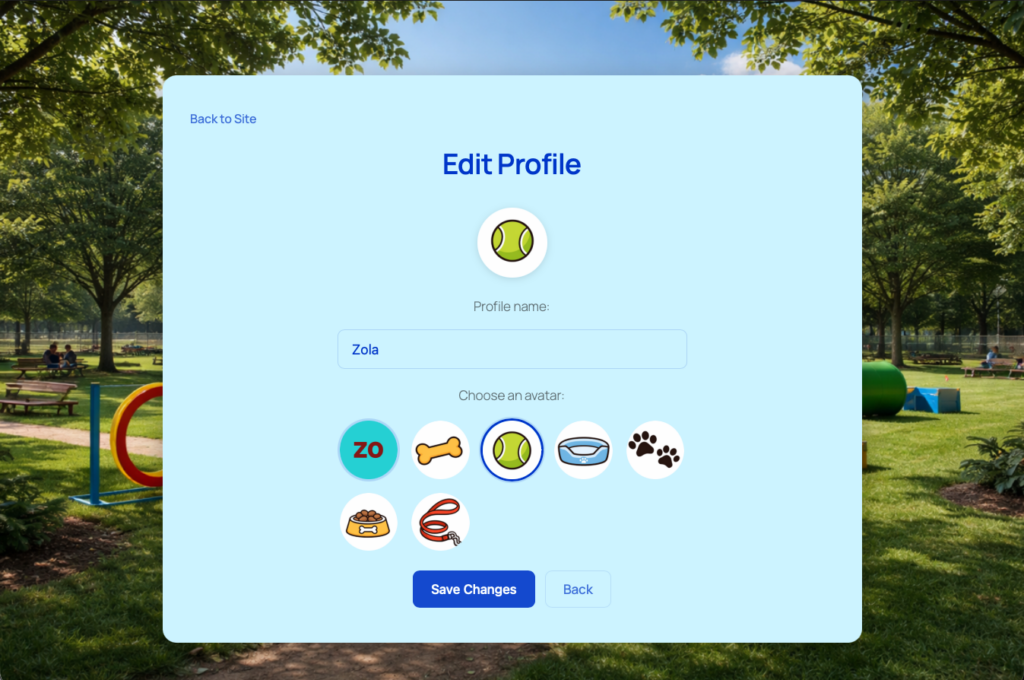
Parents can edit profiles directly from the profile switcher
What the family experience looks like
Here’s a concrete example. A homeschool mom has three kids taking a science curriculum on your LearnDash site. With ProfileSwitch installed, her day-to-day experience looks like this:
- She logs in once with her email and password.
- She sees the profile picker showing her own profile plus her three children — each with a name and avatar.
- She taps her oldest child’s profile. The site now shows that child’s LearnDash dashboard — their enrolled courses, their progress bars, their quiz scores. Nothing from the other kids is visible.
- The child works through their lesson. When they finish, she switches to the next child’s profile with one click from the admin bar. No logging out, no passwords.
- Each child’s progress is completely independent. If all three are taking the same course, each has their own completion percentage, quiz attempts, and certificates.
From the parent’s perspective, it’s as simple as choosing a name. From LearnDash’s perspective, each child is a fully separate student with their own enrollment and progress data.
Keeping it secure with PINs
If the family shares a tablet, ProfileSwitch’s PIN feature adds a layer of protection. The parent can set a PIN on their own profile so kids can’t switch to it and access account settings, billing pages, or other parent-only areas. The parent’s PIN also works as a master override — they can always access any child’s profile without needing to remember multiple PINs.
Both parents need access? Use Profile Managers
If both parents need to manage the children’s profiles, ProfileSwitch’s Profile Managers feature lets a second parent log in with their own credentials and access the same set of child profiles. No password sharing, and each parent can check on any child’s course progress independently.
Frequently asked questions
Does each child need their own LearnDash license?
No. LearnDash is licensed per site, not per user. Each child profile is a separate WordPress user, but they all live on the same site under your existing LearnDash license.
Can I sell one course and give the whole family access?
Yes. If you use Paid Memberships Pro with LearnDash, ProfileSwitch can share the parent’s membership with all sub-profiles. The parent purchases the membership, and every child profile automatically gets the same course access. You can also set per-level profile limits to create tiered family plans.
What about LearnDash certificates and badges?
Each profile earns their own certificates and badges independently. Because every profile is a real WordPress user, LearnDash’s certificate system works exactly as it normally would — each child gets their own certificate with their own name when they complete a course.
How many profiles can a family create?
You set the maximum in ProfileSwitch settings (default is 10). If you use Paid Memberships Pro, you can set different limits per membership level — for example, a “Family of 4” plan allows 4 profiles, a “Family of 6” allows 6.
Give your LearnDash families a better experience
One login. Separate progress for every family member. Set up in 5 minutes with a 14-day money-back guarantee.
Leave a Reply