
Paid Memberships Pro
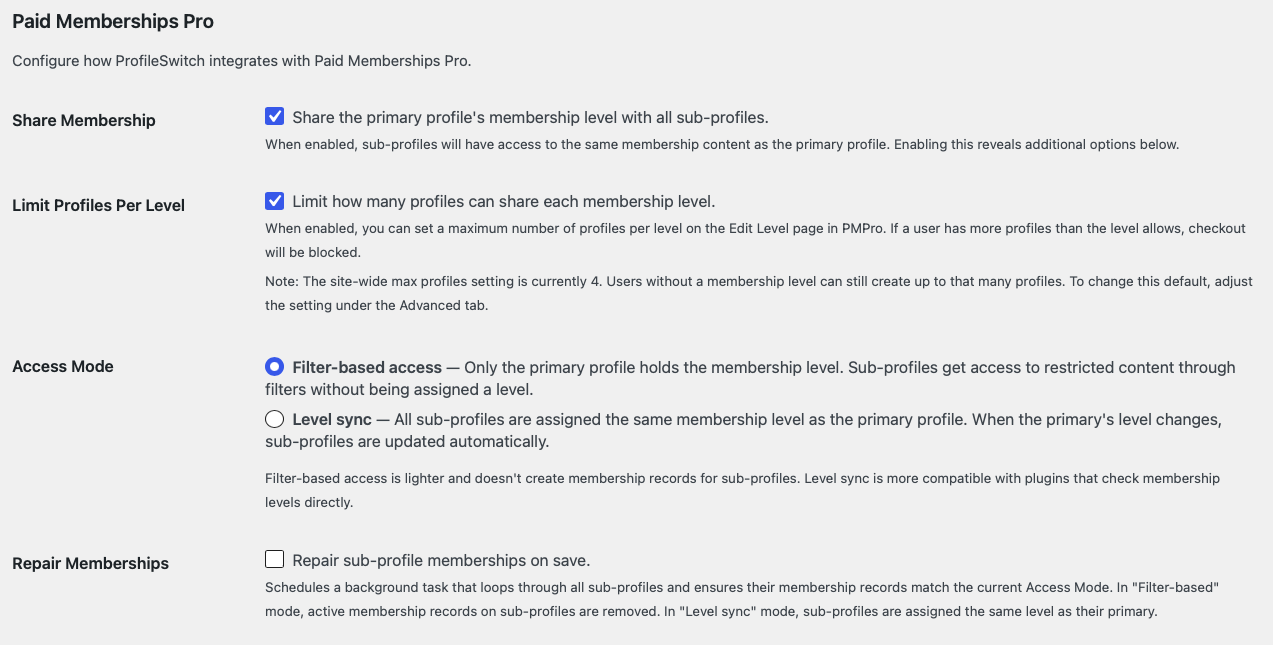
ProfileSwitch integrates with Paid Memberships Pro to let you share a primary profile’s membership with all sub-profiles in the account. Sub-profiles get access to restricted content without needing their own membership. Paid Memberships Pro settings appear on the Integrations tab when the plugin is active.
Setup
- Go to ProfileSwitch → Integrations.
- Under the Paid Memberships Pro section, enable “Share Membership”.
- Choose an Access Mode (see below).
- Save your settings.
When membership sharing is enabled, sub-profiles are automatically blocked from managing memberships (checkout, billing, cancel). Only the primary profile controls the membership.
Access modes
ProfileSwitch offers two ways to share the primary’s membership with sub-profiles. Choose the mode that best fits your site.
Filter-based (default)
Only the primary profile holds the actual membership level in the database. Sub-profiles are granted access on the fly via Paid Memberships Pro’s pmpro_get_membership_levels_for_user filter. This means sub-profiles can view restricted content, but no membership records are created for them.
Best for: Simple setups where you just need sub-profiles to access restricted content. Lighter on the database and avoids duplicate membership records.
Level sync
All sub-profiles are assigned the same membership level as the primary in the database. When the primary’s level changes (upgrade, downgrade, or cancellation), all sub-profiles are automatically synced to match.
Best for: Sites where other plugins or custom code check membership levels directly in the database, rather than through Paid Memberships Pro’s API functions. Level sync ensures maximum compatibility.
Profile limits per level
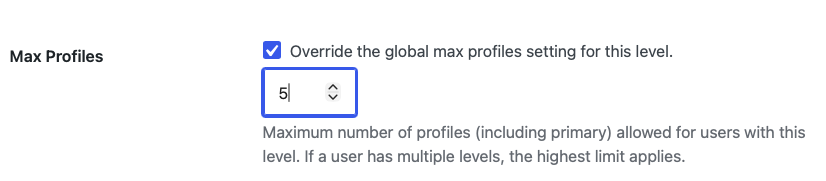
Enable “Limit Profiles Per Level” to override the global max profiles setting on a per-level basis. This lets you offer different profile limits depending on the membership tier.
Once enabled, each Paid Memberships Pro membership level’s edit page will show a ProfileSwitch section where you can set the maximum number of profiles for that level. If a user has multiple levels, the highest limit applies.
If a user tries to create a profile that would exceed their level’s limit, they are blocked at creation time. If no per-level override is set for a level, the global max profiles setting is used as a fallback.
Repair memberships
If you enable membership sharing on a site with existing profiles and memberships, click “Run Repair” to sync all existing data to your chosen access mode.
- Filter mode repair: Removes active membership records from sub-profiles (since they’ll get access via filters).
- Sync mode repair: Assigns the primary’s membership levels to all sub-profiles that don’t already have them.
The repair runs as a background task using Action Scheduler if available. You only need to run this once after initial setup or after switching access modes.
Without membership sharing
If you don’t enable membership sharing, each profile works as a completely independent Paid Memberships Pro member. Every profile can purchase its own membership, manage its own billing, and has its own access levels. This is the default behavior and requires no configuration.
Use case: family membership
A parent purchases a membership and creates profiles for each family member. With membership sharing enabled, every profile gets access to restricted content automatically. The parent manages billing and membership changes from their primary profile, and all sub-profiles stay in sync. For a full walkthrough, see How to Add Family Plans to Your PMPro Membership Site.
Use case: tiered profile limits
A site offers a “Basic” plan with up to 3 profiles and a “Premium” plan with up to 10 profiles. Enable per-level profile limits, then set the max on each level’s edit page. When a Basic member tries to create a 4th profile, they’re blocked and can upgrade to unlock more.