
If you’re running an online course, membership site, or youth program on WordPress, you’ve likely encountered this common frustration: Parents want to have separate accounts for each of their children, but WordPress’s default user system forces every individual, including young children, to have their own separate login and email address.
Parents end up juggling multiple accounts, kids without emails can’t sign up independently, and site owners deal with higher abandonment rates, forgotten passwords, and mixed-up progress tracking. Shared logins? They cause even bigger problems, like one child’s quiz scores overwriting another’s or course completions getting confused.
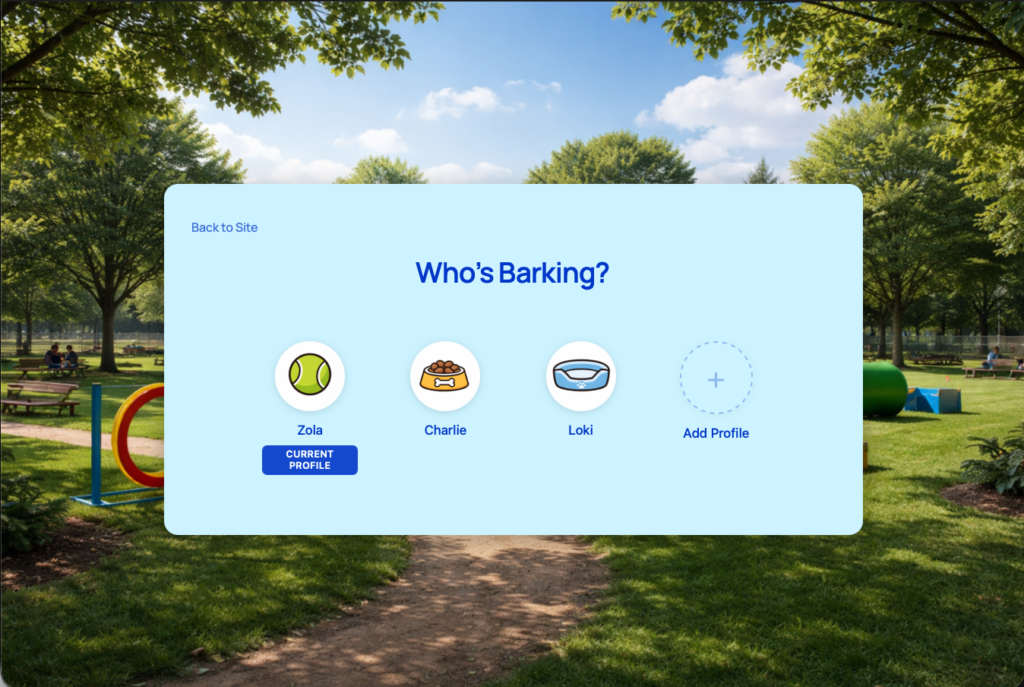
What if you could offer true family accounts in WordPress: One parent login, unlimited separate profiles for each family member, and completely isolated data, progress, and access just like switching profiles on Netflix, Disney+, or Hulu.
Good news: You can. And it’s easier than you think.
Why Default WordPress (and Most Workarounds) Fall Short for Families
Out of the box, WordPress ties every user account to a unique email and login. That’s great for individual users, but terrible for families:
- Kids often don’t have emails → Parents can’t create accounts for them without using fake emails (which breaks verification) or sharing one login.
- Shared logins mix everything up → Course progress, quiz results, memberships, and activity all blend together. One sibling finishes a module, and it shows as completed for everyone.
- Multiple separate accounts → More friction for parents (managing logins/passwords), more admin overhead for you (inactive accounts, support tickets), and no easy way to tie them together.
Popular membership and LMS plugins (like Paid Memberships Pro, LifterLMS, MemberPress or LearnDash) have add-ons for “group” or “corporate” accounts, but these are designed for businesses, not families. They often still require unique emails for sub-users or don’t fully isolate progress in courses.
Custom code or general user management plugins (like Ultimate Member or ProfileGrid) can add front-end profiles, but they don’t solve the core issue: seamless profile switching under one login with separate data storage.
The Ideal Family Account Setup for WordPress Sites
Here’s what families (and site owners) really need:
🔑
One parent login and email for the whole family.
👥
Unlimited sub-profiles (e.g., for each child or family member).
↔️
Easy, intuitive switching between profiles—without logging out and back in.
🔒
Completely separate data per profile: Individual course progress, quiz scores, completion certificates, membership access, and activity history.
📧
Centralized management: All emails and notifications go to the parent.
🔌
Compatibility with popular LMS (LearnDash, LifterLMS, Tutor LMS) and membership plugins.
This setup reduces signup friction, boosts course completions, and makes your site more family-friendly—perfect for online education, youth sports clubs, day camps, or paid membership communities.
How to Set Up Family Accounts in WordPress: Step-by-Step
The simplest and most robust way to achieve this is with ProfileSwitch, a new WordPress plugin built specifically for family-style accounts.
ProfileSwitch lets users create and switch between multiple profiles using a single login, while keeping everything separate behind the scenes.
Step 1: Install and Activate ProfileSwitch
- Log in to your WordPress dashboard.
- Go to Plugins > Add New.
- Search for “ProfileSwitch” (or upload the plugin if downloading from profileswitch.com).
- Install and activate it.
No complex setup required—it’s designed to work out of the box.
Step 2: Configure Basic Settings
Head to Settings > ProfileSwitch:
- Set up the full-page profile switcher interface
Step 3: Let Users Create and Manage Profiles
From the front end:
- A new user (parent) registers with their email.
- After logging in, they see an option to “Switch Profile.”
- They create profiles for each family member, no extra emails needed.
- Switching profiles is as easy as clicking a name on the full-page switcher.
All notifications (course updates, memberships, etc.) route to the main account email.
Real-World Benefits and Use Cases
Online Courses
Each child tracks their own course progress independently.
Membership Sites
Allow switching between each family member’s profile without compromising security or data privacy.
Youth Programs & Clubs
Parents manage registrations and participation for multiple kids under one account. Ideal for sports leagues, scouts, or summer camps.
By making your site more accessible to families, you’ll stand out in a crowded market and see better engagement.
How ProfileSwitch Compares to Other Approaches
You might be wondering how ProfileSwitch stacks up against the workarounds people commonly use. Here’s a quick comparison.
Shared Login
- One login for everyone
- All data mixed together
- No individual progress
- No per-person tracking
Separate Accounts
- Individual data per person
- Kids need email addresses
- Multiple logins to manage
- No connection between family
ProfileSwitch
- One login, multiple profiles
- Fully separate data per person
- No emails needed for kids
- Parent manages everything
ProfileSwitch gives you the best of both worlds: the convenience of a single login with the data isolation of separate accounts. Each profile is a real WordPress user under the hood, so your LMS, membership, and ecommerce plugins all see separate individuals with their own progress, orders, and access — while the parent only deals with one email and one password.
Frequently Asked Questions
How do child profiles get their email addresses?
ProfileSwitch automatically generates unique email addresses using plus addressing. If the parent’s email is [email protected], child profiles get emails like [email protected] and [email protected]. These all deliver to the parent’s inbox — no extra email accounts needed, and every notification goes straight to the parent.
Can kids switch to the parent’s profile and make purchases?
Not if you enable Profile PINs. Parents can set a PIN on their own profile, and kids will need to enter it before they can switch. The parent’s PIN also works as a master override for accessing any child’s profile. You can also use Parental Controls to block specific pages (like checkout or account settings) from child profiles entirely.
What if both parents need to manage the family account?
ProfileSwitch’s Profile Managers feature allows a second parent (or any other user) to log in with their own credentials and access the same set of child profiles. No password sharing needed — each parent has their own login while managing the same family.
Which plugins does ProfileSwitch work with?
ProfileSwitch works with any plugin that uses standard WordPress users. It has specific built-in integrations with Paid Memberships Pro (share memberships, per-level profile limits), WooCommerce (consolidated order history), LearnDash, LifterLMS, BuddyPress, and BuddyBoss. Other popular plugins like MemberPress, Tutor LMS, and Restrict Content Pro work out of the box.
How many profiles can a family create?
You control the maximum in ProfileSwitch settings (default is 10). If you use Paid Memberships Pro, you can set different limits per membership level — a “Family” plan might allow 5 profiles while an “Individual” plan allows none.
Ready to Make Your WordPress Site Family-Friendly?
Implementing family accounts no longer requires custom development or clunky workarounds. With ProfileSwitch, you can deliver a modern, streaming-service-like experience that families love.
Head over to the ProfileSwitch pricing page and get started today. Installation takes minutes, and you’ll wonder how you managed without it.
Have questions or need help with setup? Drop a comment below—we’re here to help!
What challenges have you faced with family access on your WordPress site? Share in the comments!