
If you’ve been using the Allow Multiple Accounts plugin — or just found it while searching for a way to let multiple WordPress users share an email address — you’ve probably noticed it hasn’t been updated in 8 years.
That’s a problem. An unmaintained plugin means no security patches, no compatibility testing with newer versions of WordPress or PHP, and no support if something breaks. Running it on a production site is a risk.
But the problem it solved is still real. The most common reason people need multiple accounts on one email is families — parents managing accounts for kids who don’t have their own email address, or households sharing access to an LMS or membership site.
The old approach: duplicate emails
Allow Multiple Accounts worked by removing WordPress’s restriction on duplicate email addresses. This let you create multiple user accounts all tied to the same email.
The problem with this approach is that it breaks things. Password resets go to the same inbox with no way to distinguish which account they’re for. Plugins that look up users by email get confused. It’s a workaround, not a real solution.
Other workarounds people try
Allow Multiple Accounts isn’t the only approach people use to work around WordPress’s one-email-per-user restriction. Here are the most common alternatives and where they fall short.
Manual email aliases (plus addressing)
The most common DIY method. A parent registers with [email protected], then creates a second account with [email protected]. Gmail delivers both to the same inbox, and WordPress sees them as different users.
The problem: each account still needs its own login and password. The parent has to log out and back in to switch between accounts. Password reset emails all land in the same inbox with no clear way to tell which account they belong to. And you’re relying on your users to know that plus addressing exists and to set it up correctly themselves — most won’t.
Creating separate accounts with different emails
Some site owners just ask each family member to register separately. This works for adult users who each have their own email, but it breaks down completely for families with children. Kids under 13 typically don’t have email addresses, and parents don’t want to create throwaway emails for each child.
Even when everyone does have an email, there’s no connection between the accounts. The parent can’t see their children’s course progress, manage their memberships, or control their access. Each person is a completely independent user as far as WordPress is concerned.
Sharing one login for the whole family
The path of least resistance. The whole family uses one account with one set of credentials. This avoids the multi-login hassle but creates worse problems: course progress, quiz scores, order history, and membership data all get mixed together. If two siblings are taking the same course, their completions overwrite each other. There’s no way to track individual progress or generate per-person reports.
Group or corporate account plugins
Plugins like PMPro Group Accounts, LearnDash Groups, or MemberPress Corporate Accounts let one person purchase access for a group. But these were designed for organizations, not families. They typically still require every sub-user to have their own email address and login credentials. They solve the “one person pays for many” problem, but they don’t solve the “one login for the family” problem.
The common thread: every workaround above either requires multiple logins (friction for families), shares a single account (data gets mixed), or relies on users to manually set up email aliases (most won’t). None of them give you what streaming services figured out years ago: one login, multiple profiles, fully separate data.
The modern approach: one login, multiple profiles
Instead of hacking around WordPress’s email restriction, ProfileSwitch takes a fundamentally different approach.
One account. One login. Multiple profiles.
After logging in, users see a full-screen profile picker — similar to how streaming services let you choose who’s using the account — and select which profile to use. Each profile is a real WordPress user with its own data, progress, memberships, and activity, all completely separate.
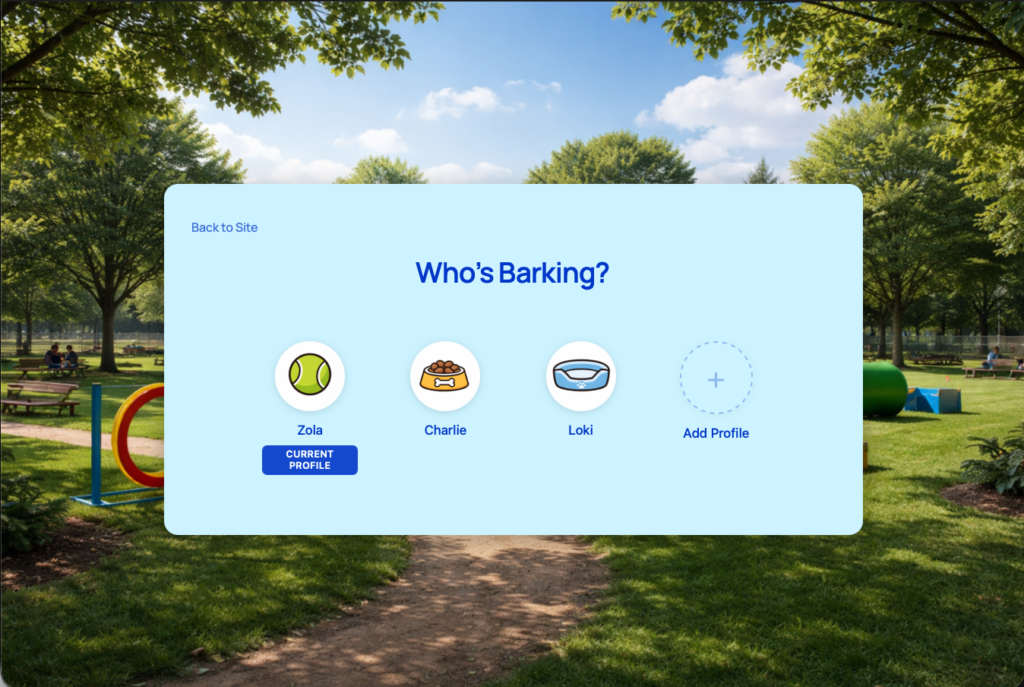
The email problem is solved automatically: ProfileSwitch generates unique emails for each profile using plus addressing (e.g., [email protected], [email protected]). Everything routes back to one inbox, but WordPress sees each profile as a distinct user. No duplicate email hacks needed.
What you get with ProfileSwitch
One login for the family
No managing multiple passwords or email addresses
Separate data per profile
Course progress, memberships, and activity fully isolated
Preset avatar system
Upload custom avatars for users to choose from
Frontend profile management
Users create and edit profiles without admin access
Customizable design
Light, dark, or custom colors with background images
Plugin compatibility
LearnDash, PMPro, WooCommerce, LifterLMS, and more
Customize it to match your site
The profile switcher is fully customizable from the WordPress admin. Choose a color scheme, upload a background image, set a custom heading, and upload preset avatars — with a live preview so you can see every change before saving.
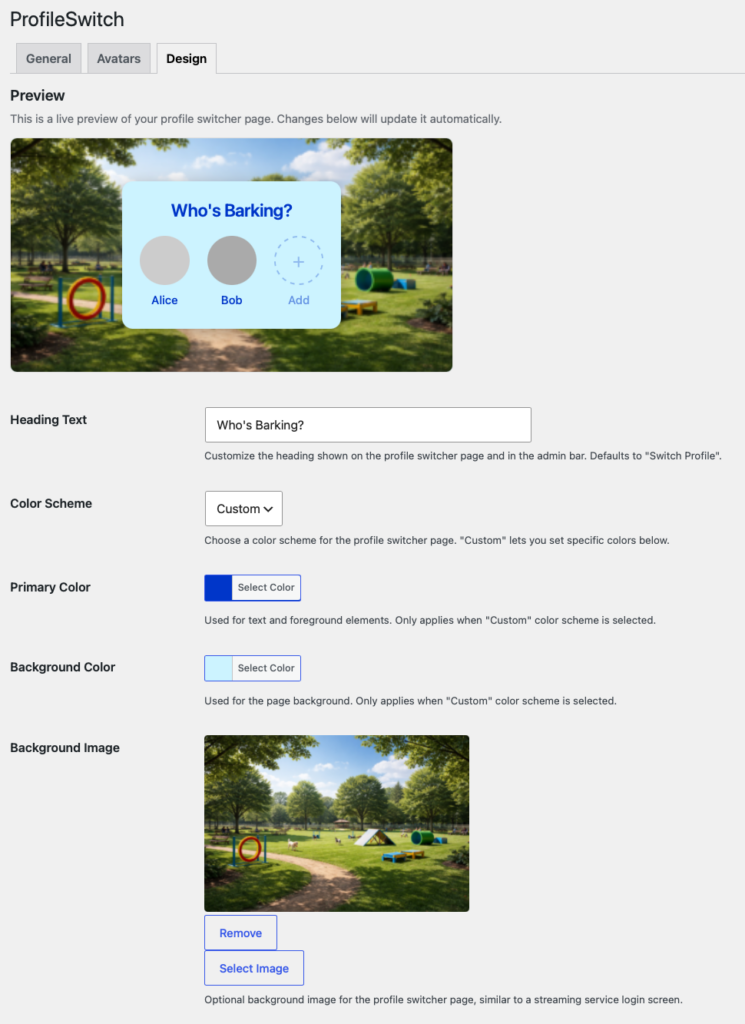
Design settings with live preview
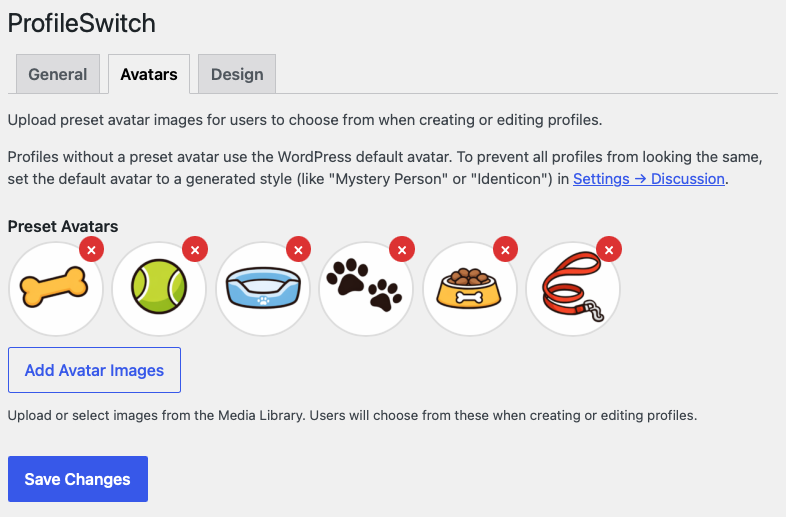
Preset avatar management
Setting up ProfileSwitch (5 minutes)
If you’re coming from Allow Multiple Accounts — or just looking for a clean way to support families on your site — here’s how to get started.
- Install and activate ProfileSwitch from your WordPress dashboard. Upload the plugin zip or install from the Plugins page.
- Enter your license key on the Settings > ProfileSwitch page.
- Create the profile switcher page — one click from the settings page generates the page automatically.
- Upload preset avatars (optional) from the Avatars tab so profiles have a visual identity without users uploading their own images.
- Customize the design (optional) — choose a color scheme, upload a background image, and preview everything live before saving.
That’s the full setup. When a user with multiple profiles logs in, they’ll see the profile picker automatically. They can create new profiles, edit existing ones, and switch between them — all from the frontend, no admin access needed.
If you were previously using Allow Multiple Accounts, your existing users and their data are unaffected. ProfileSwitch doesn’t modify existing accounts. You can deactivate Allow Multiple Accounts, install ProfileSwitch, and your users will have a better experience immediately.
Who it’s for
Online Courses
Families share one subscription and each member gets their own course progress and quiz results.
Membership Sites
A household shares access but each person has their own identity, activity, and data.
Youth Programs
Parents manage accounts for multiple children who don’t have their own email addresses.
Allow Multiple Accounts vs. ProfileSwitch
Allow Multiple Accounts
- Last updated 2018
- Removes duplicate email restriction
- Each account needs separate login
- Breaks password resets
- No profile switching UI
- No avatar or design customization
ProfileSwitch
- Actively maintained and supported
- Unique emails via plus addressing
- One login, switch between profiles
- Everything works correctly
- Full-screen profile switcher
- Avatars, themes, background images
Features Allow Multiple Accounts doesn’t have
Allow Multiple Accounts was a single-purpose plugin: it removed the duplicate email restriction and nothing else. ProfileSwitch is a complete family account system with features built specifically for the use cases that drove people to Allow Multiple Accounts in the first place.
Profile PINs and parental controls
Any profile can be protected with a numeric or alphanumeric PIN. This prevents kids from switching to a parent’s profile. The parent’s PIN also works as a master override so they can access any child profile without needing every PIN. You can also block specific pages (like checkout or account settings) from child profiles entirely with built-in parental controls.
Profile Managers (shared access for co-parents)
Families aren’t always one parent with one login. ProfileSwitch lets you designate Profile Managers — other users who can also access and manage the profiles on an account. A co-parent can log in with their own credentials and manage the same set of child profiles without sharing a password.
Frontend Account Management page
Parents can view and manage all profiles on their account from a dedicated frontend page — no admin dashboard access needed. They can see each profile’s name, role, and status, edit profile details, and remove profiles they no longer need.
Plugin integrations
ProfileSwitch has built-in integrations with the plugins most commonly used alongside family accounts: Paid Memberships Pro (tie profile limits to membership levels, auto-create profiles at checkout), WooCommerce (consolidated order history across all profiles), LearnDash, LifterLMS, BuddyPress, and BuddyBoss. Allow Multiple Accounts had no integrations with anything.
Frequently asked questions
Can I use ProfileSwitch and Allow Multiple Accounts at the same time?
You can, but there’s no reason to. ProfileSwitch handles the email uniqueness problem automatically through plus addressing — there’s no need to remove WordPress’s duplicate email restriction. If you’ve been using Allow Multiple Accounts, you can safely deactivate it after installing ProfileSwitch.
How many profiles can one account have?
You set the maximum number of profiles per account in the ProfileSwitch settings. If you use Paid Memberships Pro, you can even set different limits per membership level — for example, a “Family” plan might allow 5 profiles while an “Individual” plan allows none.
What happens to email notifications?
All emails go to the parent’s inbox. ProfileSwitch generates unique email addresses for sub-profiles using plus addressing (e.g. [email protected]), which means every notification — course completions, order confirmations, membership updates — is delivered to the parent automatically. No extra inboxes needed.
Does ProfileSwitch work with my LMS or membership plugin?
ProfileSwitch works at the WordPress user level, so it’s compatible with any plugin that uses standard WordPress users. It has specific built-in integrations with Paid Memberships Pro, WooCommerce, LearnDash, LifterLMS, BuddyPress, and BuddyBoss. Other plugins like MemberPress, Tutor LMS, and Restrict Content Pro work out of the box because each profile is a real WordPress user.
Is ProfileSwitch actively maintained?
Yes. ProfileSwitch is actively developed with regular updates, security patches, and new features. It’s tested against the latest versions of WordPress and PHP. The last Allow Multiple Accounts update was in 2018.
Ready to upgrade from Allow Multiple Accounts?
Set up in under 5 minutes. 14-day money-back guarantee.
Leave a Reply