Coding and STEM courses for children have a structural quirk that most online course markets do not. The work a student produces is the point. A finished game, a robot program, a typing speed, a project that runs. Parents buy your course so their child can build something and keep it, and children come back to a coding site specifically to see what they made last time.
That makes shared accounts unusually damaging here. When two siblings work through your curriculum from one login, they do not simply blur a progress bar. They land in each other’s projects. This guide covers what breaks, why asking parents to register each child separately does not work, and how to give every young builder their own space while the household keeps a single login.
Two siblings, one account, one mess
Picture a ten-year-old and a seven-year-old sharing the family account on your site. Both are enrolled in your beginner track. Here is what the site does to them.
- Projects pile into one folder. Both children’s saved work sits in the same list under the same name, and the younger one opens the older one’s half-finished game thinking it is hers.
- Work gets overwritten. If your platform saves a single project per lesson, the second child to attempt it replaces the first child’s build. That is not a blurred metric, that is lost work, and it produces an upset child and an email to your support address.
- Badges and achievements go to nobody in particular. Gamification only motivates when the child believes the badge is theirs. Shared trophies motivate neither sibling.
- Difficulty stops adapting. A curriculum that unlocks the next module on completion will race ahead at the older child’s pace, leaving the younger one staring at material she has no way to attempt.
- Certificates and portfolios lose their meaning. Families often want a record of what a child built, sometimes for school or a program application. A shared account cannot say who built what.
- Your engagement data is wrong. Two children behind one login look like one very active student, which quietly distorts everything from retention analysis to which modules you decide to improve.
The age gap makes it worse
Coding curricula are usually banded by age or by tool. Block-based visual programming for the youngest, then a transition to text, then a real language. A family with a twelve-year-old and an eight-year-old is not buying one product twice, they are buying two different tracks.
A single shared account cannot hold two tracks cleanly. Either the parent buys the older child’s track and lets the younger one struggle with it, or buys the younger track and bores the older one, or buys both and watches the site present a confusing merged dashboard. None of those outcomes make the parent likely to renew.
Which is why so many kids coding sites already advertise a sibling rate. The commercial intent is right. The account model underneath usually has not caught up with it.
Why separate registrations do not stick
Telling parents to create an account per child is the obvious answer, and on a kids site it runs into a specific wall.
- The email requirement. WordPress needs a unique address per user, and an eight-year-old does not have one. Many parents are also deliberately holding off on giving a child an inbox, and a coding site is not where they want to change that policy.
- The family computer. Coding happens on the one machine capable of running it. Separate logins mean signing out and in whenever a different child gets their turn.
- Password friction at exactly the wrong moment. A child who sits down excited to build should not be blocked by a credential they cannot type or remember.
- Parents want visibility, not administration. They want to see what their child made. They do not want to hold three passwords and log in as each child to find out.
A profile per builder
The model: one household login, and behind it a profile for each child. Each profile is a real WordPress user, so projects, badges, enrollments and completions all belong to exactly one child.
ProfileSwitch puts a profile picker after login, the same shape children already know from streaming services and games consoles. A child taps their avatar and the site treats them as their own user from that point on. No password, no email address, no waiting for a parent to log them in.
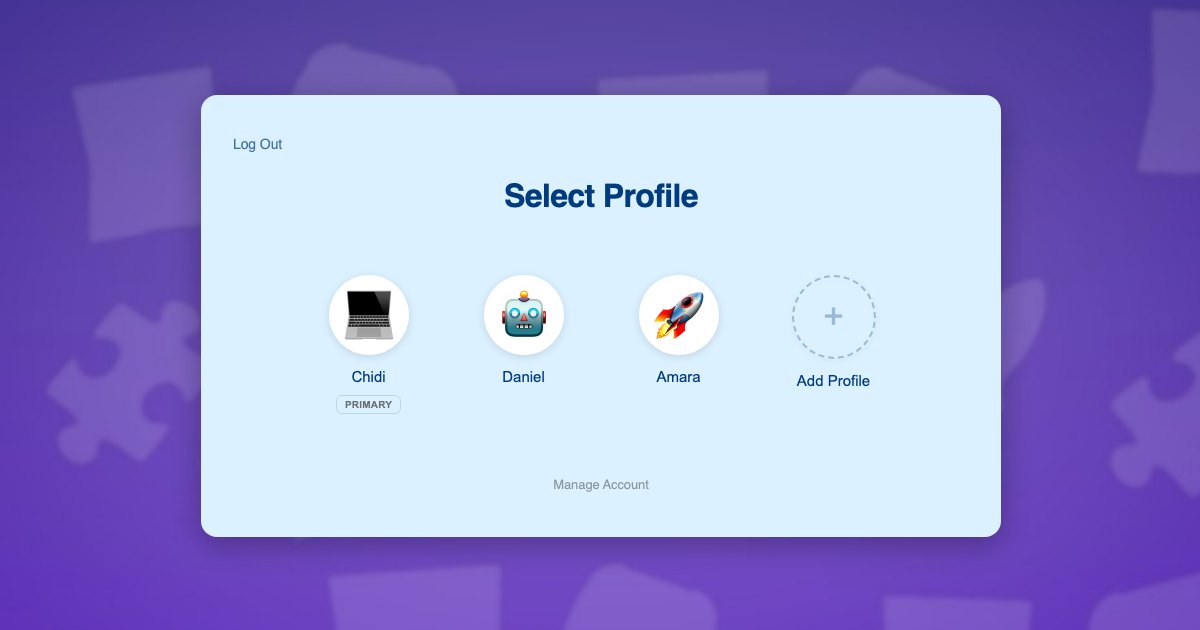
Because profiles are genuine WordPress users rather than labels, everything your stack already does per user keeps working. Course progress, quiz scores, project post types, badge and points plugins, certificates. If a feature currently works for one student, it works for each child independently once they have their own profile. Nothing in your curriculum configuration changes.
Child profiles are created with plus-addressed variants of the parent’s email address, so WordPress gets the unique address it demands while every notification lands with the adult. The background to that approach is in this post on the email alias problem.
One detail that matters more on a kids coding site than anywhere else: the avatar. Letting a child pick their own picture from a set you upload turns the profile screen into something they feel ownership of. There is more on that in this post about assigning unique avatars.
Two children on one laptop
The Okafor family has two children who both want to build games: Daniel, 12, ready for text-based programming, and Amara, 8, who is starting with block coding. They share one laptop, and their father handles the purchasing.
- He registers once with his own email and password, and his profile is created as the primary.
- He adds a profile for Daniel and one for Amara, and each child picks an avatar. Neither needs an email address.
- He switches into Amara’s profile and enrolls her in the block coding track. That enrollment belongs to Amara.
- He switches to Daniel in a single click and enrolls him in the Python track. Two children, two curricula, one login.
- After school, whoever gets the laptop taps their own avatar. Amara sees her half-finished maze game and her three badges. Daniel sees his own project list and nothing of his sister’s.
- When Amara wants to show off what she built, her father taps into her profile, looks at her actual project as she sees it, then taps back to his own PIN-protected profile.
Steps 3 and 4 are two separate enrollments and two payments, which is what the family would expect for two different tracks. What they never have to do is manage two accounts.
Putting it together
Enrollment and payment
Paid Memberships Pro handles access and recurring billing, and ProfileSwitch ships a dedicated Paid Memberships Pro integration. A level per track works well for age-banded curricula: the parent switches into a child’s profile and subscribes that child to the right track, so each child can be upgraded to the next tier when they are ready without touching a sibling’s access. If you would rather sell one household subscription that covers every child, see the guide to family plans on a Paid Memberships Pro site.
WooCommerce is a reasonable alternative, particularly if you also sell hardware kits, robotics parts or holiday camp places from the same site. The WooCommerce integration lets the parent view orders placed from every profile in one place.
Courses, projects and badges
Your LMS needs no special treatment. ProfileSwitch does not ship a dedicated LMS integration and does not need one, because switching profiles changes the active WordPress user and course plugins read the current user. The same is true of most gamification and portfolio plugins, which store points, badges and submitted work against a user ID. Platform walkthroughs exist for LearnDash, LifterLMS, Tutor LMS and LearnPress.
Boundaries for younger children
Parents buying a kids product pay close attention to what their child can reach. A PIN on the parent’s profile keeps children out of billing and account settings, and acts as a master override into any child’s profile. Individual pages can be restricted so child profiles cannot open them at all, which is useful if your site has community areas or purchase pages you would rather children did not wander into. See the PINs and parental controls documentation for the settings, or this broader post on parental controls in WordPress.
If two adults share oversight, the Profile Managers feature lets a second parent log in with their own credentials and reach the same child profiles without anyone sharing a password.
Older students who want their own login
Coding sites often span a wide age range, and a fifteen-year-old will not want to log in through a parent’s account. Profiles can optionally be given their own email address and password, so an older sibling signs in directly while the younger children stay behind the household login. You do not have to pick one model for your whole user base.
Frequently asked questions
Will each child’s saved projects stay separate?
Yes, provided your site already stores projects against a WordPress user, which is how course and portfolio plugins normally work. Each profile is its own user, so one child’s saved work is invisible to their sibling and cannot be overwritten by them.
Can siblings be on different tracks at the same time?
Yes. Each profile holds its own enrollments and memberships, so one child can work through block-based coding while another does Python, each with their own progress and their own badges, under one household login.
Do children need email addresses to have a profile?
No. Profiles are created with plus-addressed variants of the parent’s address, so the WordPress unique-email requirement is satisfied and all notifications reach the parent. Older students can optionally be given their own credentials if they want to log in directly.
Can I stop a child from reaching checkout or account settings?
Yes. A PIN protects the parent’s profile, and named pages can be restricted so child profiles cannot open them. The parent’s PIN also works as a master override into any child’s profile.
How many profiles can one account have?
The default cap is 10 including the parent, and you can change it. The free Lite version on WordPress.org supports up to 10 profiles per account, so you can test the flow on your own site first.
Every child keeps their own projects
One login for the household, a profile for every child, and separate work, badges and progress for each of them. Works with your existing membership and course plugins.