
If your Tutor LMS site has families on it — homeschool households, parents enrolling kids in extracurricular courses, anyone learning together — you’ve probably run into the same friction. Tutor LMS tracks course progress, quiz attempts, and certificates per WordPress user. That’s exactly what you want for individual learners, but it creates a real problem for families: do you ask every kid to have their own email and login, or do you let the whole family share a single account and watch all the progress data mix together?
Tutor LMS doesn’t ship with a family-account feature. Course Bundles in Tutor LMS Pro are about bundling courses for sale, not bundling users into a shared household. There’s no native “Groups” equivalent like LearnDash has. So families on Tutor LMS sites end up choosing between two awkward workarounds — or installing something to bridge the gap.
This guide walks through three approaches (and if you are weighing a dedicated parent-and-student add-on instead, see our comparison of Tutor LMS parent and student access alternatives): separate accounts for every family member, one shared account for the household, and ProfileSwitch — which gives the family a single login while keeping every member’s course progress completely separate.
Option 1: A separate account for every family member
Best for: Families with older kids who already have their own email addresses, their own devices, and who don’t share screens with a parent.
The default Tutor LMS path. Every family member registers as a separate WordPress user with their own email, their own password, and their own enrollments. Progress, quiz scores, and certificates are tracked per user — exactly the way Tutor LMS is designed to work.
For families of independent adult learners or older teens, this works fine. Each member logs into their own account on their own device, takes their own courses, and earns their own certificates. The site owner doesn’t need to do anything special — Tutor LMS treats every family member like any other student.
Where it falls apart:
- Younger kids don’t have email addresses. Forcing the parent to create one for each child just to register them on a course site is friction that tanks signup rates
- Families that share a tablet now have to log out and log back in every time a different kid wants to use the site. That’s painful with a 7-year-old who can’t reliably type a password
- The parent has to track multiple sets of credentials. Most parents end up writing them on a sticky note next to the iPad — which defeats any security benefit of having separate accounts
- There’s no unified family view. The parent has no way to see all their kids’ progress in one place without logging in as each kid
If your typical learner is an adult or an older teen, this is a non-issue. If your typical learner is a child under 13 — especially one sharing a device with a parent — this approach makes the site frustrating to use.
Option 2: One shared account for the whole family
Best for: Almost no one. This is what families do by default when separate accounts feel like too much work — and it quietly breaks every per-user feature Tutor LMS provides.
When a family hits the friction of Option 1, they almost always default to this: one parent creates an account, the whole family uses it, and everything in Tutor LMS is recorded against that single user. It’s the easiest setup and the worst experience.
What breaks:
- Course progress is shared. If one kid finishes a lesson, all the kids see it as completed — including ones who haven’t started
- Quiz attempts and scores blend together. The parent can’t tell who answered which question or how each child actually performed
- Certificates are issued to the account holder, not to the child who actually completed the course. A 9-year-old who finishes a course gets a certificate with mom’s name on it
- Q&A and assignment submissions go under the account holder’s name, so a teacher reviewing student work has no idea which kid wrote which answer
- Tutor LMS’s per-student analytics — the whole reason for tracking progress in the first place — become useless
This isn’t a real solution — it’s a symptom of the gap between how Tutor LMS is designed and how families actually use it. If you’re seeing families do this on your site, they’re telling you they need a better option than the two Tutor LMS gives them out of the box.
Option 3: ProfileSwitch — one login, separate progress per profile
Best for: Families with kids of any age, especially when devices are shared, kids don’t have email addresses, and you want each child to keep their own course progress, certificates, and quiz history.
ProfileSwitch takes the streaming-service approach to the family-on-Tutor-LMS problem. One account gets multiple profiles. After the parent logs in, they see a full-screen profile picker and choose who’s using the site. Each profile is a real WordPress user under the hood, so Tutor LMS treats each profile as a completely separate student — separate enrollments, separate progress, separate quiz scores, separate certificates. The family just never has to type more than one password.
Think of it like how Netflix or Disney+ work. One subscription, one login, but every household member gets their own watch history. ProfileSwitch does the same thing for a Tutor LMS site — one signup, one login, but every kid gets their own course history.
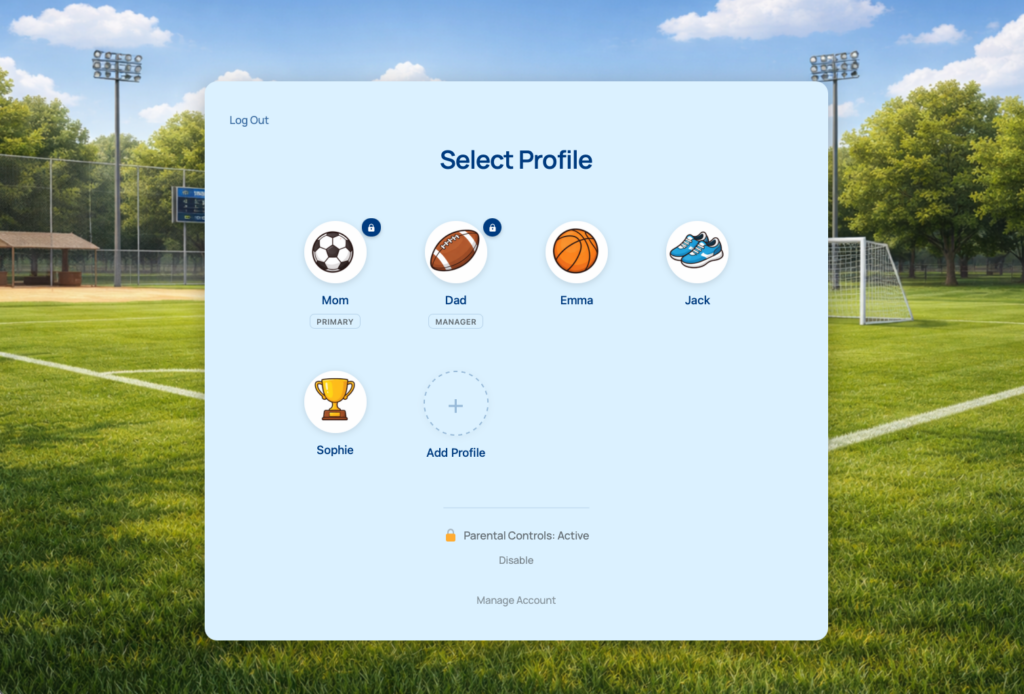
How it works on a Tutor LMS site:
- The parent registers and logs in with one set of credentials
- They create a profile for each child from the frontend — name, avatar, no email or password required for the kids
- Each child profile is a real WordPress user, so Tutor LMS records that child’s enrollments, lesson completions, quiz attempts, and certificates against the right user automatically
- Switching between profiles takes one click from the admin bar — no logging out, no typing passwords
- Kids don’t need their own email addresses. ProfileSwitch generates unique addresses automatically using plus addressing
- Parents create new profiles, edit existing ones, and assign avatars from the frontend — no admin role needed
Because every profile is a standard WordPress user, ProfileSwitch doesn’t need a Tutor-LMS-specific integration to work. Tutor LMS already records progress per user, so all ProfileSwitch has to do is make sure the right user is “active” when the family is on the site. Switch to a child’s profile, and Tutor LMS shows that child’s enrolled courses, their progress bars, their quiz attempts, their certificates. Switch to another child, and the entire dashboard flips to that child’s data.
Side-by-side comparison
Separate accounts
- Per-user progress (correct)
- Email required per kid
- Separate password per kid
- Log out / log in to switch
- No unified family view
Shared account
- One easy login
- All progress mixed together
- Wrong name on certificates
- Quiz history is unusable
- Per-student analytics broken
ProfileSwitch
- One family login
- Per-profile progress (correct)
- No email needed for kids
- One-click profile switching
- Each kid gets their own certificate
Separate accounts is the right answer when every learner is independent. The shared-account workaround isn’t really a solution at all — it just hides the problem until the parent looks at a certificate or a progress report. ProfileSwitch is the option built specifically for households: one login the family can actually use, with the per-profile data isolation Tutor LMS expects.
What the family experience looks like
Here’s a concrete example. The Reyes family — Maria and her three kids, ages 7, 10, and 13 — uses a Tutor LMS site that publishes weekly science lessons across grade-appropriate tracks. Each kid is enrolled in their own course track, takes their own quizzes at the end of each lesson, and earns their own course-completion certificates.
- Maria registers once with her email and password. Her own profile is created automatically.
- She creates a profile for each child from the profile switcher page, picking an avatar for each. No emails for the kids, no extra passwords.
- She switches to her 7-year-old’s profile and enrolls that child in the K-2 science track. Tutor LMS sees the enrollment as belonging to that child’s user — because that’s exactly what’s happening underneath.
- She repeats for the 10-year-old and the 13-year-old, enrolling each in the appropriate grade-level track. Each child now has their own course enrollment, their own progress, their own quiz history.
- Day-to-day, when a kid wants to do science class, Maria hands them the iPad. They tap their own avatar on the profile picker, see their own enrolled course, watch their own video lesson, take their own quiz, and earn their own certificate when they finish.
- When the next kid wants a turn, one click on the admin bar switches profiles. The dashboard flips to the next child’s progress in less than a second. No logging out, no passwords, no friction.
From Maria’s perspective, the site behaves like Netflix — pick a profile, get to work. From Tutor LMS’s perspective, every kid is a separate student with separate enrollments, separate progress, and separate certificates. The data the LMS captures is exactly the data the LMS was designed to capture.
Keeping the parent’s profile private with PINs
Because the family shares one login, Maria doesn’t want her kids accidentally landing on her account settings or instructor dashboard if she happens to be a course creator herself. ProfileSwitch’s PIN feature lets her set a 4-digit PIN on her own profile so kids can’t switch into it. The kids’ profiles stay PIN-free. Maria’s PIN works as a master override — she can always switch into any child’s profile to help them with a quiz or check on their progress.
When both parents need access
If both parents want to manage the kids’ learning without sharing one password, ProfileSwitch’s Profile Managers feature lets a second adult log in with their own credentials and access the same set of child profiles. Both parents can check on any child’s course progress, help with a lesson, or update a profile independently — no password sharing.
Setting up ProfileSwitch on your Tutor LMS site
Adding ProfileSwitch to an existing Tutor LMS site is purely additive. There’s no Tutor-LMS-specific configuration — your courses, lessons, quizzes, certificates, instructor settings, and analytics all stay exactly as they are. ProfileSwitch sits on top, adding the profile layer above WordPress users that Tutor LMS is already happy to track per-user.
- Install and activate ProfileSwitch from your WordPress dashboard, then enter your license key on the settings page
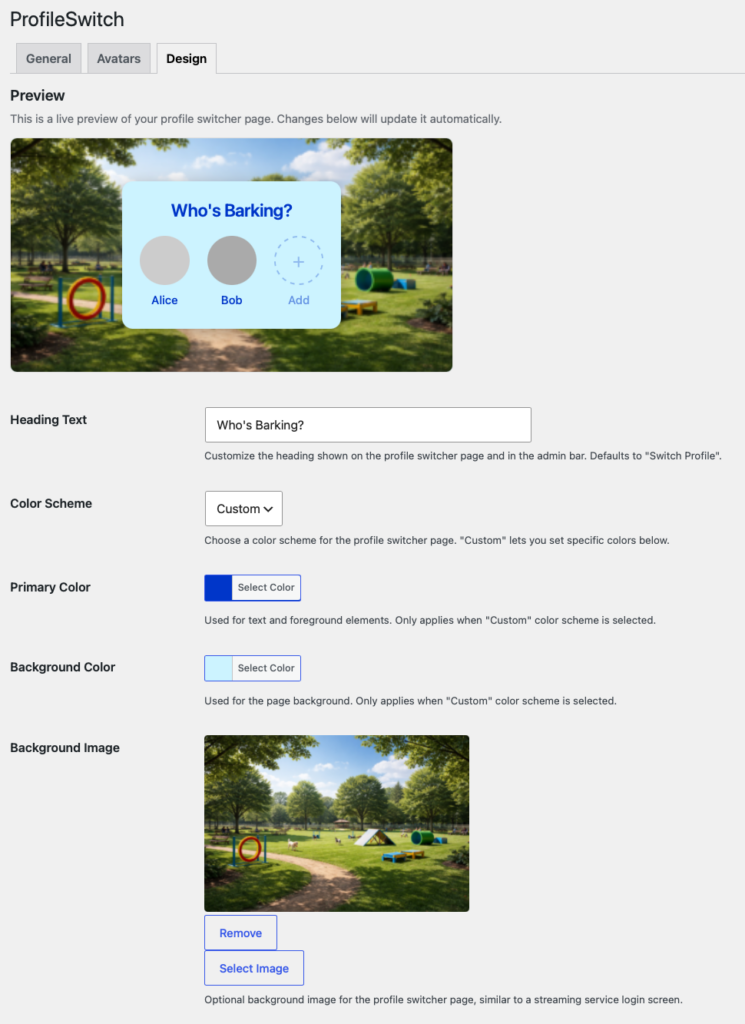
- Create the profile switcher page with one click from the settings page — this is where logged-in users land to pick a profile
- Upload preset avatars from the Avatars tab so kids can pick a recognizable face
- Customize the design from the Design tab so the profile picker matches your site’s brand
- Optionally adjust the global profile cap (default is 10 profiles per account) on the settings page
After setup, every family that signs up can create profiles for each member from the frontend. Tutor LMS handles enrollments, progress, and certificates per profile automatically because, as far as Tutor LMS is concerned, each profile is just a normal WordPress user.
Frequently asked questions
Does ProfileSwitch require a Tutor LMS-specific integration?
No. ProfileSwitch operates at the WordPress user level, and Tutor LMS already records progress, enrollments, and certificates per WordPress user. So when a profile is active, Tutor LMS just sees the normal “current user” and behaves exactly as it would for any single-user site. You don’t need a special integration or any Tutor LMS configuration changes.
Do certificates get the right name on them?
Yes. Tutor LMS issues certificates to whichever WordPress user completes the course. Because every ProfileSwitch profile is a real user with its own name, each kid earns their own certificate with their own name on it. The 9-year-old who finishes the course gets a certificate that says “Mia Reyes,” not the parent’s name.
Does ProfileSwitch work with Tutor LMS Pro features like Q&A and assignments?
Yes. Anything Tutor LMS records against the current user — Q&A posts, assignment submissions, lesson completions, quiz attempts, course progress — gets attributed to the active profile. When a kid asks a question in Q&A, the instructor sees the kid’s name as the asker. When they submit an assignment, it lands under their record. The features that depend on knowing “who did this” all work correctly.
Can the parent see what their kids are doing?
Yes. The parent can switch into any child’s profile in one click and see exactly what the child sees — their dashboard, their enrolled courses, their progress, their quiz history. They can help with a lesson, restart a quiz attempt, or check progress without logging out and back in. With both parents using Profile Managers, both adults can do this independently.
What happens to existing students if I install ProfileSwitch on a live Tutor LMS site?
Nothing changes for them by default. ProfileSwitch only kicks in when an account has more than one profile. Existing single-user accounts continue to behave exactly as before — they log in, go straight to their dashboard, and see only their own data. Multi-profile behavior is opt-in per account, so families can adopt ProfileSwitch without affecting solo learners on the same site.
How many profiles can a family create?
You set a global maximum in ProfileSwitch settings (default is 10). For most households, the default is generous — a family of 4 with a couple of grandparents thrown in still fits. You can raise or lower the cap based on your audience.
Make your Tutor LMS site work for families
One login per family. Separate course progress for every kid. Set up in 5 minutes alongside your existing Tutor LMS install with a 14-day money-back guarantee.