
If you’re running a MemberPress site that families want to buy from, you’ve probably hit the same friction point everyone hits: every WordPress user needs their own login, their own email address, and their own membership. That works fine for adult learners or B2B teams. It falls apart when the customer is a parent trying to enroll three kids — kids who don’t have email addresses, share a tablet with mom, and need someone to help them navigate.
MemberPress doesn’t ship with a family-account feature, but there are two solid ways to add one without leaving the MemberPress stack: the official Corporate Accounts add-on, or ProfileSwitch. They solve the family problem in fundamentally different ways and lead to very different revenue models for the site owner. This guide walks through both so you can pick the one that fits your business.
Option 1: MemberPress Corporate Accounts
Best for: Sites that want to sell a single bulk-priced membership covering everyone in the household, where every member needs their own email and their own login.
Corporate Accounts is MemberPress’s official add-on for selling one membership to multiple users. The buyer purchases a membership with a configured number of seats, then invites or adds sub-accounts up to that limit. Each sub-account gets the same membership access as the buyer.
Each sub-account is a real WordPress user with its own email, password, and login. The buyer gets a dashboard for managing seats — adding and removing users, seeing who’s currently filling each seat. Only the buyer is charged. From the site’s perspective, every sub-account behaves like any other WordPress user.
Where Corporate Accounts works well for families:
- Older kids and teens who already have their own email addresses and devices
- Sites where every member is consuming the same content (one curriculum the whole family follows together)
- Site owners who prefer a single bulk price over per-member pricing
Where Corporate Accounts gets awkward for families:
- Every sub-account requires an email address. Younger kids typically don’t have one
- Every sub-account is a separate login the parent has to track. Kids sharing a tablet with mom will be logging in and out constantly
- The buyer can manage seats but can’t seamlessly “become” a child to help them through a lesson or fix a quiz answer
- Sub-accounts all share the same membership, so there’s no way to give different kids different access (one kid on a higher tier, one on a starter tier)
- Onboarding flow expects every sub-account to receive an invitation email and click through to set up their own account. That doesn’t apply to a 7-year-old
Corporate Accounts is the right tool when families want one bulk membership and every family member is independent enough to manage their own login. It’s the wrong tool when the parent is doing all the buying, all the registration, and all the day-to-day management for younger kids.
Option 2: ProfileSwitch — one login, per-member memberships
Best for: Sites where the parent buys separate memberships for each child (different grade, different program, different subject) and needs a single login to manage everything for the household.
ProfileSwitch takes a different approach to the family problem. Instead of bundling sub-accounts under one shared membership, it gives the household one login with multiple profiles behind it. After the parent logs in, they see a full-screen profile picker — exactly like Netflix or Disney+ — and pick who’s using the site. Each profile is a real WordPress user, so each profile gets its own MemberPress membership, its own course progress, its own order history, its own everything. The family only ever uses one set of credentials.
For a MemberPress site, this changes the family business model in a useful way: the parent can buy a separate MemberPress membership for each child without leaving their session. They sign up, switch to their first child’s profile, and purchase the appropriate plan for that kid. Switch to the next child, purchase the appropriate plan for that kid. All from one login, no juggling email addresses or passwords.
For the site owner, this means more revenue per family than a single bulk plan would generate, with the parent UX still feeling like a single account. For the family, every kid gets exactly the membership that fits them — different grades, different programs, different price points — without anyone having to remember a separate login.
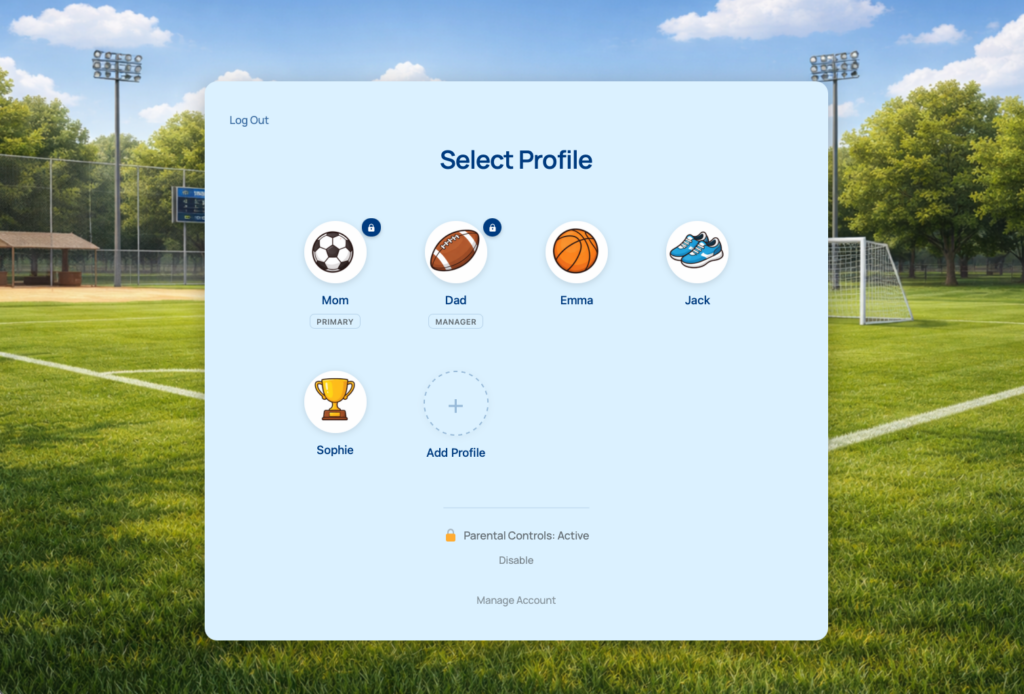
How it works on a MemberPress site:
- The parent registers and logs in with one set of credentials
- They create a profile for each child from the frontend — name, avatar, no email or password required from the kid
- The parent switches to a child’s profile and purchases a MemberPress membership for that kid. MemberPress treats it as a normal purchase by that user, because that’s exactly what it is
- The parent switches to the next child and repeats — each kid ends up with their own MemberPress membership, possibly at different tiers
- Day-to-day, the parent or kids switch profiles in one click from the admin bar — no logging out, no passwords
- Each profile sees only the content their MemberPress membership unlocks. MemberPress’s access controls work normally, per profile
ProfileSwitch sits on top of WordPress users and doesn’t require a special MemberPress integration to work this way. Because every profile is a standard WordPress user, MemberPress treats each one as an independent customer — purchases, renewals, level changes, and access rules all behave exactly as MemberPress does for any single-user site. ProfileSwitch’s job is the login layer above that: switching between users without typing passwords, hiding email addresses kids don’t have, and giving the parent a unified view of the household.
What the family experience looks like
Here’s a concrete example. The Hayes family — Sarah and her three kids, ages 7, 10, and 13 — is signing up for a MemberPress-powered curriculum site that sells per-grade memberships. The 7-year-old needs the K-2 plan ($12/month). The 10-year-old needs the 3-5 plan ($14/month). The 13-year-old needs the middle school plan ($18/month). Sarah wants one login to manage all three.
- Sarah signs up with her email and password. Her own profile is created automatically.
- She creates a profile for each kid from the profile switcher page — typing each name, choosing an avatar, no email needed. ProfileSwitch generates a behind-the-scenes email automatically using plus addressing.
- She switches to her 7-year-old’s profile and goes to the membership signup page. MemberPress sees her as that child’s user. She picks the K-2 plan, enters her card, and checks out. The 7-year-old now has a MemberPress membership.
- She switches to her 10-year-old’s profile with one click from the admin bar. No logging out. She picks the 3-5 plan and checks out again.
- Same for the 13-year-old. Three separate MemberPress memberships, all paid from Sarah’s card, all bought in one continuous browser session, no juggling logins.
- Day-to-day, when a kid wants to use the site, Sarah hands them the iPad. They tap their own avatar on the profile picker, and they only see the content their grade-level membership unlocks. Switching kids is one click. No logging out.
From the site owner’s perspective, the Hayes family generated three separate MemberPress memberships totaling $44/month — versus a single bulk plan that would have been priced lower to feel like a “family deal.” From Sarah’s perspective, the experience felt like one signup with three checkouts, all under one login. Both sides win.
Keeping the parent’s profile private with PINs
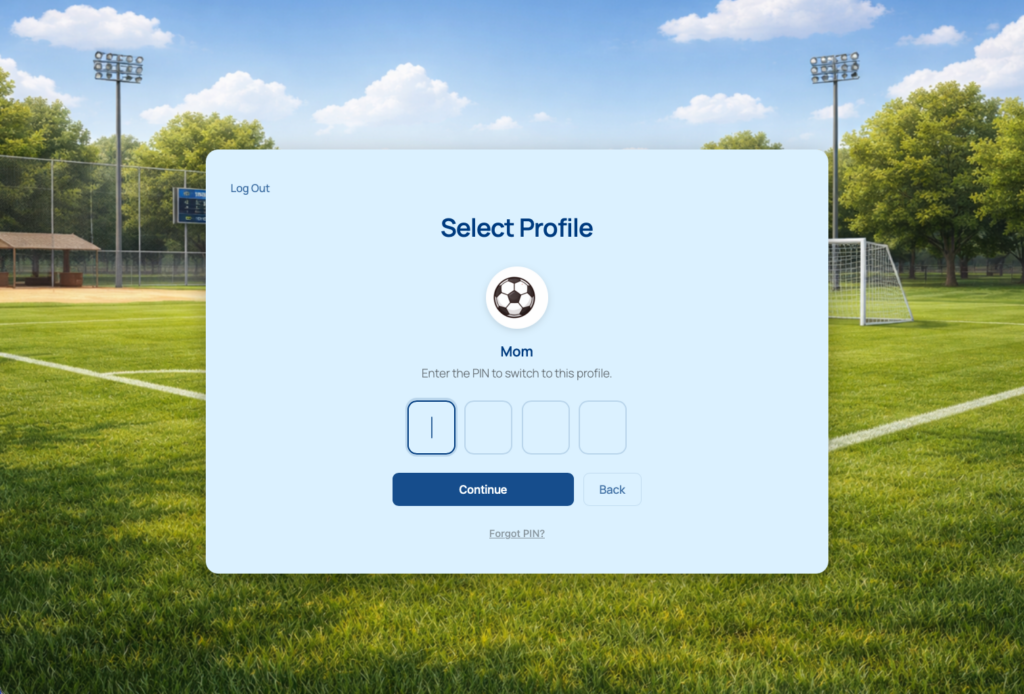
Because the family shares one login, Sarah doesn’t want her kids accidentally landing on her billing page or canceling subscriptions. ProfileSwitch’s PIN feature lets her set a 4-digit PIN on her own profile so kids can’t switch into it. Sarah’s PIN works as a master override — she can always switch into any child’s profile to help, manage their membership, or check on their activity, without remembering separate PINs per kid.
When both parents need access
If both parents want to manage the kids’ accounts without sharing one password, ProfileSwitch’s Profile Managers feature lets a second adult log in with their own credentials and access the same set of child profiles. Both parents can monitor activity, manage memberships, and switch into any kid’s profile independently — no password sharing, no extra MemberPress charge.
Side-by-side comparison
Corporate Accounts
- One bulk membership covers all members
- Email required for every sub-account
- Separate login per sub-account
- All sub-accounts share the same access tier
- Buyer can manage seats, cannot “become” a sub-account
- Lower revenue per family (one bulk price)
ProfileSwitch
- Each member has their own membership
- No email needed for kids
- One login for the whole family
- Each profile can be on a different tier
- Parent can switch into any child’s profile
- Higher revenue per family (per-member pricing)
Pick Corporate Accounts if your business model is “one membership, one bulk price, the whole household gets the same access” and your members are old enough to manage their own logins.
Pick ProfileSwitch if your business model is “the parent buys per-child memberships, possibly at different tiers” and you want a kid-friendly login experience for households where one adult is doing all the buying and managing.
Setting up ProfileSwitch on your MemberPress site
Adding ProfileSwitch to an existing MemberPress site is purely additive. Your MemberPress levels, access rules, payment gateway, and email flows all stay exactly as they are. ProfileSwitch sits on top, adding a profile layer above WordPress users.
- Install and activate ProfileSwitch from your WordPress dashboard, then enter your license key on the settings page
- Create the profile switcher page with one click from the settings page — this is where logged-in users land to pick a profile
- Upload preset avatars from the Avatars tab so kids can pick a recognizable face
- Customize the design from the Design tab so the profile picker matches your site’s brand
- Optionally set a global profile cap (default is 10 profiles per account) on the settings page
After setup, MemberPress works exactly the same as before. The only difference: when a parent buys a membership, ProfileSwitch makes it easy for them to switch profiles and buy another one for the next kid in the family without logging out.
Optional: want one shared “Netflix” membership across all profiles?
If your business model is closer to Netflix — one family-tier purchase that covers everyone — ProfileSwitch supports that pattern too, but on the Paid Memberships Pro integration rather than MemberPress. With PMPro, the parent’s membership is automatically shared with all child profiles, and you can configure per-level profile limits (“Family of 4,” “Family of 6”). For most MemberPress sites adding ProfileSwitch, the per-member purchase model above is the simpler and more lucrative path. The shared-membership pattern is there if you specifically want it.
Frequently asked questions
Does ProfileSwitch require any changes to MemberPress?
No. ProfileSwitch operates at the WordPress user level, so MemberPress sees each profile as a normal WordPress user. Your levels, rules, payment gateway, transactional emails, and reports work exactly as they do today. ProfileSwitch is purely additive — install it, activate it, and your existing MemberPress setup is untouched.
Can each child profile be on a different MemberPress level?
Yes. Each profile is a separate WordPress user, so each one has its own MemberPress membership state. The 7-year-old can be on your K-2 plan, the 10-year-old on your 3-5 plan, and the 13-year-old on your middle school plan — all under one family login. This is one of the main differences from Corporate Accounts, where every sub-account inherits the same membership as the buyer.
How does the parent pay for each child’s membership?
The parent switches to a child’s profile, goes to the membership signup page, and checks out as that profile. MemberPress records the purchase against that child’s user. The parent enters their card normally — your payment gateway just sees a card-on-file customer making a purchase. They can repeat for each kid in one session without logging out.
What about transactional emails and renewal notifications?
MemberPress sends emails to the email address on the user account. For child profiles, that’s the auto-generated plus-addressed email that points back to the parent’s inbox. So renewals, receipts, and access notifications all land with the parent — without you having to configure anything custom. The parent receives one email per child membership, all in one inbox.
Can the parent see what their kids are doing?
Yes. The parent can switch into any child’s profile in one click and see exactly what the child sees, with the access that child’s MemberPress membership grants. They can help with a lesson, check progress, or manage the kid’s account — without logging out, without typing a password. Corporate Accounts can’t do this; the buyer in that model never “becomes” a sub-account.
How many profiles can a family create?
You set a global maximum in ProfileSwitch settings (default is 10). For most households, the default is generous — a family of 4 with a couple of grandparents thrown in still fits. You can raise or lower the cap based on your audience.
Make your MemberPress site family-friendly
One login per family. A separate membership for every member. Set up in 5 minutes alongside your existing MemberPress install with a 14-day money-back guarantee.