
If you run a membership site with Paid Memberships Pro, you may have asked yourself: “Can my whole family use my membership?” Maybe it’s a parent enrolling their kids in online courses. Maybe it’s a couple sharing a fitness program. Maybe it’s a homeschool co-op where one parent pays and three kids need access.
PMPro has great tools for giving multiple people access to one membership — but families are a unique challenge. Kids don’t have their own email addresses. They share a device with their parents. And no parent wants to hand their child a tablet with full access to checkout, billing, and subscription management.
What families really need is the Netflix model — one login, multiple profiles, each with their own identity and data. The parent controls the account, and everyone else just picks their profile and uses the site.
ProfileSwitch adds exactly this to any PMPro membership site. One account holder pays for the membership, creates profiles for their family members, and everyone gets access — with separate course progress, separate identities, and separate data. Here’s how to set it up and how it works under the hood.
Why membership sites need family plans
Think about how your members actually use your site. A parent signs up for your online learning platform and wants all three of their kids to take courses. A couple joins your fitness membership and both want to track their own workouts. A team lead purchases access for their department and needs each person to have their own account.
Without a family plan, these customers have three bad options:
- Share one login. Everyone uses the same account. Course progress gets mixed together, quiz results overlap, and you have no idea who’s actually using the site. If you use BuddyPress or any community feature, everyone posts as the same person.
- Buy multiple memberships. Each family member gets their own account. This costs the customer two, three, or four times as much — and most will just leave instead of paying that. You lose the sale entirely.
- Don’t use your site. The customer decides it’s not worth the hassle and goes somewhere else. This is what usually happens.
A family plan solves all three problems. One membership, one payment, multiple profiles — each with their own identity and data. The account holder manages the billing, and everyone else just uses the site. It’s the same model that made Netflix, Spotify, and Disney+ the standard for shared subscriptions.
PMPro Group Accounts vs. ProfileSwitch: different tools for different needs
Before we dive in, it’s worth mentioning that PMPro already has a fantastic solution for shared memberships: the Group Accounts Add On. If you need to give multiple people access under one membership, Group Accounts is the official PMPro solution and it works great — especially for teams, businesses, and organizations where each member is an independent adult with their own email address and login.
With Group Accounts, a group leader purchases a membership and then invites members by email. Each member creates their own WordPress account, logs in with their own credentials, and manages their own profile. It’s ideal when everyone in the group is self-sufficient — they can sign in on their own, reset their own passwords, and don’t need anyone else to manage their access.
ProfileSwitch solves a different problem. It’s designed for families sharing a single device or account — where one person logs in and everyone else picks their profile from a selection screen, like Netflix. Children don’t need their own email addresses or passwords. Parents stay in control of everything. The experience is built around switching between profiles within one session, not managing separate logins.
Here’s a quick way to think about it:
Use PMPro Group Accounts when…
Each member has their own email, logs in independently, and manages their own account. Think corporate teams, professional associations, school staff, or any group of adults who each need their own separate login.
Use ProfileSwitch when…
A family shares one login on a shared device, children don’t have email addresses, and a parent needs to stay in control of everything — including who can access checkout, billing, and membership management. Think families with kids, homeschool households, or any situation where one person manages access for everyone else.
Both are great tools, but this post focuses on the family use case and how ProfileSwitch handles it.
How ProfileSwitch adds family plans to PMPro
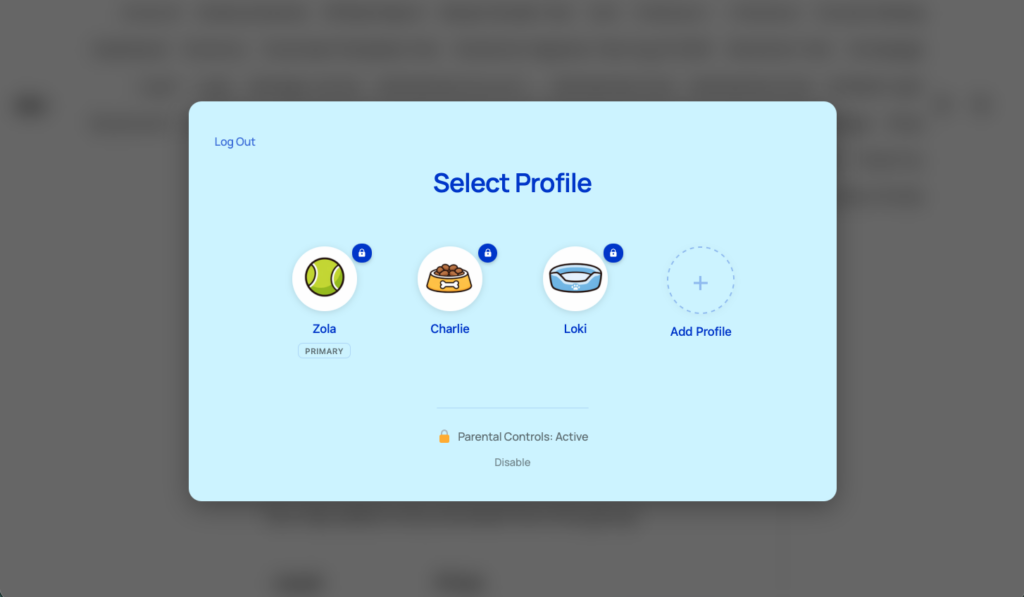
ProfileSwitch lets one WordPress account have multiple profiles — like a streaming service. One person logs in, and everyone in the family picks their own profile. Each profile is a real WordPress user, so plugins like PMPro, LearnDash, WooCommerce, and BuddyPress treat each one as a distinct person with their own data.
The PMPro integration takes this a step further. When enabled, the primary profile’s membership level is automatically shared with every sub-profile in the account. The parent pays for one membership, and the whole family gets access to your restricted content — each with their own course progress, community profile, and activity history.
At the same time, sub-profiles are automatically blocked from managing the membership itself. They can’t check out for a new level, cancel the existing one, or change billing details. Only the primary account holder (and any designated profile managers) can do that. So families get shared access without the risk of someone accidentally canceling or changing the plan.
Setting it up: step by step
Getting family plans working with PMPro takes about five minutes. Here’s the full setup.
1. Install ProfileSwitch and set up the basics
- Install and activate ProfileSwitch from your WordPress dashboard (setup guide)
- Enter your license key on the ProfileSwitch settings page
- Create the profile switcher page (one click from the General tab)
This gives you the core profile switching functionality. Your members can now create multiple profiles under their account. But the profiles don’t share membership access yet — that’s the next step.
2. Enable PMPro membership sharing
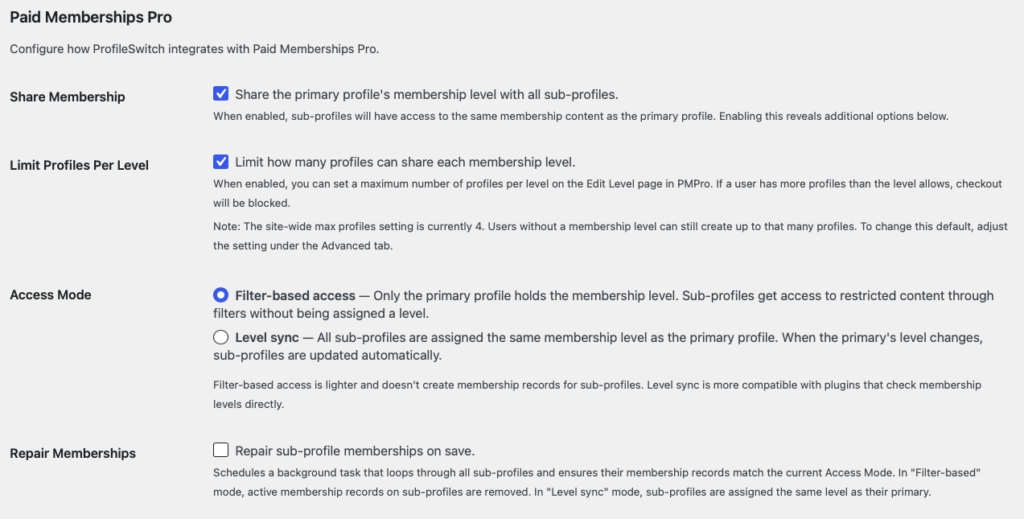
Go to the Integrations tab in ProfileSwitch settings. Under the Paid Memberships Pro section, check “Share the primary profile’s membership level with all sub-profiles.”
This is the master switch. Once enabled, three additional options appear:
- Per-level profile limits — Set different profile limits for different membership tiers
- Access mode — Choose how membership sharing works behind the scenes
- Repair memberships — A one-time tool to fix existing membership data
3. Choose your access mode
ProfileSwitch gives you two ways to share the membership. Both give sub-profiles access to the same restricted content — they differ in how that access is stored.
Filter-based (default)
Only the primary profile holds the membership level in the database. When PMPro checks whether a sub-profile has access, ProfileSwitch intercepts the check and returns the primary’s membership instead. This is the lighter option — no duplicate membership records are created, and the database stays clean. It works well for most setups where your site relies on PMPro’s built-in content restriction.
Level sync
Every sub-profile is assigned the same membership level as the primary in the database. When the primary’s level changes — upgrade, downgrade, cancellation — all sub-profiles are automatically updated to match. This is the more compatible option. Use it if you have third-party plugins that check membership levels directly in the database instead of going through PMPro’s functions.
If you’re not sure which to pick, start with filter-based. It’s the default, it’s lighter on your database, and it works with PMPro’s native content restriction out of the box. You can switch to level sync later if you run into compatibility issues with another plugin — ProfileSwitch includes a repair tool to migrate your data when switching modes.
Creating tiered family plans with per-level profile limits
This is where it gets interesting. ProfileSwitch doesn’t just give you a flat “family plan” — it lets you create tiered plans where different membership levels allow different numbers of profiles. This is the same pricing model that Spotify, YouTube Premium, and other subscription services use: pay more, get more seats.
Here’s an example of how you might structure your membership levels:
Individual — $10/month — 1 profile
Single user, no profile switching. The account holder is the only person on the account.
Family — $20/month — 5 profiles
One account holder plus up to four family members. Each person gets their own profile with separate progress and data.
Team — $50/month — 20 profiles
For organizations, co-ops, or larger groups. One account holder manages the membership, and up to nineteen others get their own profiles.
To set this up, enable “Limit how many profiles can share each membership level” in the ProfileSwitch settings. Then go to each membership level in PMPro (under Memberships > Settings > Levels) and set the max number of profiles for that level.
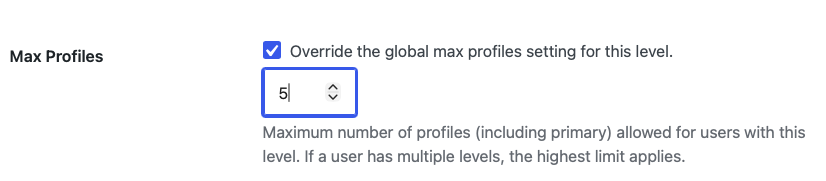
The limits are enforced automatically. If someone on the Individual plan tries to add a second profile, they’ll see a message explaining they need to upgrade. If someone on the Family plan tries to check out for the Individual level, they’ll be blocked if they already have more profiles than that level allows. The messaging is clear — it tells them exactly how many profiles they have and what the level permits.
If a member holds multiple levels, ProfileSwitch uses the highest limit across all of them. So a member with both a Family level (5 profiles) and a Team add-on (20 profiles) would get the 20-profile limit. Any levels without an override fall back to your site-wide maximum.
What sub-profiles can and can’t do
When membership sharing is enabled, sub-profiles get full access to all of the primary’s membership content. They can read restricted posts, take courses, participate in the community — everything the membership grants. But they can’t touch the membership itself.
Here’s specifically what sub-profiles are blocked from:
- Checkout page — Can’t purchase a new membership level or change the existing one
- Billing page — Can’t view or update payment methods
- Cancel page — Can’t cancel the membership
- Levels page — Can’t browse or compare membership tiers
- Member action links — The renew, cancel, update billing, and change level links are hidden from the account page
If a sub-profile tries to visit any of these pages directly (by typing the URL, for example), they’re redirected to the PMPro account page with a message explaining that membership management is handled by the primary profile.
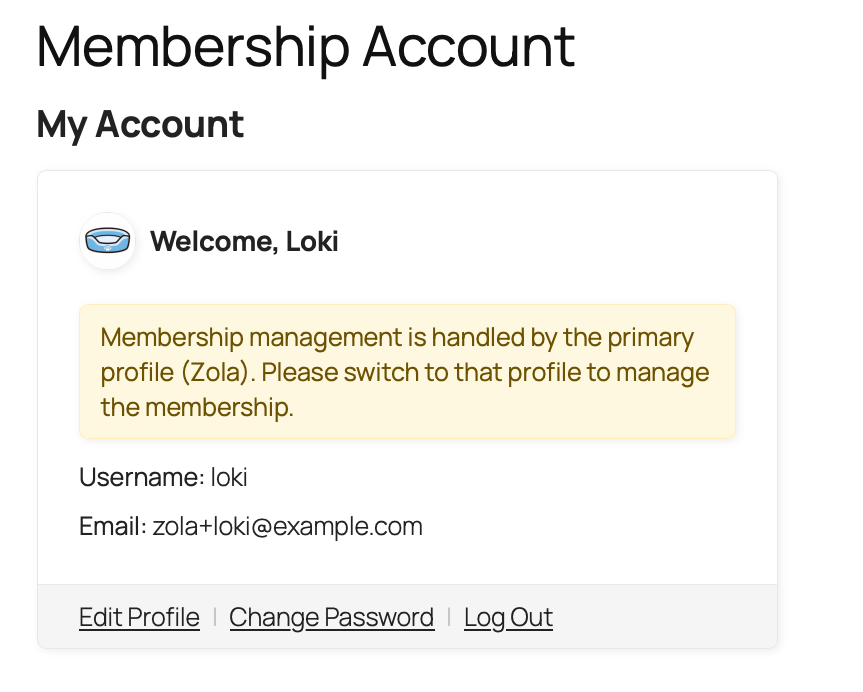
This all happens automatically when you enable membership sharing. There’s no separate toggle or per-page configuration required — ProfileSwitch knows which PMPro pages handle billing and membership management and blocks them for sub-profiles out of the box.
What happens when the membership changes
One of the most important questions with shared memberships is: what happens when the primary upgrades, downgrades, or cancels? ProfileSwitch handles each scenario automatically, depending on your access mode.
In filter-based mode
Changes are instant and automatic. Since sub-profiles don’t hold their own membership levels, they always inherit whatever the primary has right now. If the primary upgrades from Silver to Gold, every sub-profile immediately has Gold access. If the primary cancels, every sub-profile immediately loses access. There’s nothing to sync — the filter always looks up the primary’s current level in real time.
In level-sync mode
ProfileSwitch watches for membership level changes on the primary profile. When a change is detected — upgrade, downgrade, cancellation, or new purchase — it automatically updates every sub-profile’s membership to match. Sub-profiles gain any new levels the primary has and lose any levels the primary no longer holds. The same automatic sync runs when a new profile is added to the account or when a profile is removed.
Real-world example: a course site with family access
Let’s walk through a concrete example. Say you run an online learning platform for kids with PMPro and LearnDash. You have two membership levels:
- Individual — $15/month, 1 profile
- Family — $25/month, 5 profiles
A parent visits your site and purchases the Family membership. Here’s what happens next:
- After login, the profile switcher appears. The parent sees their own profile and an “Add Profile” button.
- The parent creates profiles for each child — “Emma,” “Jack,” and “Sophie.” Each one picks an avatar from the preset options you’ve uploaded. No email addresses or passwords needed.
- Each child’s profile automatically has the Family membership level. They can access all the courses and content that the membership includes.
- Each child tracks their own course progress. Emma might be on Lesson 5 of the math course while Jack is on Lesson 12. Their quiz scores, completion status, and certificates are all separate.
- No child can touch the membership. If Emma clicks a link to the checkout page or the membership management page, she’s redirected with a message that the parent manages the membership.
- The parent sets up the other parent as a profile manager. Now both parents can manage the membership, view all the kids’ order history, and bypass any PINs or parental controls.
From the parent’s perspective, they’re paying $25 instead of $60 (four individual memberships), and every child has their own identity on the site. From your perspective, you’re making a higher-value sale ($25 vs. $15) and retaining a customer who would have left if they had to pay for four separate accounts.
Which types of membership sites benefit most?
Family plans work on any PMPro membership site, but some types of sites see the biggest impact:
Online learning and course platforms
Parents buy one membership and enroll all their kids. Each child has their own course progress, quiz scores, and completion certificates. Works with LearnDash, LifterLMS, Tutor LMS, or any LMS that uses WordPress user data. Homeschool families are a particularly strong audience — one parent often teaches multiple children across different grade levels.
Youth sports and recreation organizations
A parent registers the family and creates profiles for each child on the team. Coaches or program directors can see each participant individually. The parent manages the membership and payments, while each child has their own schedule, roster spot, and activity history.
Membership communities and content libraries
Sites that offer premium content, forums, or community features behind a membership wall. Each family member gets their own community identity and can post, comment, and interact independently. If you use BuddyPress or BuddyBoss, each profile has its own avatar and profile fields.
More than just membership sharing
The PMPro integration is one piece of ProfileSwitch’s shared account system. When you install ProfileSwitch, your family customers also get:
- One login for the whole family. No juggling passwords or email addresses. The account holder logs in once and switches between profiles with a single click.
- Preset avatars for a streaming-service feel. Upload avatar images and let each profile pick their own — the same Netflix-style experience your customers already know.
- PIN protection and parental controls. Lock sensitive pages behind a PIN so children can’t access checkout, payment settings, or anything else you want to restrict.
- Consolidated order management. If you use WooCommerce, the parent sees every order across all profiles from their account page.
- BuddyPress and BuddyBoss integration. Each profile gets its own community identity with separate profile fields and avatars.
- Custom credentials for managers. Give a co-parent or team lead their own email and password so they can log in independently without sharing the primary’s credentials.
Frequently asked questions
Does the whole family really share one Paid Memberships Pro membership?
Yes. When membership sharing is enabled in the ProfileSwitch Integrations tab, the primary profile’s membership level is extended to every sub-profile on the account. The parent pays once, and each family member gets their own profile with their own course progress, community identity, and activity history.
Can a child profile cancel or change the membership?
No. Sub-profiles are blocked from the PMPro checkout, cancel, and billing pages automatically. Only the primary account holder and any profiles they have promoted to profile manager can change the membership. If you also enable PIN-protected pages, you can lock down any other page you choose.
Should I use filter-based mode or level sync?
Start with filter-based. It keeps the membership record on the primary profile only and answers PMPro’s access checks on behalf of the sub-profiles, so your database stays clean. Switch to level sync only if a third-party plugin reads membership levels directly from the database instead of going through PMPro’s functions. The repair tool migrates existing accounts when you change modes.
Can different membership levels allow different numbers of profiles?
Yes. Turn on per-level profile limits and set a maximum for each level. That lets you sell an individual tier with one profile, a family tier with five, and a larger tier with more, using the same pay-more-get-more-seats model that streaming services use.
What happens to the sub-profiles when the parent’s membership expires?
In filter-based mode they lose access the moment the primary profile does, because their access was always derived from the primary’s level. In level sync mode ProfileSwitch removes the matching level from each sub-profile when the primary’s level changes or is cancelled. Either way, the profiles themselves stay intact, so access returns as soon as the membership is renewed.
Is this different from the Paid Memberships Pro Group Accounts Add On?
Yes, and the two can coexist. Group Accounts is built for groups of adults who each have their own email address and log in independently, such as a company or association. ProfileSwitch is built for a household that shares one login and one device, where children have no email address and a parent needs to stay in control.
Family plans for your PMPro membership site
Let members share one membership across their whole family — each with their own profile, their own progress, and their own identity. Works with Paid Memberships Pro out of the box with a 14-day money-back guarantee.