
Profile PINs and Parental Controls are two related features that work together. PINs can be used standalone; Parental Controls require PINs to be enabled. Both are configured under ProfileSwitch → PINs & Parental Controls.
Profile PINs
Enable “Profile PINs” to let any profile set a PIN that must be entered before switching to that profile.
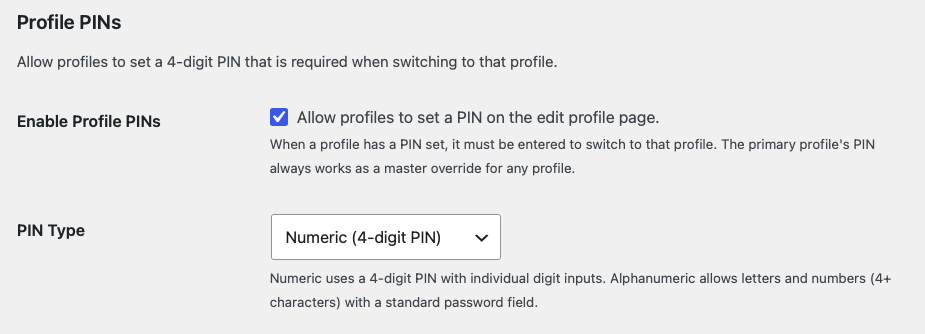
PIN types
- Numeric (default) — A 4-digit PIN entered via a keypad that auto-advances and auto-submits.
- Alphanumeric — A password-style field that accepts 4 or more characters.
Setting a PIN
Users set or change their PIN from the edit profile page on the profile switcher. Profiles with a PIN show a lock icon on the switcher.
Master PIN
The primary profile’s PIN works as a master override — it can unlock any sub-profile in the account. If Profile Managers are enabled, a manager’s PIN also works as an override for all sub-profiles.
Forgot PIN
A “Forgot PIN?” link appears on all PIN prompts. It sends a one-time reset link to the primary profile’s email address. The link expires after 1 hour and resets only that specific profile’s PIN.
Rate limiting
After 5 failed PIN attempts, the account is locked out for 1 minute. Both values are filterable — see Hooks & Filters.
Security
PINs are hashed using wp_hash_password and verified with wp_check_password — the same functions WordPress uses for login passwords. PINs are never stored in plain text.
Parental Controls
Parental Controls build on top of PINs. They must be enabled in two places: by the admin in settings (to make the feature available) and by the primary profile on the switcher page (to activate it for their account).
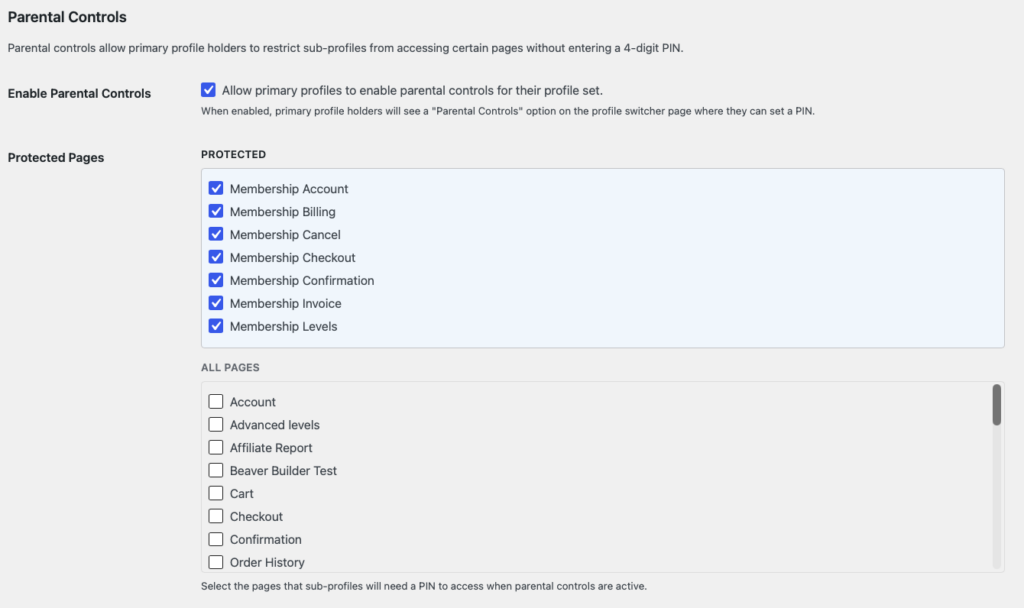
Admin setup
- Enable “Profile PINs” (required).
- Enable “Parental Controls”.
- Select which pages should be protected. Sub-profiles will need to enter a PIN to access these pages.
User experience
Once a primary profile enables parental controls for their account:
- Profile selection is required after login — users must choose a profile before they can browse the site.
- Protected pages show a PIN gate — sub-profiles see a full-page PIN form when visiting protected pages. Primary profiles and managers bypass this automatically.
- “Back to Site” becomes “Log Out” on the switcher page when PINs or parental controls are active.
- Adding a new profile requires the primary PIN when parental controls are active.
How primary profiles enable it
On the profile switcher page, primary profiles and managers see a toggle to enable or disable parental controls. They must have a PIN set first and will be asked to enter it to confirm the change.
Profile Managers
The Profile Managers setting is also on this tab. When enabled, primary profiles can designate other profiles in their account as managers. Managers have the same elevated access as the primary profile:
- Protected pages — Managers bypass the PIN gate on pages protected by parental controls.
- PIN overrides — A manager’s PIN works as a master override for all sub-profiles.
- WooCommerce orders — Managers can view and manage orders from all sub-profiles.
- Parental controls — Managers can enable or disable parental controls for the account.
Primary profiles assign managers from the account management panel on the profile switcher page. In the WordPress admin, managers show a “manager” badge on their profile card.